Create a Webhook
Create webhooks to receive alerts from any monitoring system or custom application.
Before you begin
Before creating a webhook, decide which approach fits your use case:
- Use a webhook template: If you integrate with a popular tool (Datadog, PagerDuty, Prometheus, and others), use a pre-configured template with field mappings already set up. Go to Browse Webhook Templates to view available templates.
- Create a custom webhook: If you integrate with a custom application, internal tool, or a system without a template, follow the steps below to create a custom webhook with manual field mapping.
Create a webhook integration
Step 1: Navigate to integrations
Open the webhook creation dialog:
- Navigate to Integrations in the left sidebar.
- Click New Integration to open the webhook creation dialog.
Step 2: Configure basic details
Provide the webhook name, description, and type:
- Enter a name for the webhook integration (for example, "Production Datadog Alerts" or "Custom Monitoring").
- Add a description (optional) to document the purpose of this webhook.
- Select the integration type:
- Alert: For monitoring, alerting, and CI/CD notifications (most common).
- Incident: For incident management systems with bidirectional sync (Jira, ServiceNow).
- Build: For CI build notifications.
- Deployment: For deployment event processing.
Step 3: Select a template (optional)
If you integrate with a supported tool:
- Click Select Template to browse available templates.
- Select from Monitoring & Observability, CI/CD & Development, Cloud Platforms, or ITSM & Ticketing.
- Select the template for your tool (for example, Datadog, PagerDuty, or GitHub).
If you create a custom webhook, skip this step and proceed with no template selected.
Step 4: Save the initial configuration
Click Save to generate the webhook endpoint. The system:
- Creates a unique webhook URL.
- Generates a unique email address (optional trigger method).
- Opens the advanced configuration interface.
Configure webhook endpoints
After saving, you will see two methods to trigger alerts.
Webhook URL (recommended)
Copy the webhook URL displayed on the configuration page:
https://app.harness.io/gateway/ir/tp/account/{account-id}/api/v1/mc/webhook/{webhook-id}
Use this URL when configuring your external monitoring tool to send HTTP POST requests.
Email address (alternative)
Copy the email address displayed on the configuration page:
webhook-id@prod2.alerts.harness.io
Use this address when configuring legacy systems that only support email notifications. Emails sent to this address are parsed to extract alert information.
Go to Set Up External Systems for detailed guides on configuring specific tools to send webhooks.
Configure payload extraction
Payload extraction pulls data from incoming webhook payloads and maps it to alert properties in Harness AI SRE.
Step 1: Review pre-configured fields
If you selected a template, the payload configuration appears pre-filled with:
- Standard fields for the selected tool
- Example payload structure showing the expected data format
- Field paths using JSONPath notation
If you create a custom webhook, the payload configuration is empty.
Step 2: Add payload fields
Select which fields to extract from incoming webhook payloads:
- Review the right panel showing available fields.
- Select the checkbox next to each field you want to extract.
- Selected fields appear in the extracted fields list.
For nested fields, use dot notation:
alert.severity: extracts severity from the nested alert object.incident.details.title: extracts the title from a deeply nested structure.
Step 3: Add custom fields
To extract fields not in the template:
- Click Add Field in the payload configuration section.
- Enter the field name (for example,
custom_severity). - Enter the JSONPath to extract the field (for example,
$.alert.custom_severity). - Click Save to add the custom field to the extraction list.
Step 4: View the JSON payload
Click the JSON toggle to see the complete payload structure:
- Review the formatted JSON structure.
- Verify field paths match your expected webhook data.
- Use this format as reference when configuring the sending system.
Map fields to alert properties
After extracting fields from the webhook payload, map them to alert properties in Harness AI SRE.
Step 1: Open the Mapped Fields section
Navigate to the Mapped Fields section to configure how extracted data populates alert properties.
Step 2: Map default fields
Map extracted fields to standard alert properties:
- Drag extracted fields from the left panel to the field value boxes.
- Use the data picker to select field mappings.
- Configure field relationships between webhook data and alert properties.
Common field mappings:
| Alert property | Webhook field example | Description |
|---|---|---|
| Title | {{webhook.alert_name}} | Alert title or summary |
| Description | {{webhook.message}} | Detailed alert description |
| Severity | {{webhook.severity}} | Alert severity level |
| Service | {{webhook.service_name}} | Affected service or application |
| Environment | {{webhook.environment}} | Environment (production, staging, and others) |
Step 3: Use Mustache templates
Reference webhook fields using Mustache template syntax:
{{webhook.field_name}}
Examples:
- Simple field reference:
{{webhook.severity}} - Nested field:
{{webhook.alert.details.message}} - Concatenate fields:
{{webhook.service}}: {{webhook.alert_name}}
Go to Use Mustache in Webhooks for complete mapping examples and patterns.
Step 4: Add advanced CEL expressions
For complex field transformations, use CEL expressions.
Extract with regex:
regex.extract(webhook.message, r"error_code: (\d+)")
Provide default values:
webhook.severity.orValue("medium")
Conditional mapping:
webhook.priority == "P1" ? "critical" : webhook.priority == "P2" ? "high" : "medium"
Trim whitespace:
webhook.service_name.trim()
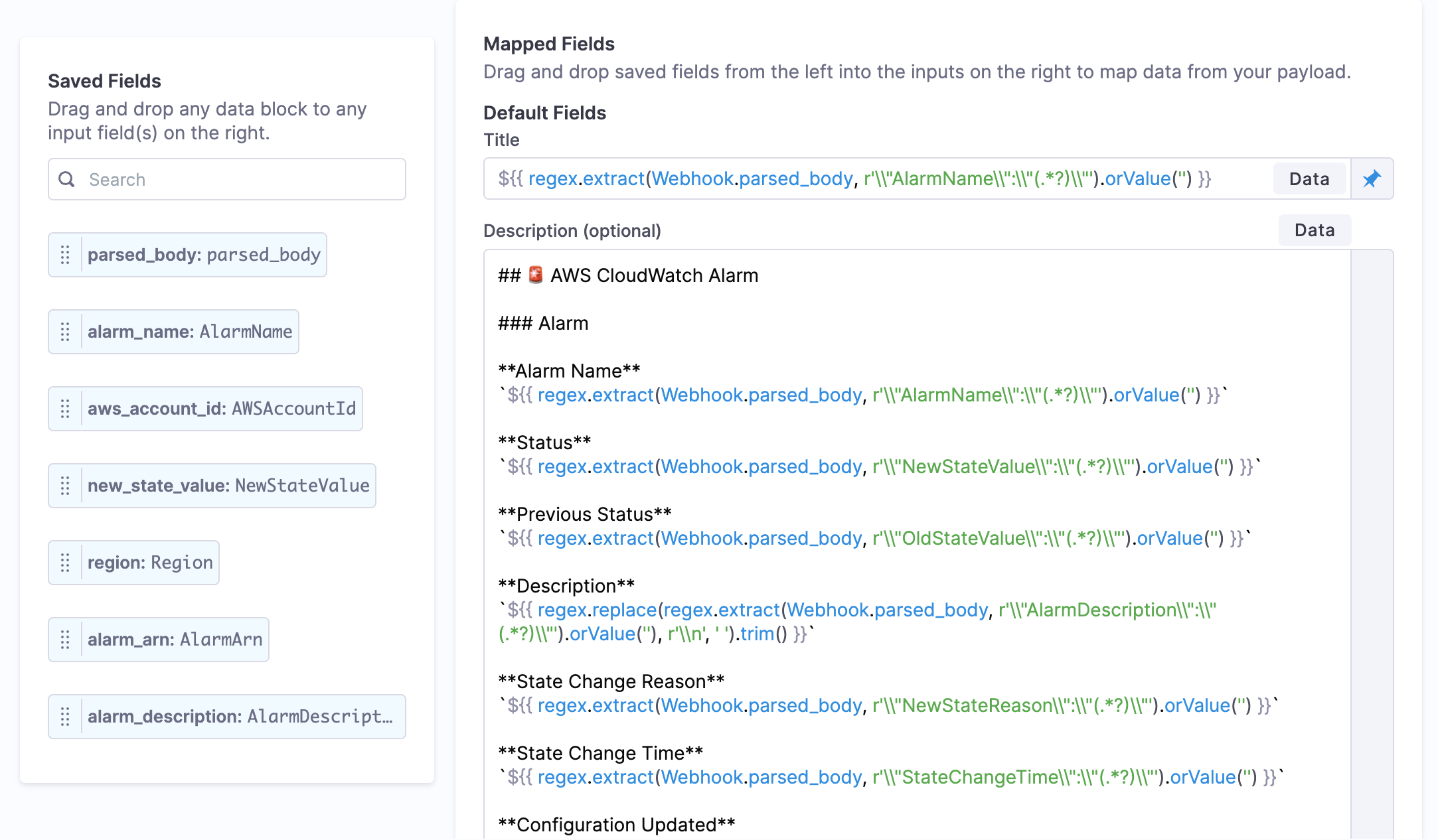
Go to Use CEL in Webhooks for detailed filtering examples and patterns.
Step 5: Add custom mapped fields
To create custom alert properties:
- Click Add Field in the mapped fields section.
- Configure the custom field:
- Name: Field name (for example,
incident_id). - Description: Field purpose (optional).
- Type: Data type (string, number, boolean).
- Default Value: Fallback value if the field is missing.
- Name: Field name (for example,
- Click Save to add the custom field.
- Map webhook data to the custom field using Mustache or CEL.
Configure advanced mapping conditions (optional)
Add CEL expression conditions to filter webhook payloads before creating alerts.
When to use conditions
Use advanced mapping conditions when you need:
- Payload-based routing: Only create alerts for specific payload content.
- Priority filtering: Only create alerts for high-priority events.
- Service filtering: Only process webhooks for specific services.
- Environment filtering: Only create alerts from production systems.
- Complex conditions: Combine multiple criteria with boolean logic.
Add filtering conditions
Filter which payloads create alerts with CEL expressions:
- Navigate to the Advanced Conditions section.
- Click Add Condition.
- Enter a CEL expression that evaluates to true or false.
- Webhooks matching the condition create alerts; others are discarded.
Example conditions:
// Only create alerts for production
webhook.environment == "production"

// High-priority alerts only
webhook.priority in ["P1", "P2"]

// Specific services
webhook.service.matches("^(payment|billing)-.*")

// Combined conditions
webhook.severity == "critical" && webhook.environment == "production"
Go to Use CEL in Webhooks for comprehensive filtering patterns.
Test the webhook
Verify your webhook configuration before deploying to production.
Step 1: Navigate to the Test tab
Select the Test tab from the top navigation in the webhook configuration interface.
Step 2: Copy the test command
Copy the sample cURL command provided in the test interface:
curl -X POST 'https://app.harness.io/gateway/ir/tp/account/{account-id}/api/v1/mc/webhook/{webhook-id}' \
-H 'Content-Type: application/json' \
-d '{
  "alert_name": "High CPU Usage",
  "severity": "critical",
  "service": "payment-api",
  "environment": "production",
  "message": "CPU usage exceeded 90% for 5 minutes",
  "timestamp": "2025-01-01T12:00:00Z"
}'
Step 3: Send the test request
Run the command to send a test webhook:
- Paste the cURL command into your terminal.
- Modify the payload to match your expected webhook structure.
- Run the command to send a test webhook.
- Verify the response indicates successful processing.
Step 4: Verify alert creation
Confirm the test webhook produced a correctly mapped alert:
- Navigate to Alerts in Harness AI SRE.
- Verify a new alert was created from the test webhook.
- Check that field mappings populated correctly:
- Alert title matches the expected value.
- Severity, service, and environment are correct.
- Custom fields contain the expected data.
Step 5: Test with email (optional)
To test the email trigger method:
- Send a test email to the webhook email address.
- Use a descriptive subject line (maps to the alert title).
- Include relevant details in the email body.
- Verify an alert is created from the email.
Best practices
Webhook security
Protect webhook URLs:
- Keep webhook URLs confidential
- Do not commit webhook URLs to version control
- Use environment variables to store webhook URLs in applications
- Rotate webhook URLs periodically if compromised
Monitor webhook usage:
- Review webhook processing logs regularly
- Set up alerts for webhook processing failures
- Track webhook volume and patterns
- Investigate unexpected webhook traffic
Use quiet mode:
- Enable Quiet Mode during maintenance windows
- Prevent alert creation during known maintenance
- Re-enable after maintenance completes
Payload design
When designing webhook payloads from custom applications:
Include essential context:
- Alert or event name and title
- Severity or priority level
- Affected service or application
- Environment (production, staging, development)
- Timestamp (ISO 8601 format recommended)
- Correlation or incident ID
Use consistent field names:
- Standardize field names across all webhooks
- Use snake_case or camelCase consistently
- Avoid special characters in field names
- Document field meanings and expected values
Timestamps:
- Always include timestamps
- Use UTC timezone
- Use ISO 8601 format:
2025-01-01T12:00:00Z - Include timezone offset if not UTC
Keep payloads concise:
- Include only necessary data
- Avoid deeply nested structures when possible
- Use arrays for repeating data
- Limit payload size to improve processing speed
Field mapping guidance
Map essential fields:
- Always map title, severity, and description
- Map service and environment when available
- Map timestamps for accurate alert timing
- Map correlation IDs for alert grouping
Use default values:
- Provide fallback values for optional fields
- Use
.orValue()in CEL expressions - Set sensible defaults in custom field configuration
- Handle missing fields gracefully
Test with real payloads:
- Use actual webhook data from your monitoring tools
- Test with various payload variations
- Verify nested field extraction works correctly
- Test array handling if applicable
Error handling guidance
Handle missing fields:
- Use CEL
.orValue()for optional fields - Provide default values in field configuration
- Document which fields are required and which are optional
- Test with minimal payloads
Validate payload format:
- Ensure the webhook sends valid JSON
- Check for required Content-Type headers
- Verify the payload structure matches the mapping
- Test with malformed payloads
Monitor webhook health:
- Set up alerts for webhook processing failures
- Review error logs regularly
- Track success and failure rates
- Investigate patterns in failures
Finalize configuration
Step 1: Review the configuration
Before finalizing:
- Verify all required fields are mapped.
- Test the webhook with sample payloads.
- Confirm alerts are created correctly.
- Review advanced conditions if configured.
Step 2: Save the configuration
Activate the webhook so it can receive data:
- Click Save to finalize the webhook configuration.
- The webhook is now active and ready to receive data.
Step 3: Configure the external system
With your webhook URL ready:
- Navigate to your external monitoring tool, CI/CD system, or application.
- Configure it to send webhooks to the Harness webhook URL.
- Select which events should trigger webhooks.
- Test the integration end-to-end.
Go to Set Up External Systems for provider-specific configuration guides covering:
- Datadog webhook configuration
- PagerDuty webhook setup
- GitHub webhook configuration
- And 20+ more tools
Troubleshooting
Webhook not receiving data in Harness AI SRE
Confirm the webhook URL is exactly as provided with no extra spaces or characters, verify the integration is enabled and not in Quiet Mode, and check that the external system can reach Harness endpoints through your firewall and network policies.
Webhook field mapping produces missing or incorrect alert values
Verify field paths and JSONPath expressions match the webhook payload structure, confirm Mustache and CEL syntax, and test with actual payloads. Convert data types with CEL and provide default values for optional fields.
Alerts not created from a webhook despite successful delivery
Review CEL filtering conditions to confirm they evaluate to true for your payloads, check whether Quiet Mode is enabled, and review the webhook processing logs for validation, extraction, or parsing errors.
Next steps
Configure alert routing:
- Route Alerts: Route and process incoming alerts based on service, severity, or custom fields.
Set up external systems:
- Set Up External Systems: Configure Datadog, PagerDuty, Splunk, and 20+ other tools to send webhooks to Harness.
Advanced webhook features:
- Use CEL in Webhooks: Filter webhook payloads with conditional logic and complex expressions.
- Use Mustache in Webhooks: Map webhook fields to alert properties with templates and transformations.
Browse templates:
- Browse Webhook Templates: View all available pre-configured templates for popular monitoring and CI/CD tools.