Dependency Firewall
This feature is behind the feature flag HAR_DEPENDENCY_FIREWALL. Contact Harness Support to enable it.
Dependency Firewall is a powerful security feature in Harness Artifact Registry that acts as a gatekeeper for your software supply chain. It works exclusively with upstream proxy registries to control whether artifact versions can be fetched from external sources by evaluating them against defined security policies.
To activate Dependency Firewall on a registry, complete two steps:
- Go to Configure Policies and Policy Sets to create OPA policies.
- Go to Configure Registry to enable Dependency Firewall on your upstream proxy.
The Dependency Firewall tab appears in all registries by default, but it only shows violations after you complete both steps above.
Supported registry types
Dependency Firewall works with non-OCI upstream proxy registry types. Harness plans to add support for OCI-compliant registry types (Docker, Helm OCI) in a future release. These types may appear as options in the dashboard filter but do not generate Dependency Firewall violations.
View supported registry types
- Maven
- npm
- PyPI
- NuGet
- Cargo
- Go
- RPM
- Composer
How Dependency Firewall works
When Dependency Firewall is enabled for an upstream proxy registry, every artifact version fetched from the external source is automatically evaluated against configured policy sets. Each policy in a policy set carries its own fail action (chosen when the policy set is authored) that decides what verdict the artifact receives if that policy fails:
- Error and exit: artifact verdict is Blocked.
- Warn & continue: artifact verdict is Warning.
Based on the evaluation results, the artifact version receives one of three statuses:
- Passed: The artifact version meets all policy requirements, is cached in the upstream proxy registry, and can be used without restrictions.
- Warning: At least one Warn & continue policy failed. By default, the artifact is still cached in the upstream proxy registry and can be used; the violation is shown on the Dependency Firewall dashboard. If the registry has Quarantine artifacts on 'Warn and Continue' fail criteria enabled, the artifact is quarantined instead and requires an exemption to consume.
- Blocked: At least one Error and exit policy failed. The artifact is not cached in the upstream proxy registry and cannot be used in deployments or any other operations. An exemption is required to consume it.
The per-policy Error and exit vs Warn & continue decision is made in the Policy Set wizard. Whether Warn & continue artifacts are also quarantined is decided per registry, in Enable Dependency Firewall on each upstream proxy.
- Blocked versions are never cached in your upstream proxy registry and are not available for download or use.
- If an artifact was already present in the registry and is later scanned and found to have blocking violations, it will show a Blocked status.
- Warning versions are cached and remain usable unless the registry has Quarantine artifacts on 'Warn and Continue' fail criteria enabled. In that case, they are held back the same way Blocked artifacts are.
- Passed versions are cached in the upstream proxy registry and can be viewed in the Artifacts page; they do not appear on the Dependency Firewall dashboard.
The Dependency Firewall dashboard
The Dependency Firewall dashboard provides a centralized view of all policy violations detected when fetching artifacts from external sources through upstream proxy registries.
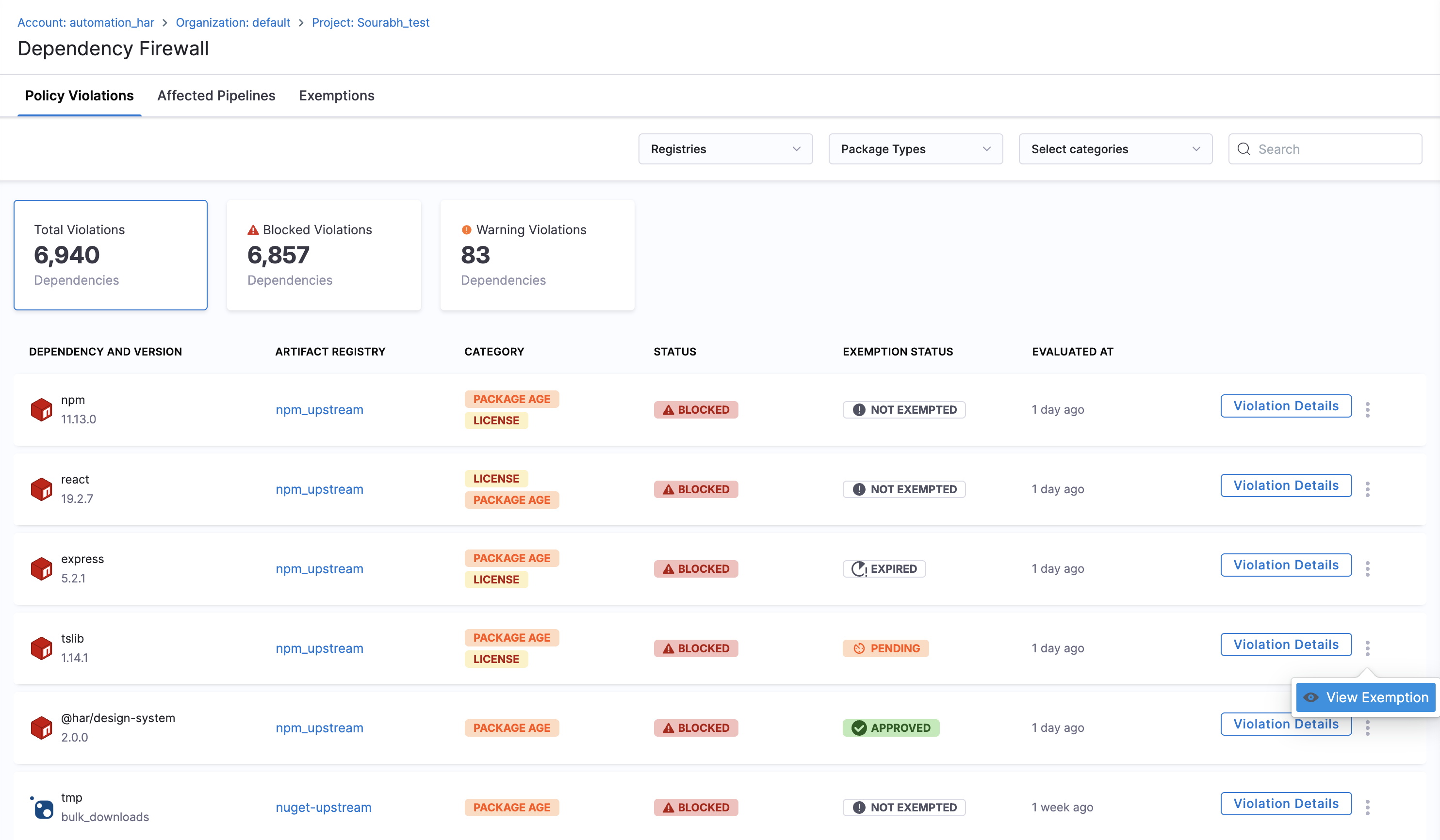
Violation summary
At the top of the dashboard, you find a summary of violations:
- Total Violations: Complete count of all policy violations (Warning + Blocked)
- Blocked Violations: Number of artifact versions that are blocked and not cached
- Warning Violations: Number of artifact versions with warnings that are still cached and usable
Filter and search violations
To help you quickly find specific violations, the dashboard provides multiple filtering options. You can filter by Registry Type to view violations for specific registry types (Docker, Maven, NPM, Helm, etc.), filter by Package Type, or use the Search function to find specific artifact names or versions.
Affected Pipelines
The Affected Pipelines tab shows which CI/CD pipelines use blocked dependencies. This data is populated when pipelines install packages using the Harness CLI wrappers (hc artifact npm install, hc artifact mvn install, hc artifact pip install, or hc artifact dotnet restore).
Go to Affected Pipelines to understand the tab, dependency tracking, and how to set up your pipelines.
To audit dependencies locally or in CI before deployment, use hc registry fw audit. Go to Audit dependencies with Dependency Firewall for manifest vs lock file scope, examples, and best practices.
View violation details
When you need to investigate why a specific artifact version was blocked or flagged with a warning, click on the dependency version in the dashboard. A Details sidebar opens on the right-hand side with two tabs: Violation Details and Evaluation Details.
Violation Details
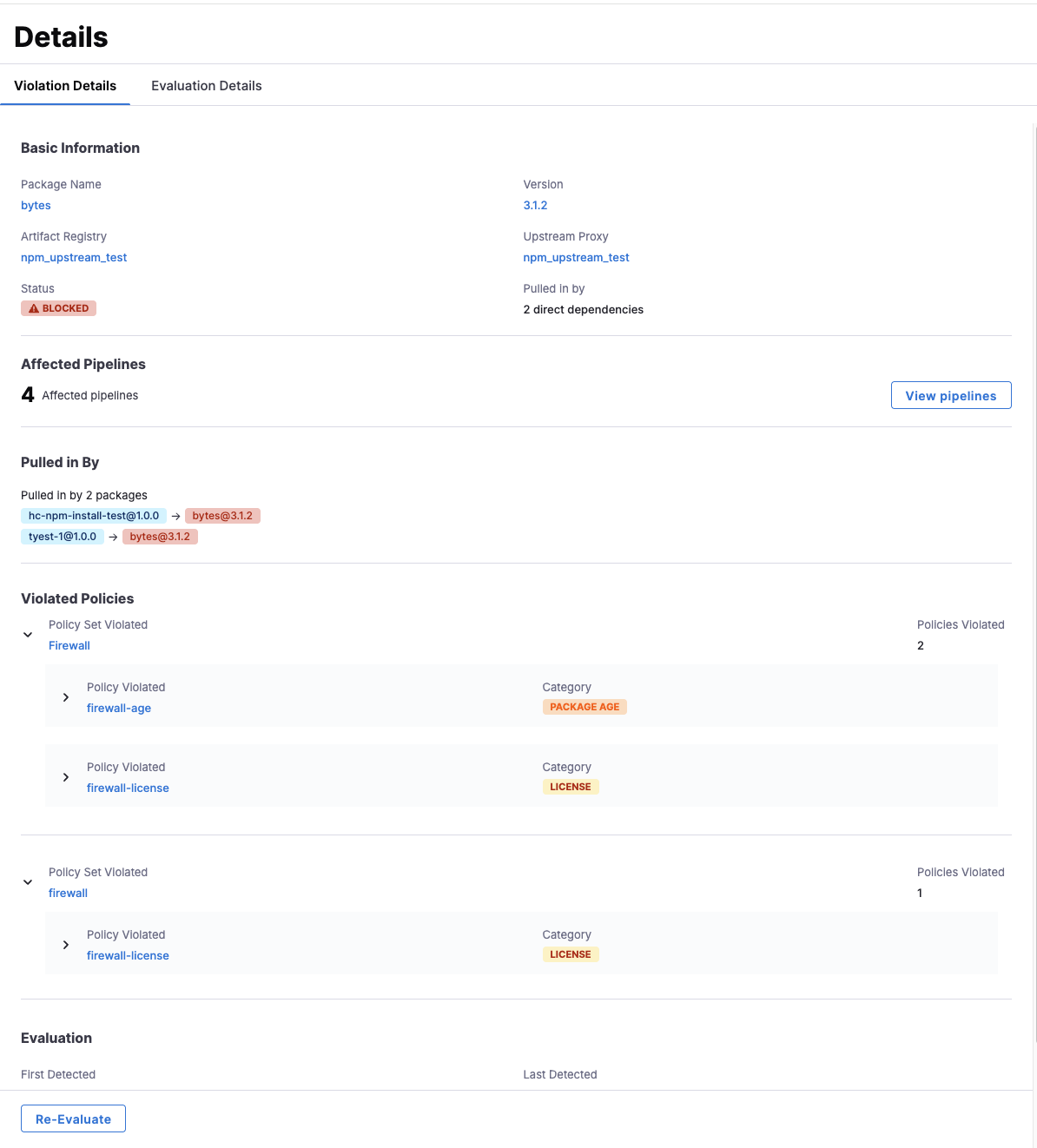
Basic Information
- Package Name: The artifact name (e.g., "bytes")
- Version: The specific version evaluated (e.g., "3.1.2")
- Artifact Registry: The upstream proxy registry name
- Upstream Proxy: The upstream proxy that fetched this package
- Status: Shows whether the version has a Warning or is Blocked
- Pulled in by: The number of direct dependencies that pull in this flagged package. This field is populated only when packages are installed using the Harness CLI.
Affected Pipelines
Shows how many pipelines are affected by this blocked dependency. Select View pipelines to see the full list of affected pipelines with their execution IDs, project, violation count, and categories. This field is populated only when packages are installed using the Harness CLI wrappers. Go to Affected Pipelines to set up dependency tracking.
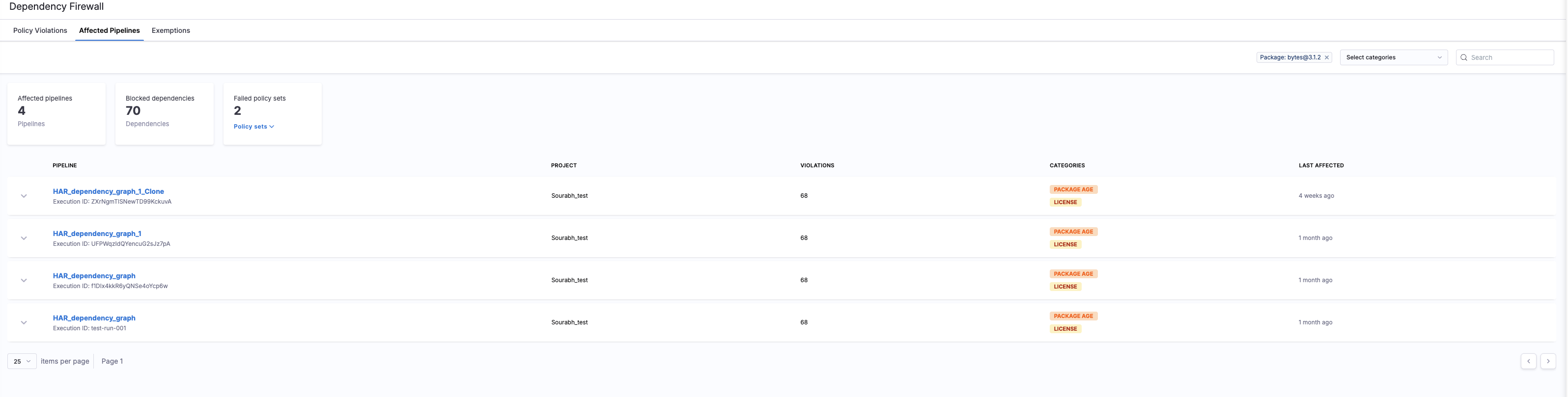
Pulled in By
Shows which root package is downloading the vulnerable package. Each entry displays the root package that depends on this blocked transitive dependency.
To populate this field, use hc artifact npm install (or the equivalent for your package type) in your pipeline. Go to Affected Pipelines to understand how root package tracking works.
Violated Policies
This section displays policy violations in a hierarchical structure. Each policy set that was violated is shown with:
- Policy Set Violated: The name of the policy set that failed (e.g., "Firewall")
- Policies Violated: The count of individual policies that failed within that policy set (e.g., 2)
Within each policy set, you can expand to see the individual policy violations:
- Policy Violated: The specific policy name (e.g., "firewall-license")
- Category: The policy category badge (SECURITY, PACKAGE AGE, LICENSE, etc.)
Multiple policy sets can fail for the same artifact version, and each is displayed separately with its own list of violated policies.
Evaluation
- First Detected: When the violation was first identified
- Last Detected: Most recent evaluation timestamp
Re-Evaluate Button
At the bottom of the sidebar, click Re-Evaluate to re-run the evaluation against all configured policy sets and see updated results in real-time. This is useful when policies have been updated, new security information is available, or you want to verify if a previously blocked version now passes.
Evaluation Details
Select the Evaluation Details tab to view deeper analysis of the flagged package.
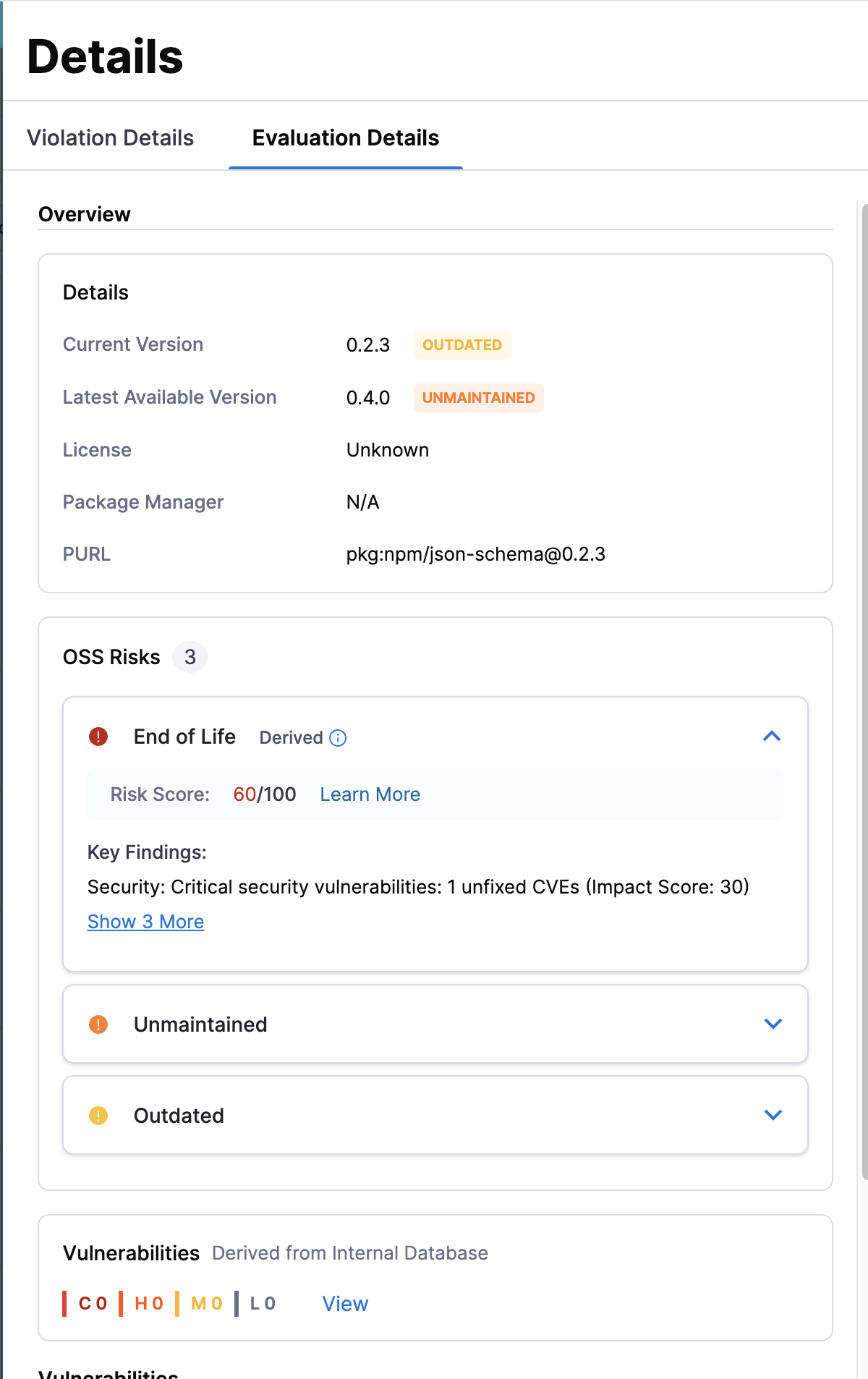
- Overview: Shows version details (current version, latest available version), license, package manager, and PURL.
- OSS Risks: Displays risk indicators such as End of Life, Unmaintained, and Outdated statuses with a risk score (out of 100) and key findings including security vulnerabilities and impact scores.
- Vulnerabilities: Shows vulnerability counts by severity (Critical, High, Medium, Low) derived from the internal database.
Policies and policy sets
Dependency Firewall uses a hierarchical policy structure:
- Policy Sets: Collections of related security policies that are evaluated together
- Policies: Individual security rules within a policy set (e.g., vulnerability checks, license compliance, version restrictions)
When an artifact version is evaluated, it runs through all configured policy sets. If any policy within a policy set fails, the artifact version is marked as either Blocked or Warning depending on your firewall configuration.
Harness provides five built-in policy templates specifically for Dependency Firewall:
- CVSS Threshold: Block or warn on packages with known vulnerabilities above a severity threshold.
- License Policy: Enforce license compliance against an approved or blocked list.
- Package Age: Quarantine newly released versions during a configurable cooldown period.
- OSS Risk Level: Flag packages with poor maintenance, end-of-life status, or high aggregate risk scores.
- Malicious Package: Block packages intentionally designed to attack your supply chain, powered by a threat intelligence database that is automatically refreshed every 4 hours.
Go to Built-in Policy Templates for full details on each template, detection methodology, recommended configuration, and how to combine them. Go to Configure Policies and Policy Sets to create and enforce policy sets.
Dependency Firewall audit dashboard
Harness provides a dedicated Artifact Registry Dependency Firewall Dashboard in Harness Dashboards that records every blocked artifact event across your upstream proxy registries. Use it to track which packages were blocked, the requesting user and client IP, the block reason, and when the block occurred.
Dashboard navigation
- In the left navigation, go to Dashboards.
- In the top-left mode toggle, make sure you are in Standard mode.
- Search for Artifact Registry Dependency Firewall Dashboard. It is owned by
systemand tagged By Harness, Harness, and AR.
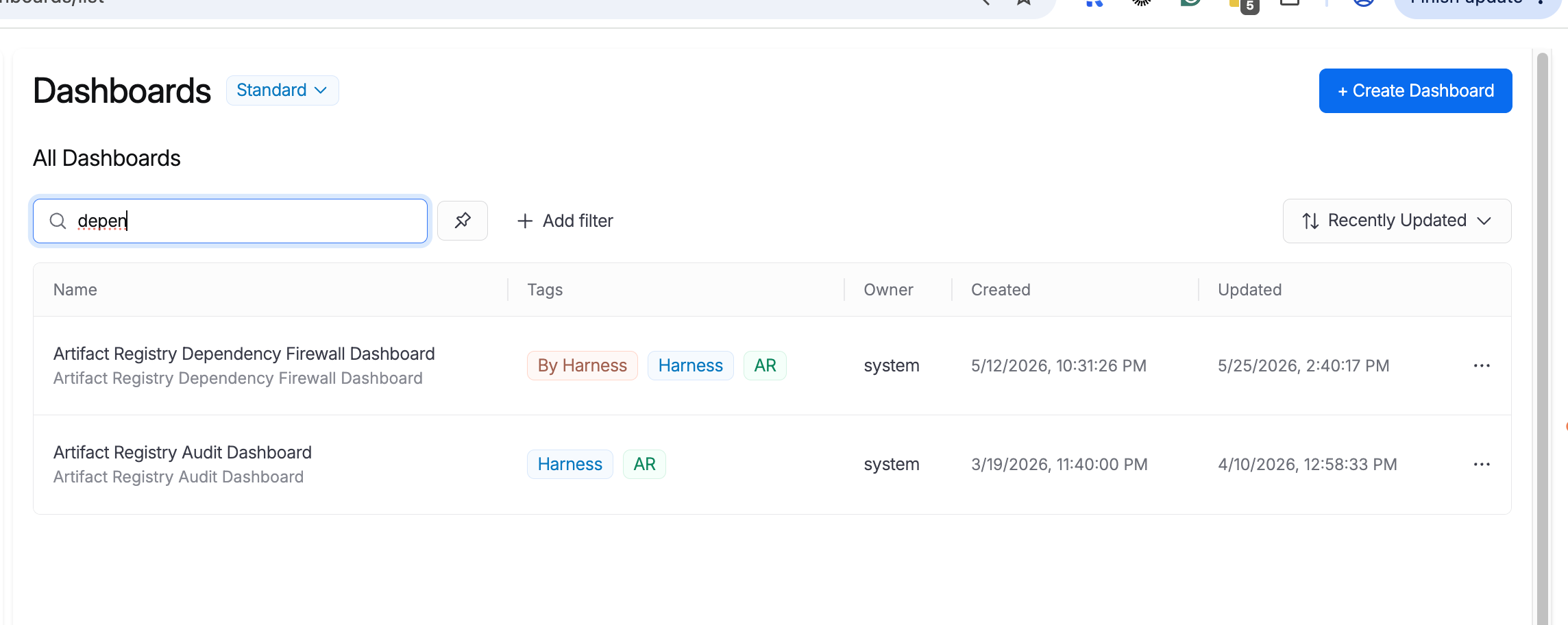
- Select the dashboard name to open it.
What the dashboard shows
The dashboard opens with a Time Range selector (defaults to Last 1 Month) and six filters: Organization Identifier, Project Identifier, Registry Name, Package Name, Version Name, and Package Type. Every widget reacts to these filters.
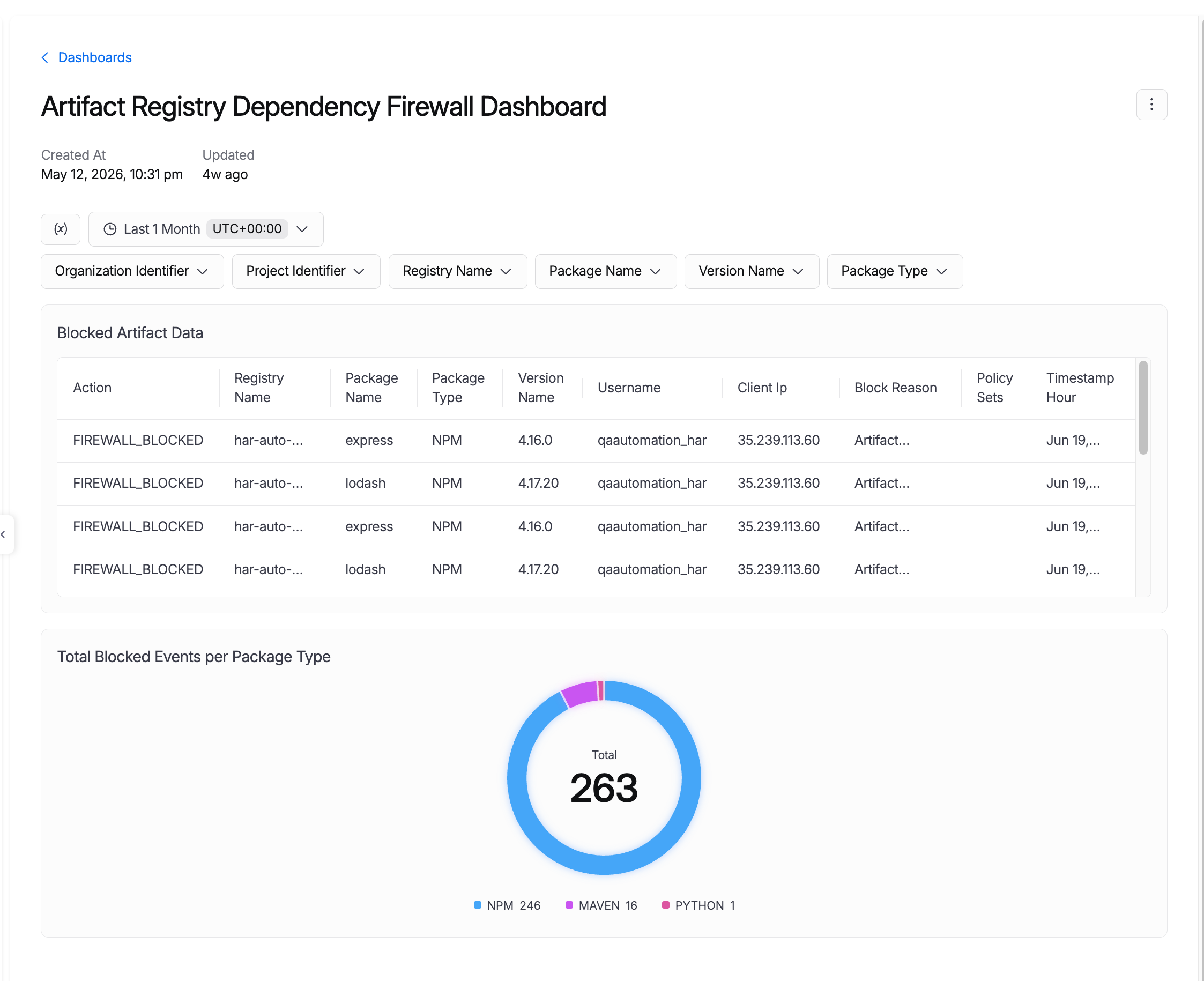
Two widgets make up the page:
| Widget | What it shows | Use it to |
|---|---|---|
| Blocked Artifact Data | A paginated table of FIREWALL_BLOCKED events: Action, Registry Name, Package Name, Package Type, Version Name, Username, Client IP, Block Reason, Policy Sets, and Timestamp Hour. | Trace exactly which packages were blocked, who attempted the pull, and which policy sets triggered the block. |
| Total Blocked Events per Package Type | A donut chart showing the total blocked event count broken down by package type (NPM, Maven, Python, etc.). | Identify which ecosystems generate the most firewall blocks. |
Go to Artifact Registry audit dashboard to learn about the separate upload and download audit dashboard.
Security best practices
Prevent vulnerable artifacts on first pull
Artifact scanning and policy evaluation happen asynchronously. When a new artifact is pulled from an upstream proxy for the first time, the pull completes immediately before scanning finishes. If the artifact is vulnerable, it is quarantined after that first pull already delivered it. Subsequent pulls are correctly blocked, but the first pull already succeeded.
To close this first-pull vulnerability window, use a staging-registry pattern:
- Create a staging upstream proxy registry for initial artifact pulls.
- Configure your pipelines or local development to pull new artifacts from the staging registry first.
- Scanning and policy evaluation run on the staging registry. Monitor the Dependency Firewall dashboard for evaluation results.
- Once artifacts show a Passed status on the Dependency Firewall dashboard, promote them to a production upstream proxy registry using Copy Version.
- Configure production users and pipelines to pull only from the production registry.
This pattern ensures that production environments never receive an artifact until after it has been scanned and passed all policy checks.
Go to Copy a version to promote artifacts from staging to production.
Harness is planning a registry-level setting to quarantine artifacts by default until scan completes. This will eliminate the first-pull vulnerability window without requiring a staging-registry pattern.
Troubleshooting
I enabled Dependency Firewall but no violations appear on the dashboard
Dependency Firewall evaluates packages only when they are fetched through the upstream proxy for the first time. If your packages are already cached, no new evaluation occurs. Try pulling a new package version that has not been cached yet. Also verify that at least one policy set with the Upstream Proxy entity type is enforced.
My pipeline gets a 403 error but I do not see the package in the Dependency Firewall dashboard
The 403 may come from an authentication issue rather than a firewall block. Verify that your token has read access to the upstream proxy registry. If authentication is correct and the package still does not appear in the dashboard, check that Dependency Firewall is enabled on the specific upstream proxy registry your pipeline is configured to use.
Does Dependency Firewall require an STO or SCS license?
No. Dependency Firewall is included with Harness Artifact Registry and does not require a separate STO (Security Testing Orchestration) or SCS (Supply Chain Security) license. It is a standalone feature available to all Artifact Registry users.
Can I run a Firewall Audit without a lock file?
Yes. Run hc registry fw audit --file package.json --registry <REGISTRY_NAME> to evaluate direct dependencies against your firewall policies. Harness evaluates the packages listed in package.json. Go to /docs/artifact-registry/artifact-registry-cli/manage-artifacts-registries#audit-dependencies-with-dependency-firewall for examples and scope details.
Can transitive dependencies be audited from package.json?
For transitive dependencies, pass a resolved lock file such as package-lock.json, yarn.lock, or pnpm-lock.yaml to --file. Generate one with npm install --package-lock-only (or your package manager equivalent) if lock files are not in source control, then rerun hc registry fw audit.
Is there an API for Firewall Audit?
Run Firewall Audit with hc registry fw audit from the Harness CLI. To check firewall status for a specific artifact version already in your registry, use hc registry fw explain. Go to /docs/artifact-registry/artifact-registry-cli/manage-artifacts-registries for command reference and examples.