Find Artifacts
You can find your artifacts in two different ways:
- Within your registry
- Within the Artifacts tab
Inside a registry
In order to find your artifact:
- Navigate to the registry where your artifact is stored.
- In the Artifacts tab, you will see a list of the artifacts in the registry.
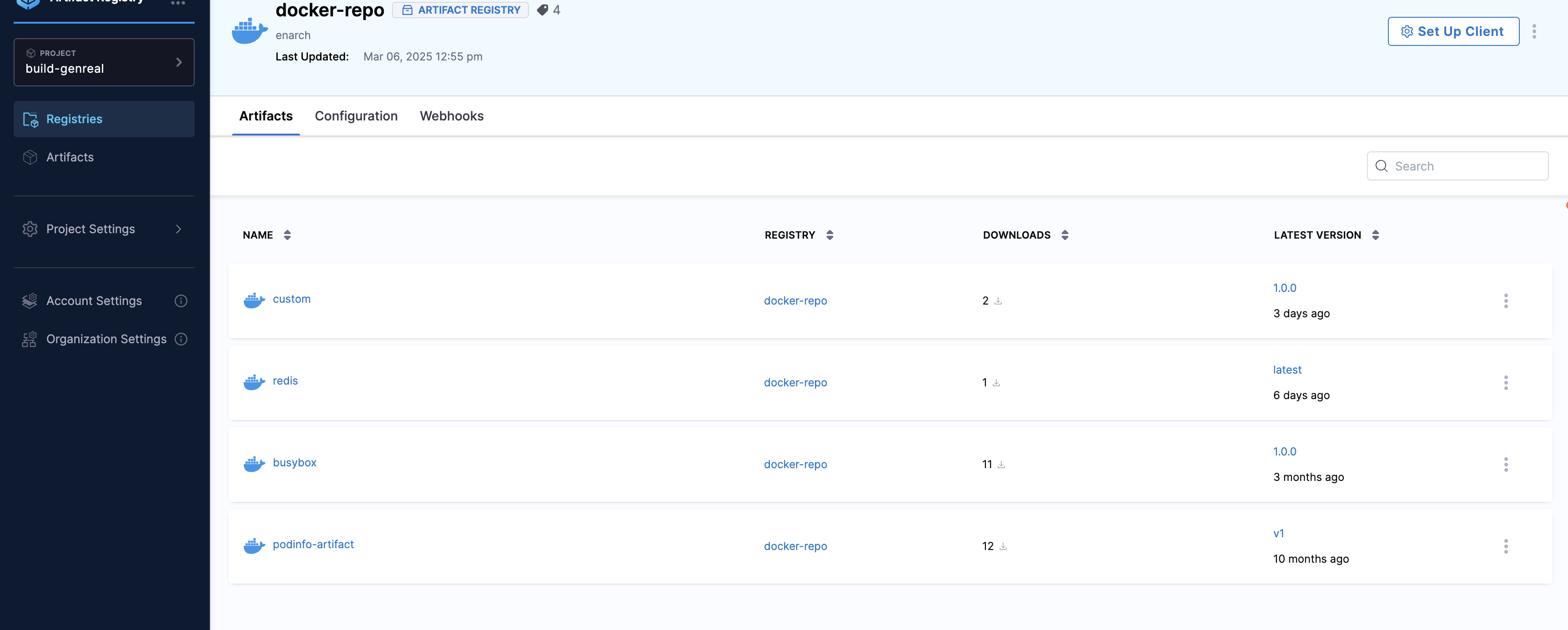
You can see which tag was most recently pushed to the registry for this artifact based on the Latest Version column on the right.
Inside the Artifacts tab
You can also find your artifact in the Artifacts tab in the left navigation bar. Here, you can search for your artifact by name and filter by registry name and package type. This is a global list of artifacts and not specific to any one registry.
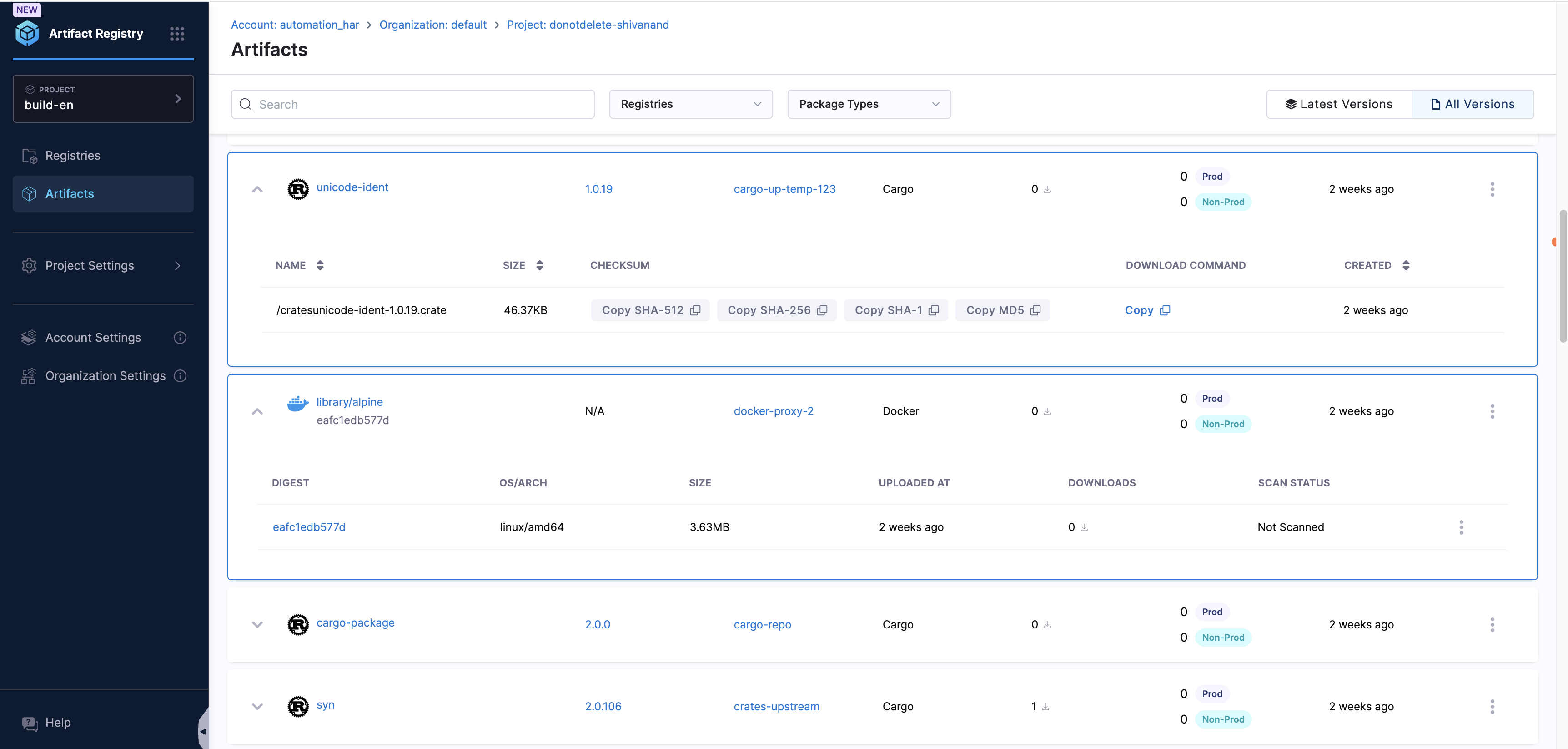
Clicking an artifact brings it to its Artifact Details page.
Image Referencing
Container images can have multiple tags, with each tag serving as a label that points to an immutable image identified by its digest. Key points include:
- Multiple tags can reference the same image.
- Deleting a tag does not remove the image; it remains pullable via its digest until the image itself is deleted.
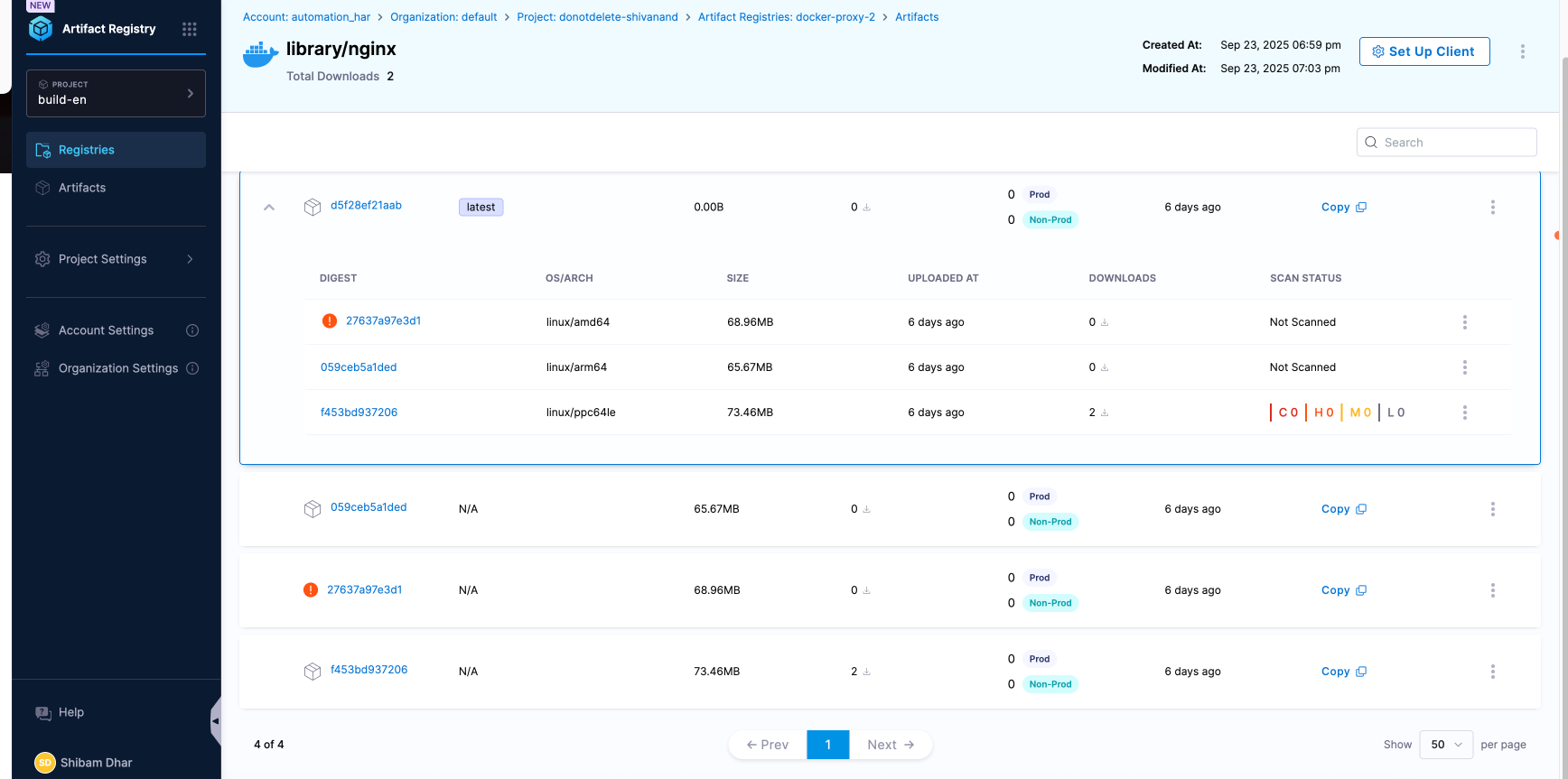
Images without tags can still be referenced by their digest, and many interfaces provide filters to view untagged images.
In the UI, untagged images are shown with an "N/A" label next to the digest. Expanding a Docker image reveals platform-specific digests grouped under a single multi-architecture entry, as illustrated below:
Note:
- The expanded view that lists multiple per-OS/ARCH digests beneath one entry applies to Docker/OCI images only (multi-arch manifest list/image index).
- Images built with Docker buildx may include an entry showing unknown/unknown as the architecture. This is an attestation manifest pushed alongside your image and is expected behavior. It does not indicate a corrupted or misconfigured image.
- Other artifact types (for example, Helm, npm, Maven, Cargo) typically show one file/version per entry. They may expose checksums (SHA256/SHA1, etc.), and Helm charts stored in an OCI registry also get an OCI digest.
Untagged image support and API behavior
When untagged image support is enabled for your account, the API response format changes for Docker and Helm artifacts:
- The
versionfield returns the digest value (for example,sha256:620e85a7b3b4...) instead of a tag name. - Tags are returned in a separate
metadata.tagsfield as a list (for example,["latest", "v1.2.0"]). - Artifacts without any tags still appear in listings, identified solely by their digest.
This affects the following API endpoints:
GetAllArtifacts: theversionfield shows the digest; tags move tometadata.tags.GetAllArtifactVersions: each version entry uses the digest as itsname; tags appear inmetadata.tags.- Docker and Helm detail endpoints: accept digest in the path where they previously required a tag.
The change from tag-based to digest-based identification is by design. It ensures that untagged images (images pushed without a tag or whose tag was later removed) are visible in the registry. Tags are still accessible in the response, but the primary identifier is now the content-addressable digest.
Filter Artifacts Using Metadata
Beyond searching by name and filtering by registry or package type, you can use custom metadata to find artifacts more precisely. Metadata filtering allows you to search based on custom attributes like owner, environment, build information, security scan results, or any other key-value pairs you've attached to your artifacts.
Metadata can be applied at the registry, and package levels along with the artifact level, giving you flexible options for organizing and discovering your artifacts. To learn more about adding metadata and using advanced filtering capabilities, see Artifact Registry Metadata.