Delete Registries
Soft-delete (the default delete behavior described below) is behind the feature flag HAR_SOFT_DELETE_SUPPORT. Contact Harness Support to enable it. Without the flag, the Permanently delete path is the only way to remove a registry.
This procedure removes an artifact registry from the project. By default, Harness soft-deletes the registry: it moves off the Available tab on Artifact Registries and appears under Deleted, where you can restore it or delete it permanently until your retention policy applies. Soft-deleting a registry applies to everything inside it in one step: every package, image, and version stored in that registry is soft-deleted together with the registry row (you do not keep artifacts in Available while only the registry row is deleted).
Permanently deleting a registry removes all packages, images, versions, and other artifacts it contains in one step. That action cannot be undone through the Deleted tab. Confirm the scope before you proceed.
Delete from the registries list
- Go to Artifact Registries (or Registries in the sidebar).
- Find the registry, open the row menu (⋮) on the right, and select Delete.
- In the confirmation dialog, type the registry name when prompted. For a soft delete, keep Permanently delete cleared. Select Permanently delete when you want immediate removal through the permanent path described in the warning above.

Delete from registry details
- Open the registry you want to remove.
- Select the menu (⋮) next to Setup Client, then Delete.
- Complete the confirmation dialog as described above.

Soft-deleted registries
After a soft delete, open Registries and select the Deleted tab. This view lists the registry itself—one row per soft-deleted registry. Use the row menu (⋮) to Restore or Delete (permanent removal).
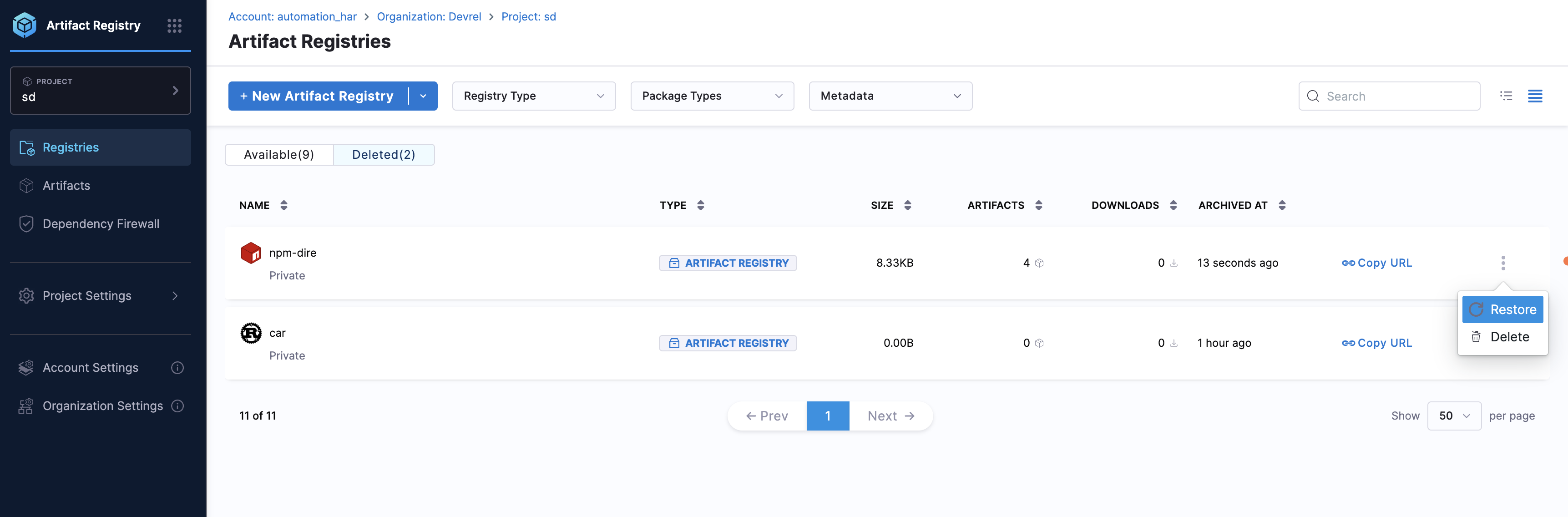
Soft-deleted packages, versions, and other artifact content appear on the Artifacts page under Deleted (and in scoped views inside a registry or package). Artifact Registries → Deleted lists the registry row only. For that flow, go to Manage deleted artifacts.