Post deployment rollback
Post deployment rollback initiates a rollback of your most recent successful deployment. This allows rapid, predictable recovery from a deployment that succeeded on technical criteria, but that you want to roll back for other reasons.
Important notes
- Post deployment rollback is currently supported for the following deployment types only:
-
Kubernetes
-
AWS Auto Scale Group (ASG)
-
Tanzu Application Services (TAS)
-
Amazon Elastic Container Service (ECS)
-
Native Helm
-
Google Managed Instance Group (MIG)
Harness anticipates expanding this feature to other deployment types in the future.
-
- Alternatively, for unsupported deployment types like SSH deployments, users can get the previous version and create a new forward deployment with the required version of the artifact and the manifest.
- You can rollback successful pipelines only. The rollback option is not available for failed pipelines.
- Only the rollback steps that are part of the stage can be used during rollback.
- You cannot roll back the same pipeline multiple times. You can perform rollback if the pipeline is executed again.
- If the pipeline configuration has changed between executions, the previous execution YAML is used as reference to roll back.
- Rollback steps can use expressions that refer to steps executed during the previous pipeline execution. The expressions are automatically resolved with values from the original execution.
- The stages should roll back in reverse order when deployment rollback is triggered.
- Rolling back to a previous post-production deployment is only possible for executions that occurred within the past 30 days.
- You cannot roll back an execution if it is marked successful by the ignore failures failure strategy.
Roll back deployments at Project Level
For post deployment rollback, Harness assumes that you have created a pipeline with multiple deployments so that the rollback steps can roll the pipeline back to the last successful deployment.
For more details on creating a pipeline, go to Create your first CD pipeline.
-
Open your services dashboard.
-
In Summary, in the Environments & Groups panel, select the deployment you want to roll back, and then select the instances link.
Here's an example pipeline where the artifacts,
library/nginx:stable-perlis deployed first, andlibrary/nginx:stable-bullseye-perlis deployed next.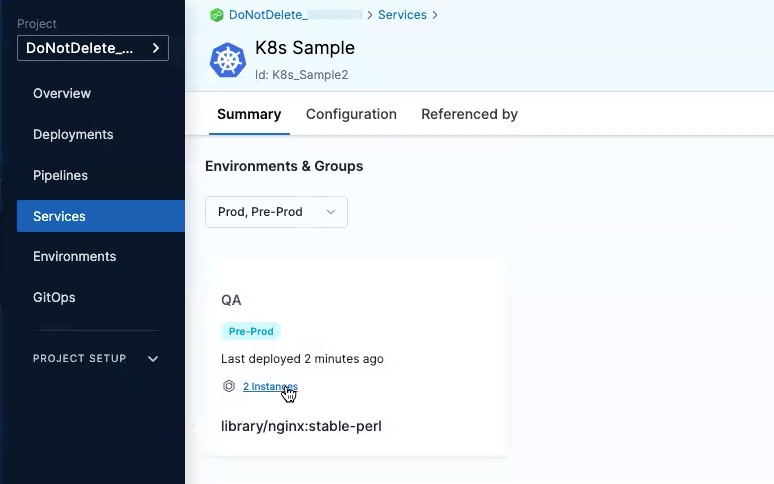
-
In Instance Details, select Rollback.
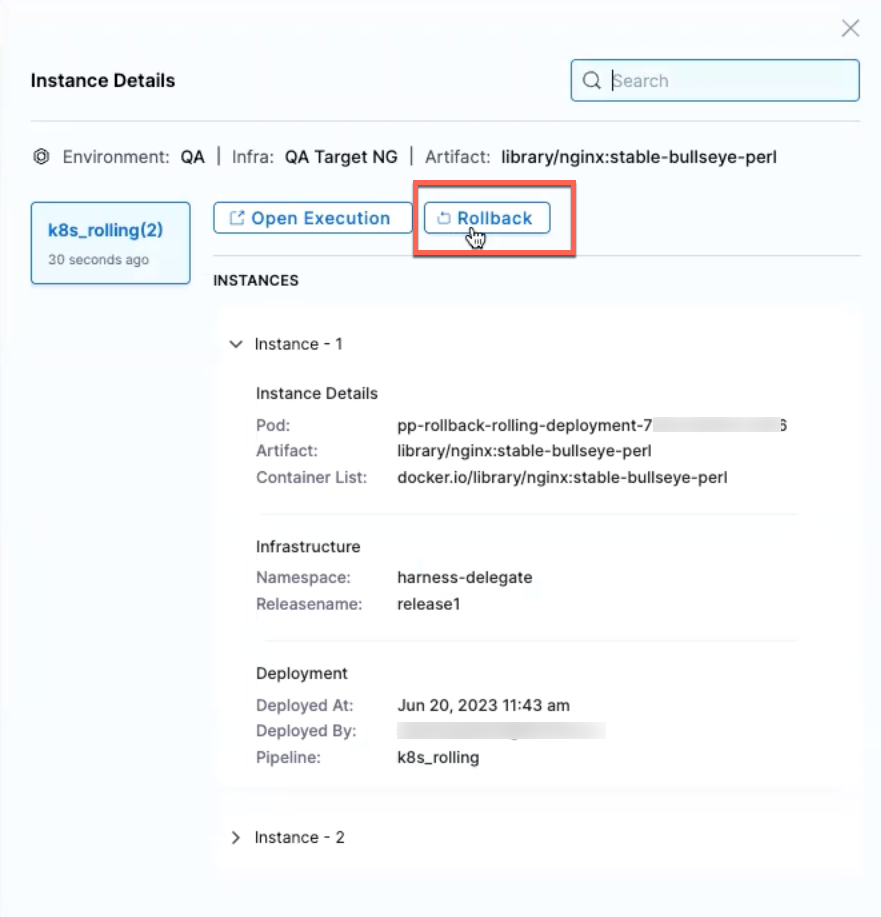
Here, you're rolling back the deployed instance with the artifact
library/nginx:stable-bullseye-perlto the previously deployed instance with artifactlibrary/nginx:stable-perl. -
In the Rollback infrastructure dialog, select Confirm.
The pipeline execution for rollback stage appears in a new tab.
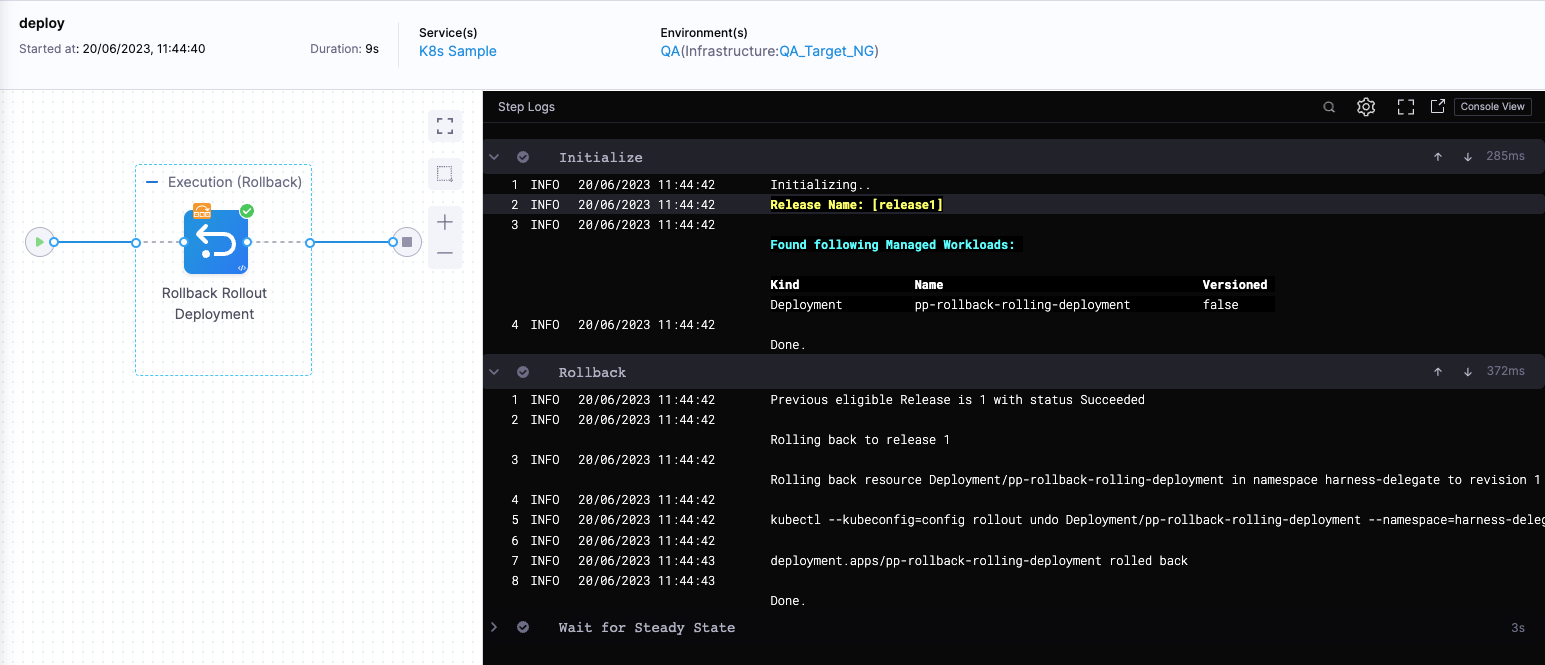
Once the rollback is complete, your deployed instances will return to the state they were in before the most recent deployment.
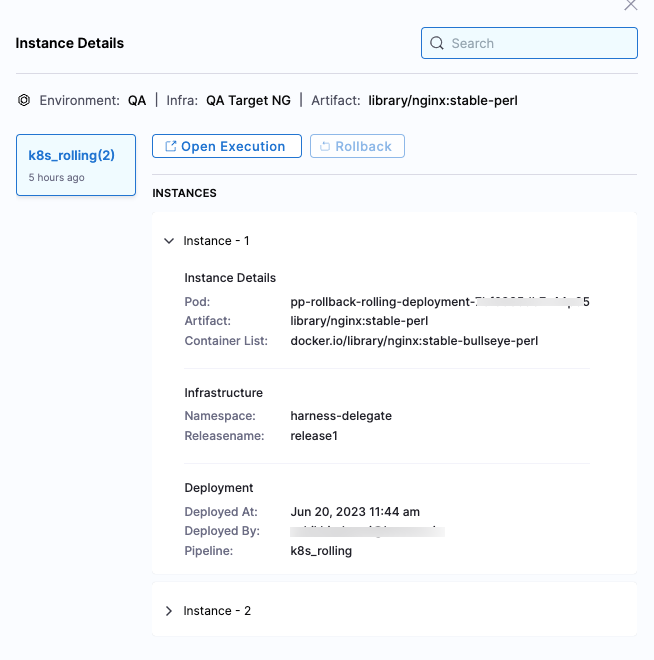
Permissions required for Post Deployment Rollback
To perform Post Deployment Rollback, user must have following permissions:-
- Pipeline Execute permission.
- Environment Rollback permission.

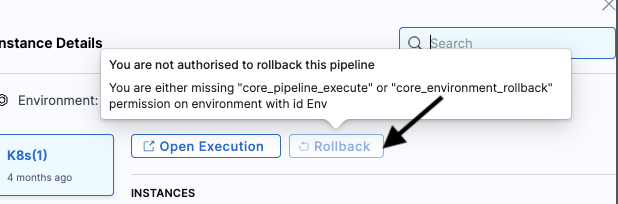
A user will be allowed to execute rollbacks on any instance only if they possess these two specified permissions for the pipeline and environment through which deployment occurred. Otherwise, they will be presented with the following message when attempting to click Rollback*.
Roll Back Deployments at Account Level and Organisation Level
Users can perform service rollbacks at both the account and organisation levels using Service Dashboards.
- For an Account Level overview, navigate to Account Settings, then Services. For an Organisation Level overview, navigate to Organisation Settings, then Services.
- Select the service for which you want to perform a rollback. You can also use the search bar to simplify your search.
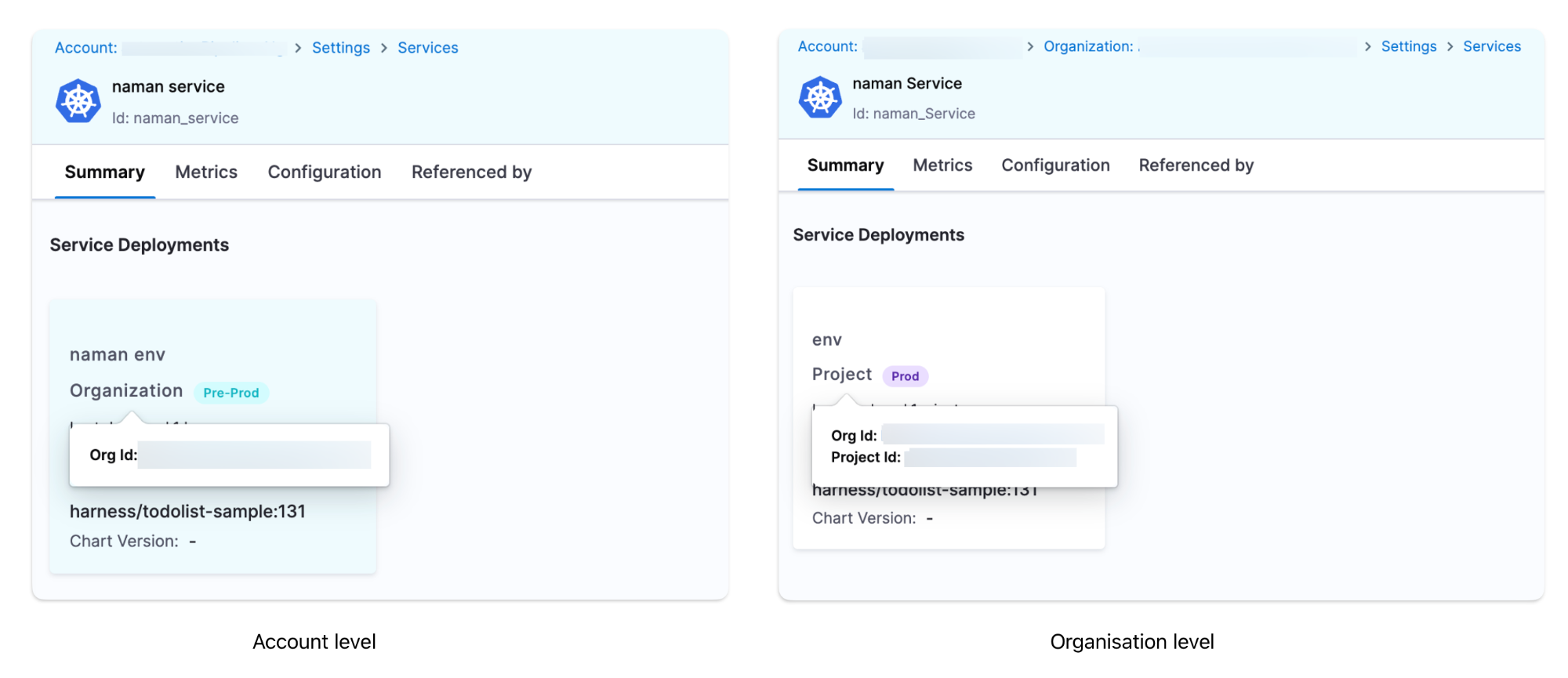
- In the Summary tab, you can view all the service deployments performed at the account or organisation level.
-
To distinguish between environments, hover over the Organisation/Project in the card to view the org_id and project_id of the service deployment. You can view the deployments in the Environment, Artifacts, or Charts view.
-
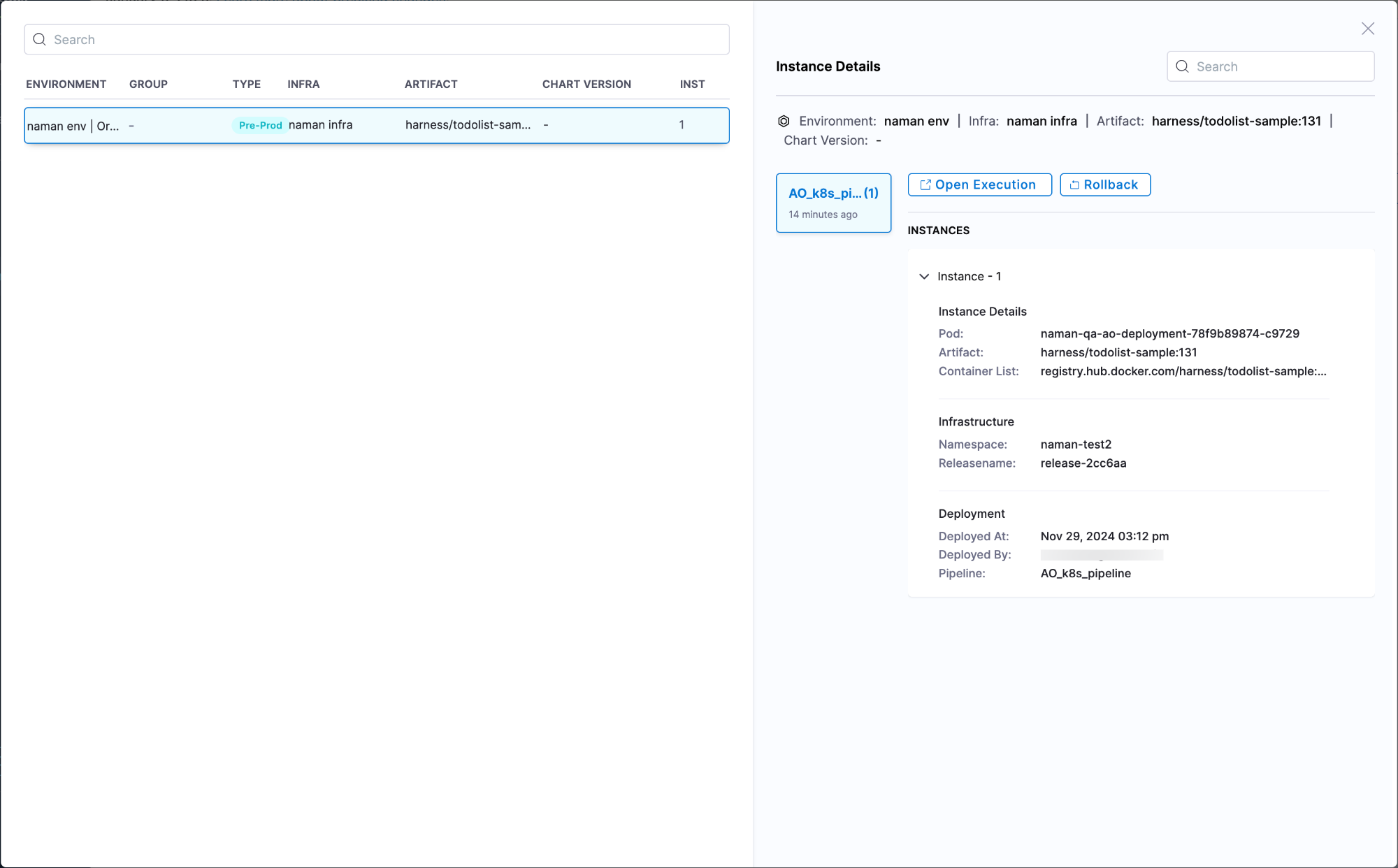
Click on View Instance and Rollback. All executions will be displayed along with their environment details. You can only perform a rollback in the Environment view.
-
Select the deployment for which the rollback is to be performed, and click Confirm to initiate the rollback.
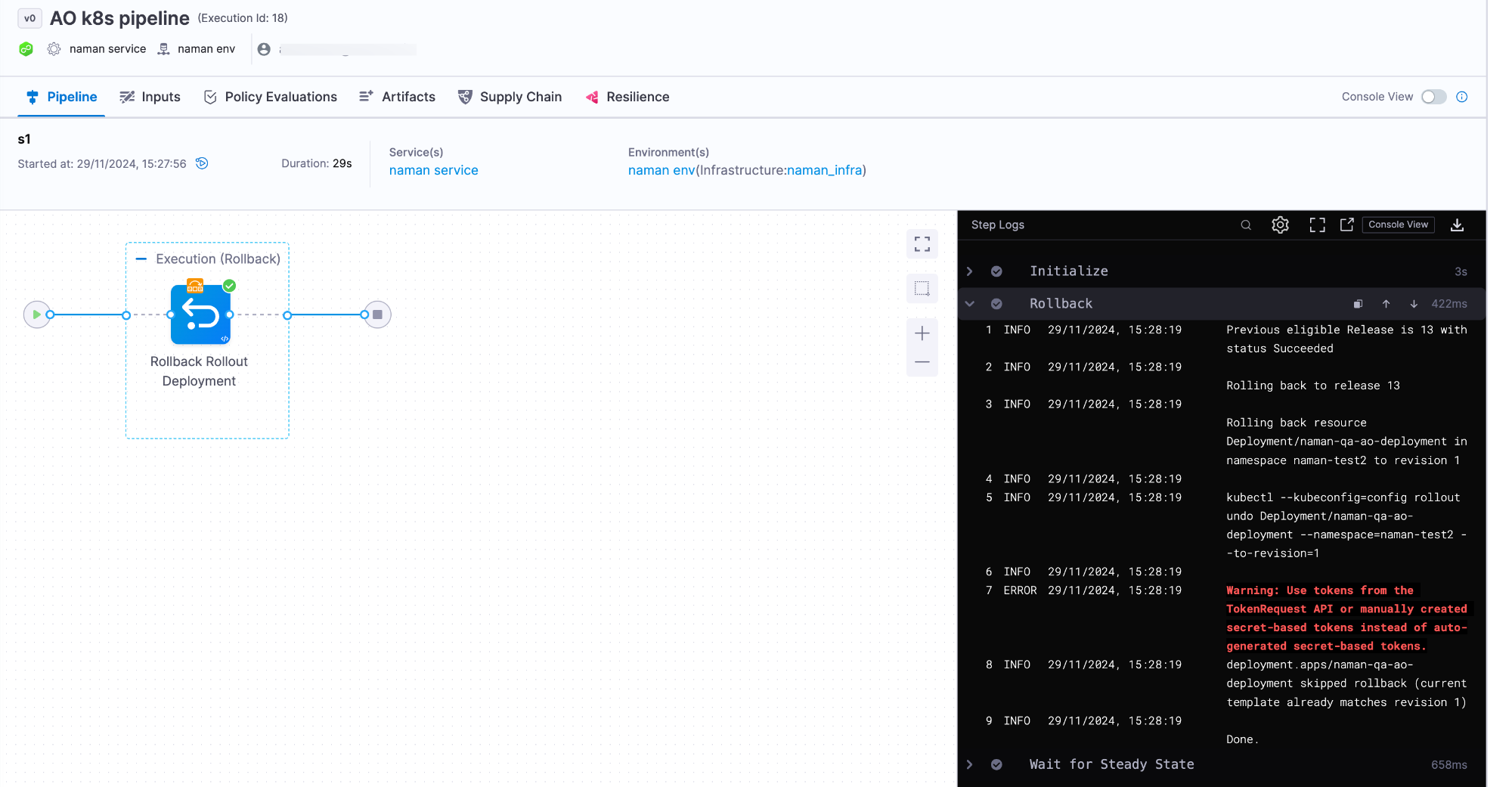
You will be directed to the pipeline execution page, and the Rollback Rollout Step will be executed.
Similarly, users can perform service rollbacks at both the account and organisation levels using Environment Dashboards by following the same set of procedures.
- For an Account Level overview, navigate to Account Settings, then Environments. For an Organisation Level overview, navigate to Organisation Settings, then Environments.
The rest of the steps remain the same as those outlined for the Service Dashboards.
Permissions Required for Post-Deployment Rollback
To perform a Post-Deployment Rollback, the user must have the following permissions:
- Pipeline Execute permission for the specific pipeline.
- Environment Rollback permission.
A user will only be allowed to execute rollbacks on any instance if they possess these two permissions for the pipeline and environment through which the deployment occurred. Otherwise, they will see the following message when attempting to click Rollback.
Roll back multiple infrastructures in a single action
This feature is behind the feature flag CDS_BULK_POST_PROD_ROLLBACK. The feature flag CDC_SERVICE_DASHBOARD_REVAMP_NG is also required as a prerequisite. Contact Harness Support to enable the feature.
A single service is often deployed to several environments and infrastructures at the same time. When you need to revert that service across all of them, rolling back one infrastructure at a time is slow. Bulk rollback lets you select multiple infrastructures from the service dashboard and trigger the rollback for all of them in one action.
Harness processes each selected infrastructure independently. If the rollback for one infrastructure fails, the remaining infrastructures still roll back, and Harness reports the outcome for each target separately.
Roll back multiple infrastructures
To roll back a service across multiple infrastructures at once, do the following:
- Open your services dashboard and select the service you want to roll back.
- In Summary, select the instances link to open the Bulk Rollback - Instance details view. This view lists every environment and infrastructure where the service is currently deployed, along with the environment type, infrastructure, chart version, artifact, and instance count for each row.
- Select the checkbox next to each infrastructure you want to roll back. You can use the search bar to filter the list when the service is deployed to many infrastructures.
- To review the deployed instances for a row before you select it, select the view icon in the Action column. The Instance Details panel shows the pod, artifact, container list, namespace, release name, and deployment metadata for that infrastructure.
- Select Rollback selected.
- In the Confirm Rollback dialog, review each infrastructure and its current artifact. For every infrastructure, select the execution to use for the rollback under Select Execution to Use for Rollback. Each execution card shows the instances, artifact, infrastructure, and deployment details for that execution, so you can confirm the target state before you proceed.
- Select Confirm Rollback.
Harness triggers a rollback execution for each selected infrastructure and reports how many rollbacks were triggered and how many failed. You can track the progress of each rollback from its pipeline execution view.
Permissions required for bulk rollback
The permissions for bulk rollback are the same as for a single post deployment rollback. For every infrastructure you select, you need Pipeline Execute permission for the pipeline that performed the deployment and Environment Rollback permission for the target environment. Harness skips any infrastructure for which you do not have both permissions and reports it as a failed target in the response.
Pipeline-Level Service Rollback
This feature is behind the feature flag CDS_ROLLBACK_OPTION. Contact Harness Support to enable the feature.
The Service Rollback feature provides a simplified and more intuitive way to initiate rollbacks directly from pipeline execution pages. Instead of navigating through instance details to find the rollback option, you can now start the rollback process with a clear, dedicated Rollback button.
This streamlined experience is available across multiple execution views:
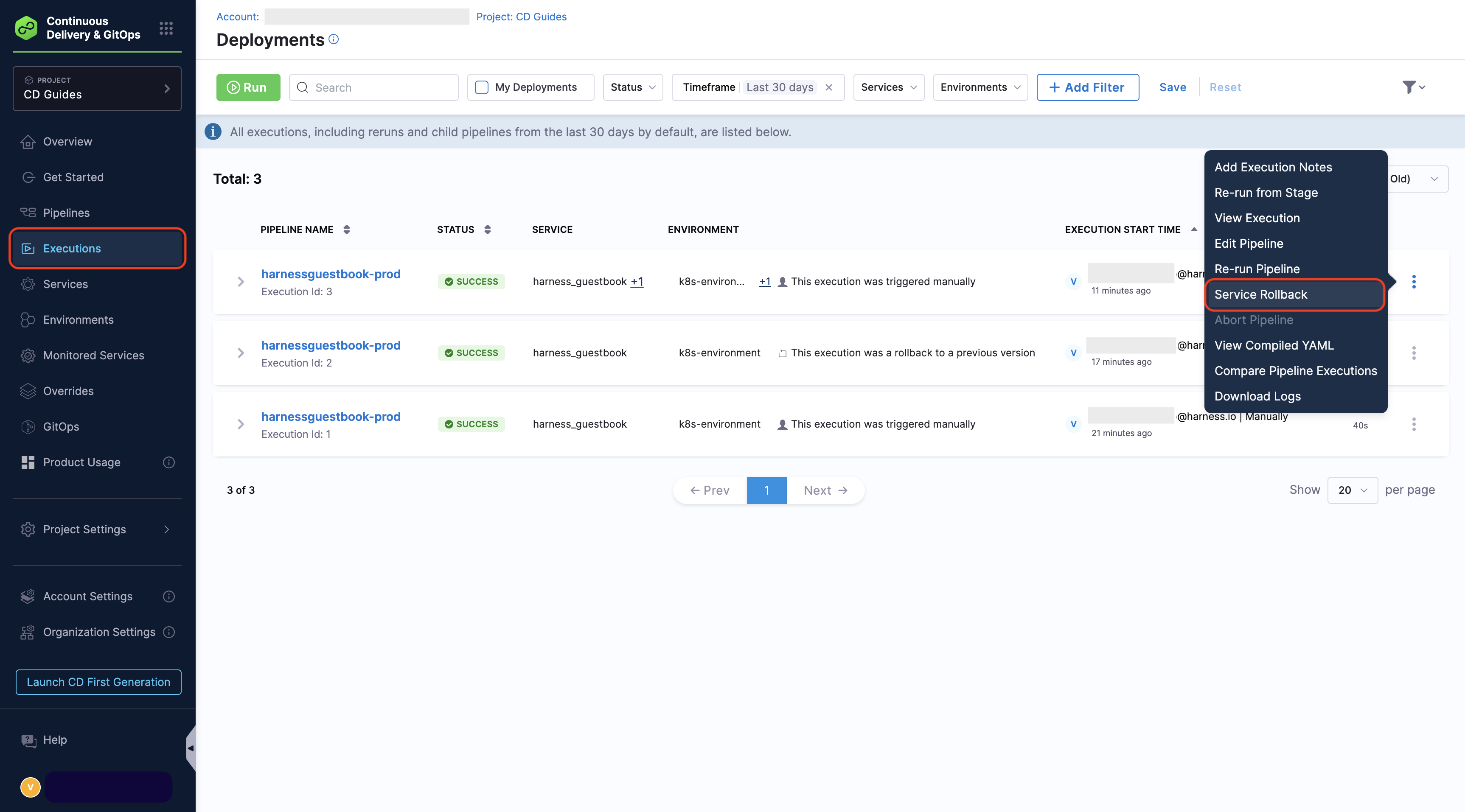
Pipeline Execution Listing Page
View all pipeline executions in a consolidated list format. The Rollback option is available for each successful deployment execution. Click the three dots menu to the left of the execution to access the rollback option.
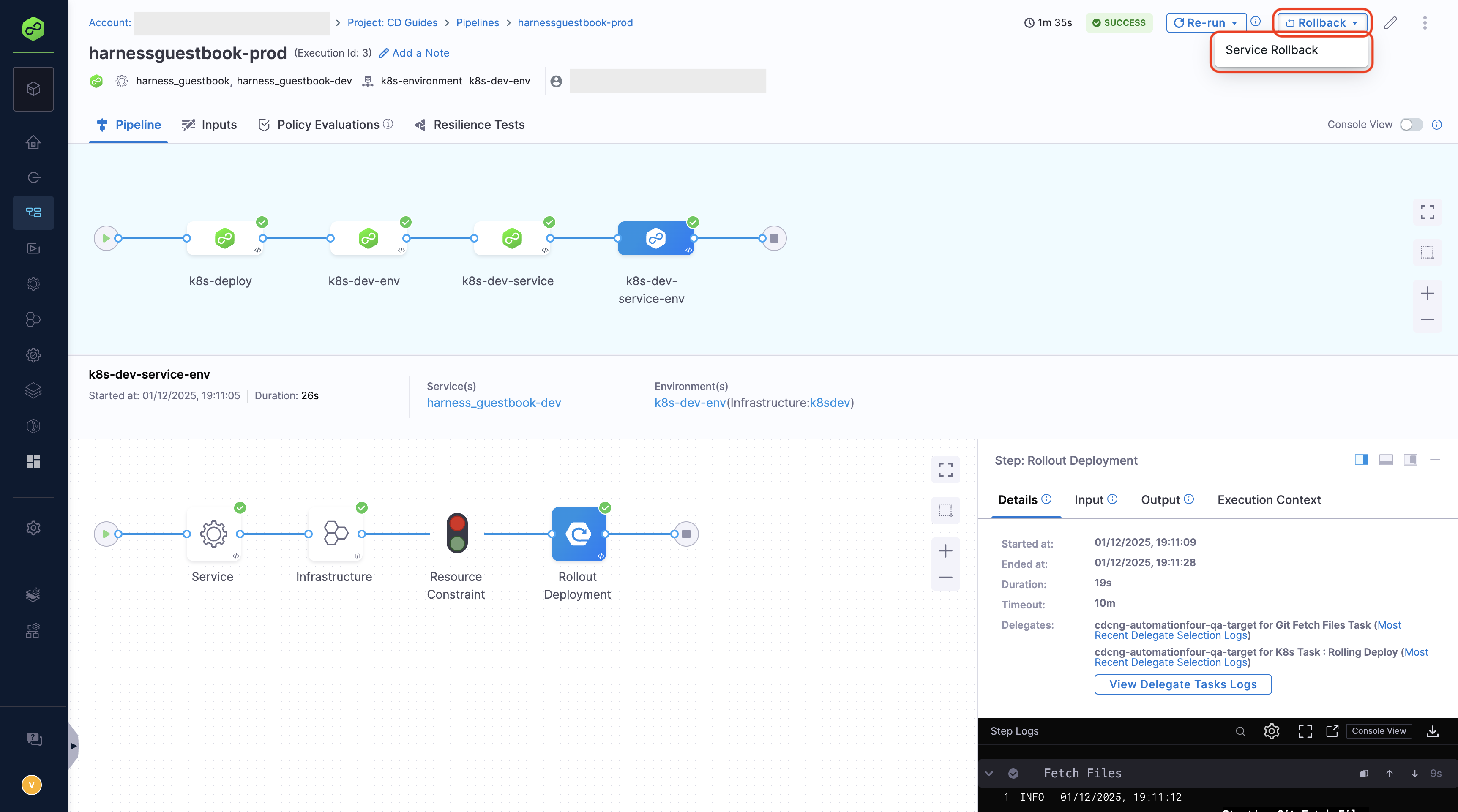
Pipeline Execution Summary Page
Detailed view of a specific pipeline execution with all its stages and steps. Access rollback directly from the execution summary by clicking on the Rollback button provided at the top right corner of the page.
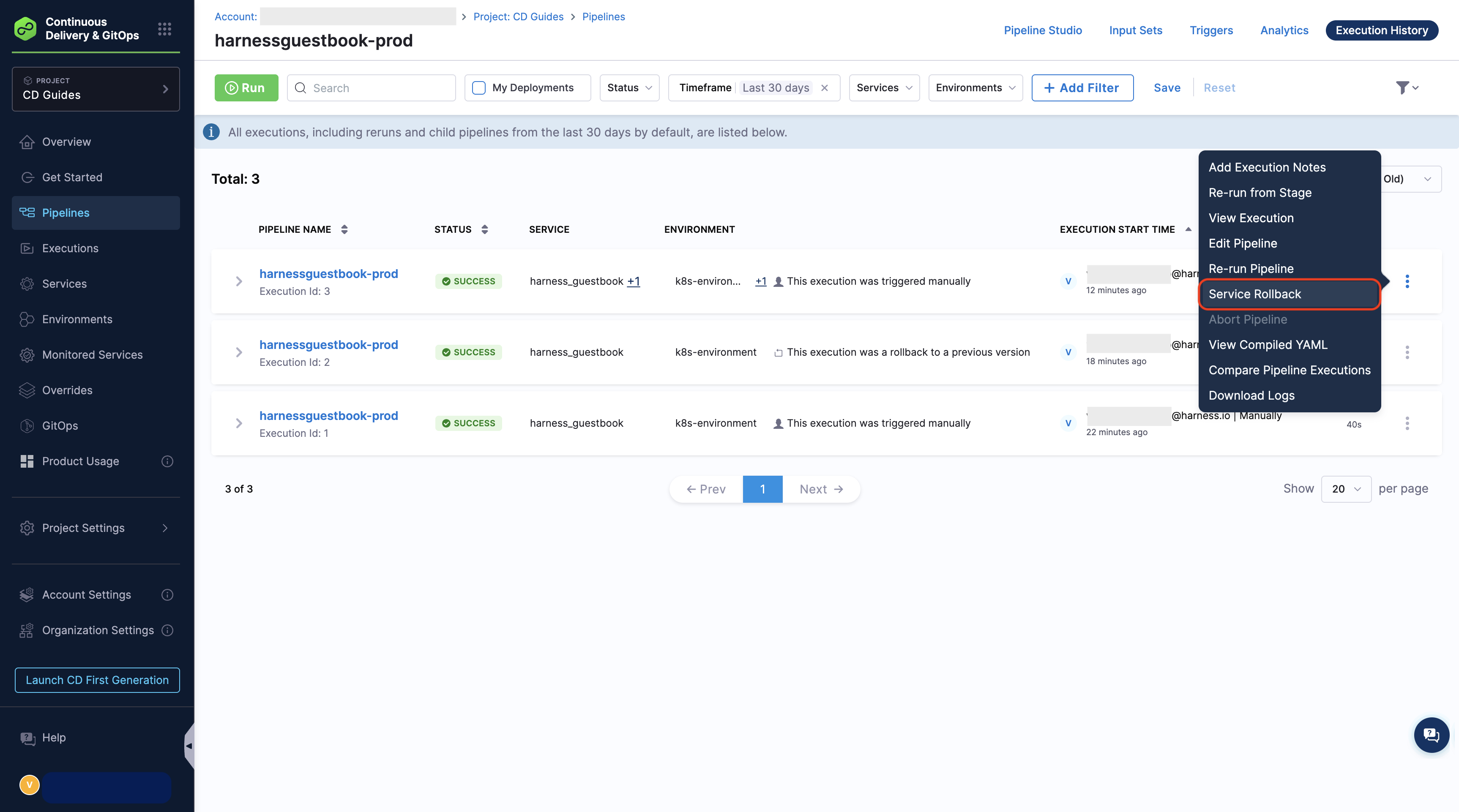
Execution History Page
Comprehensive history of all executions with filtering and search capabilities. Quickly identify and rollback any deployment. Click the three dots menu to the left of the execution to access the rollback option.
How to perform Service Rollback
-
Navigate to any of the execution views described above and locate your deployment.
-
Initiate the rollback:
- From Pipeline Execution Listing or History Page: Click the three dots menu next to the execution
- From Pipeline Execution Summary: Click the Rollback button in the top right corner
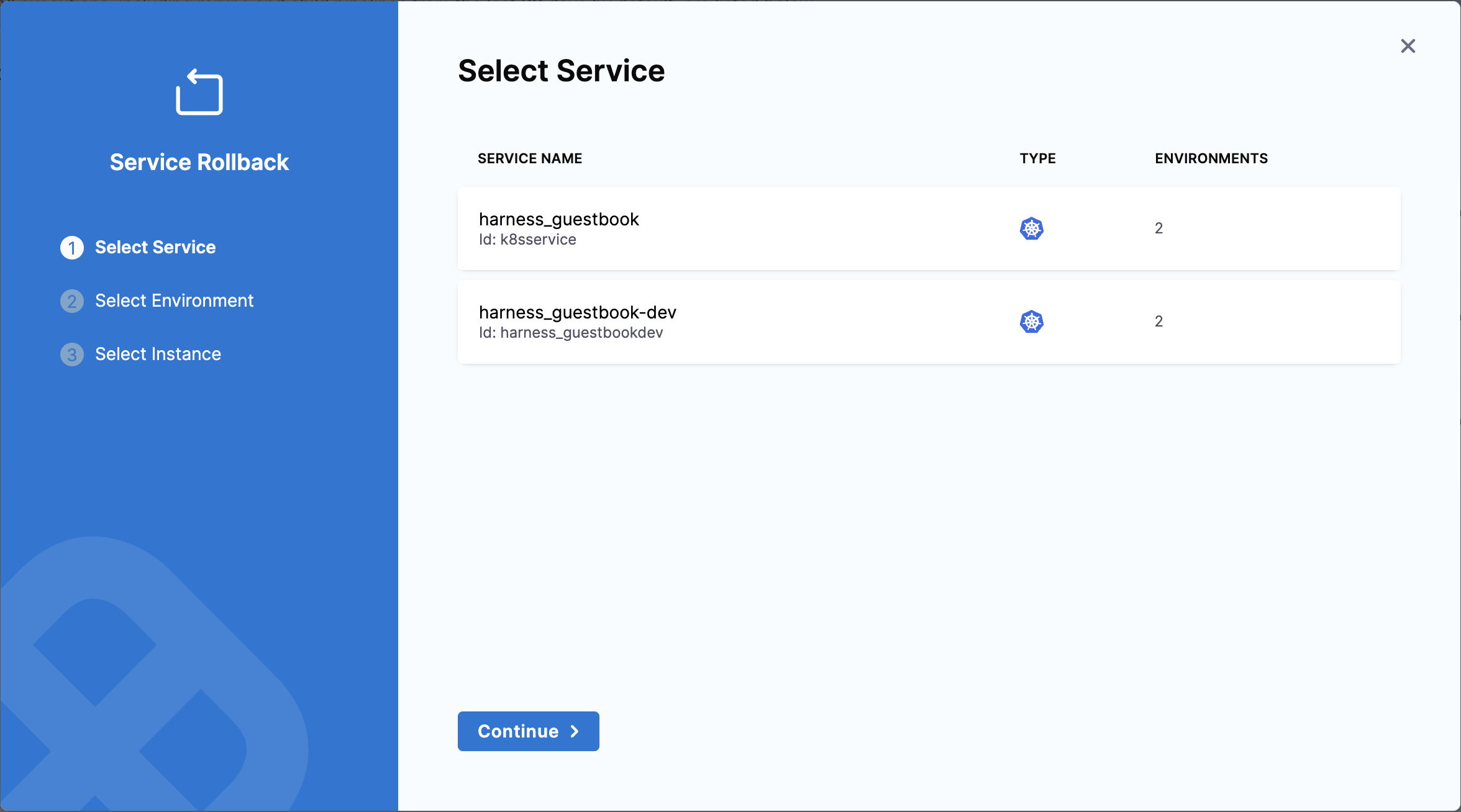
Select Service Rollback from the menu options. A step wizard opens to guide you through the process.
-
Select Service: In the first step of the wizard, select the service you want to roll back using the radio button option, then click Next.
- Select Environment: In the second step, you'll see a table showing deployment instances grouped by environment, along with details like group, type, infrastructure, artifact, and chart version. Each row represents a specific deployment state. Select the instance you want to roll back to, then click Next.
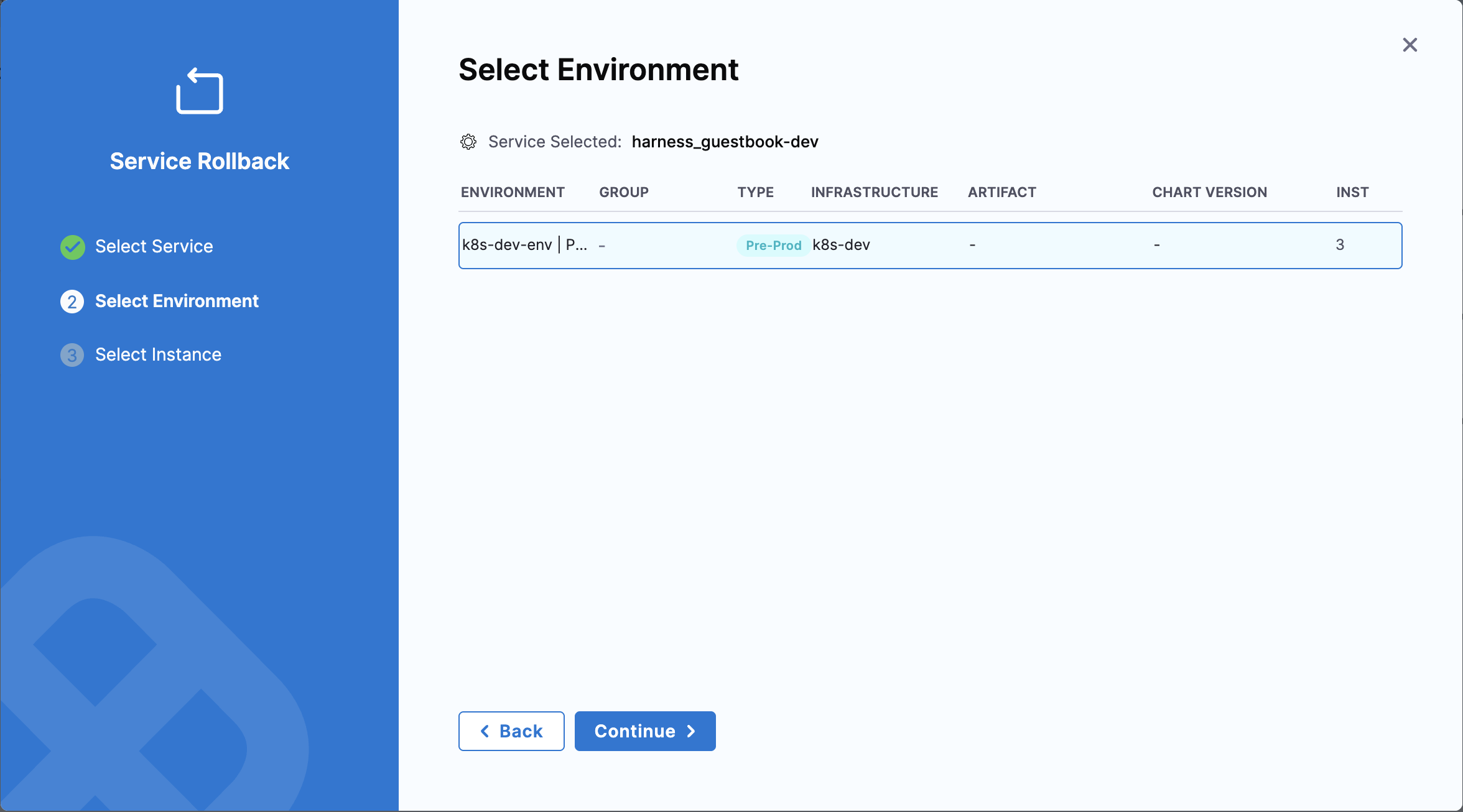
The blue highlighted box shows pipeline executions where this service was deployed. Select the execution you want to roll back to. On the right side, you'll see the instances that were deployed in that execution - there can be one or multiple instances depending on how the service was deployed in that particular execution. In this example, the selected execution deployed one instance, but other executions might have deployed multiple instances.
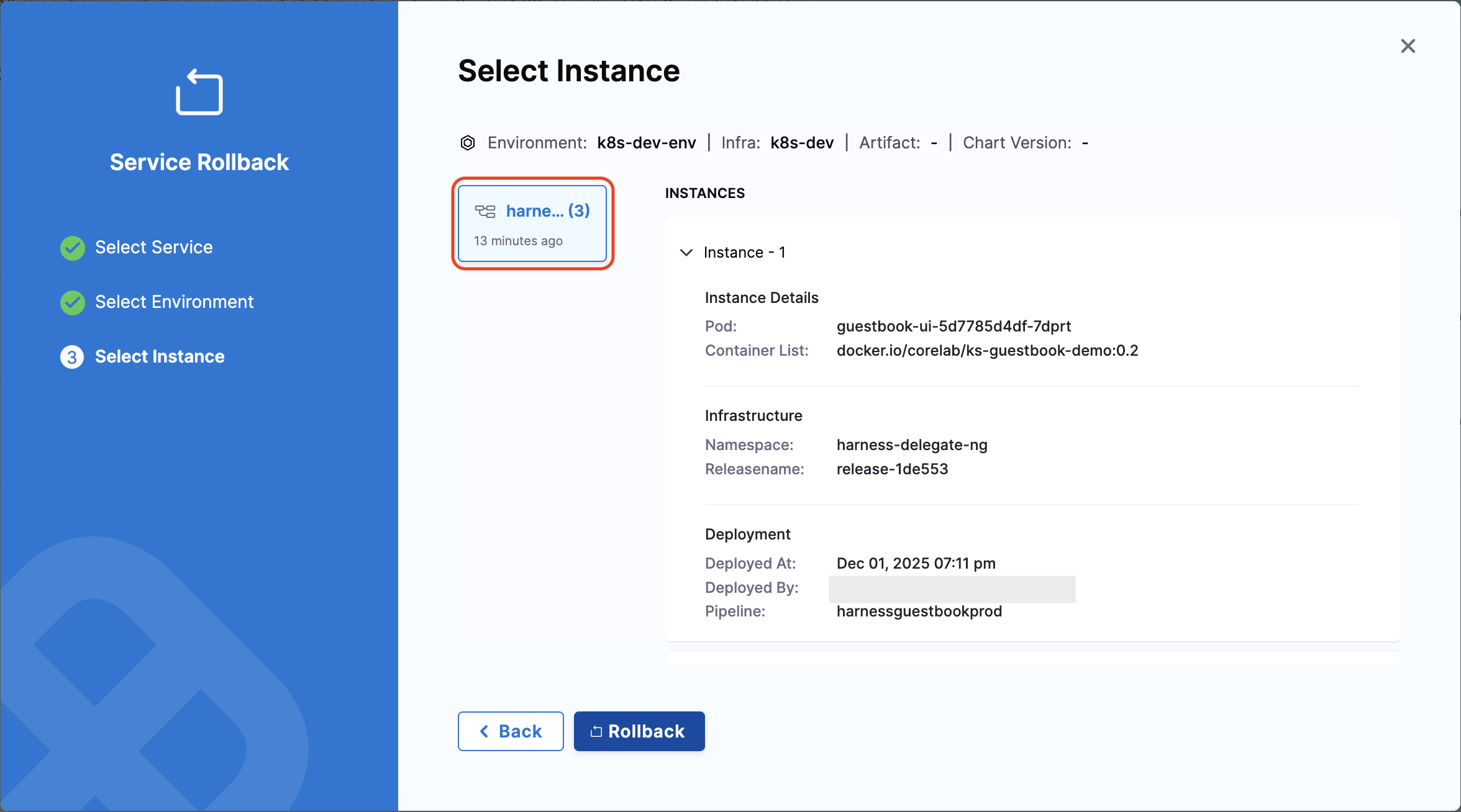
- Confirm Rollback: In the final step, review your selections:
- Service name
- Environment name
- Infrastructure identifier
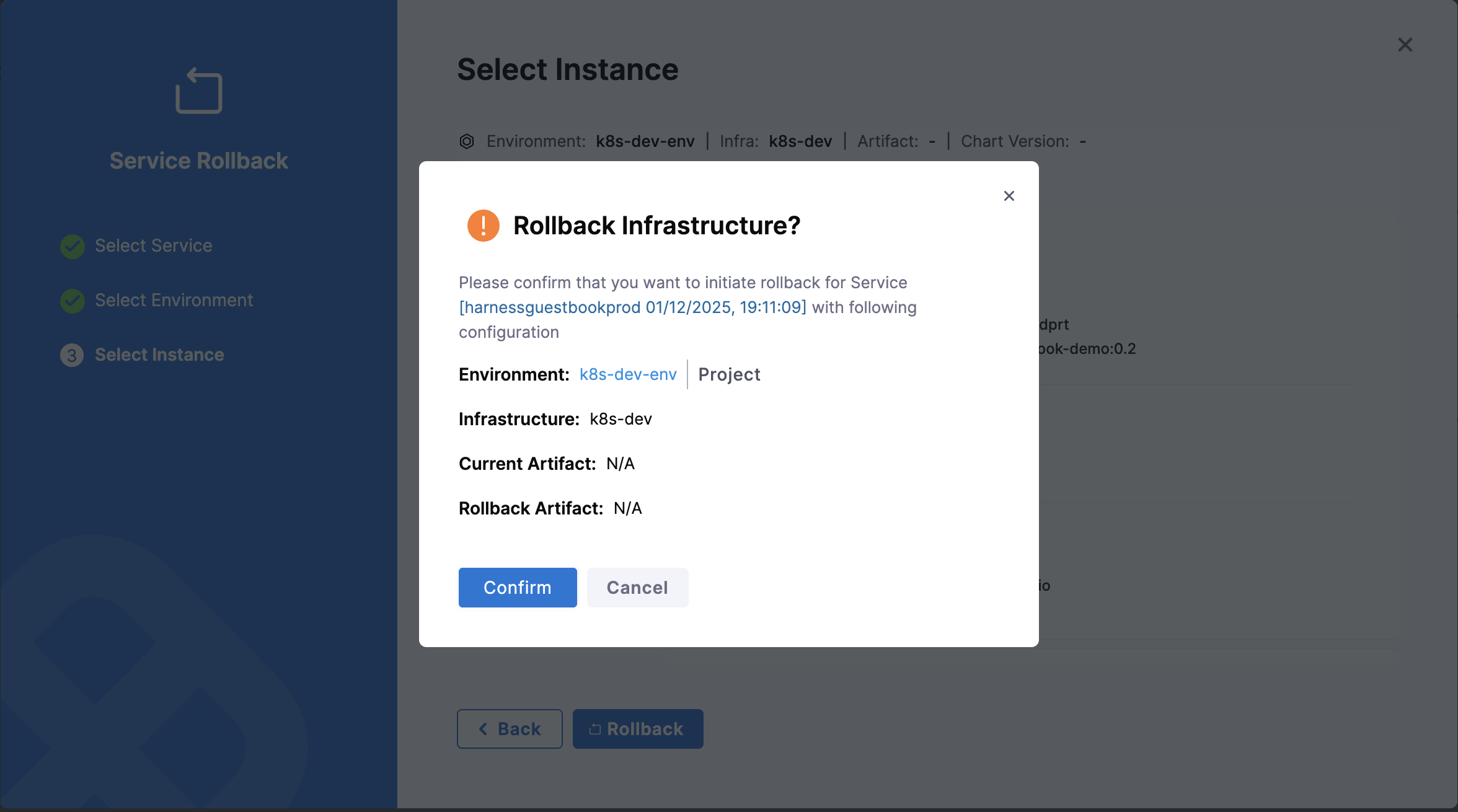
Click Confirm to initiate the rollback.
- Once confirmed, Harness starts the rollback execution. The wizard closes and you're redirected to the execution page where you can monitor the rollback progress.
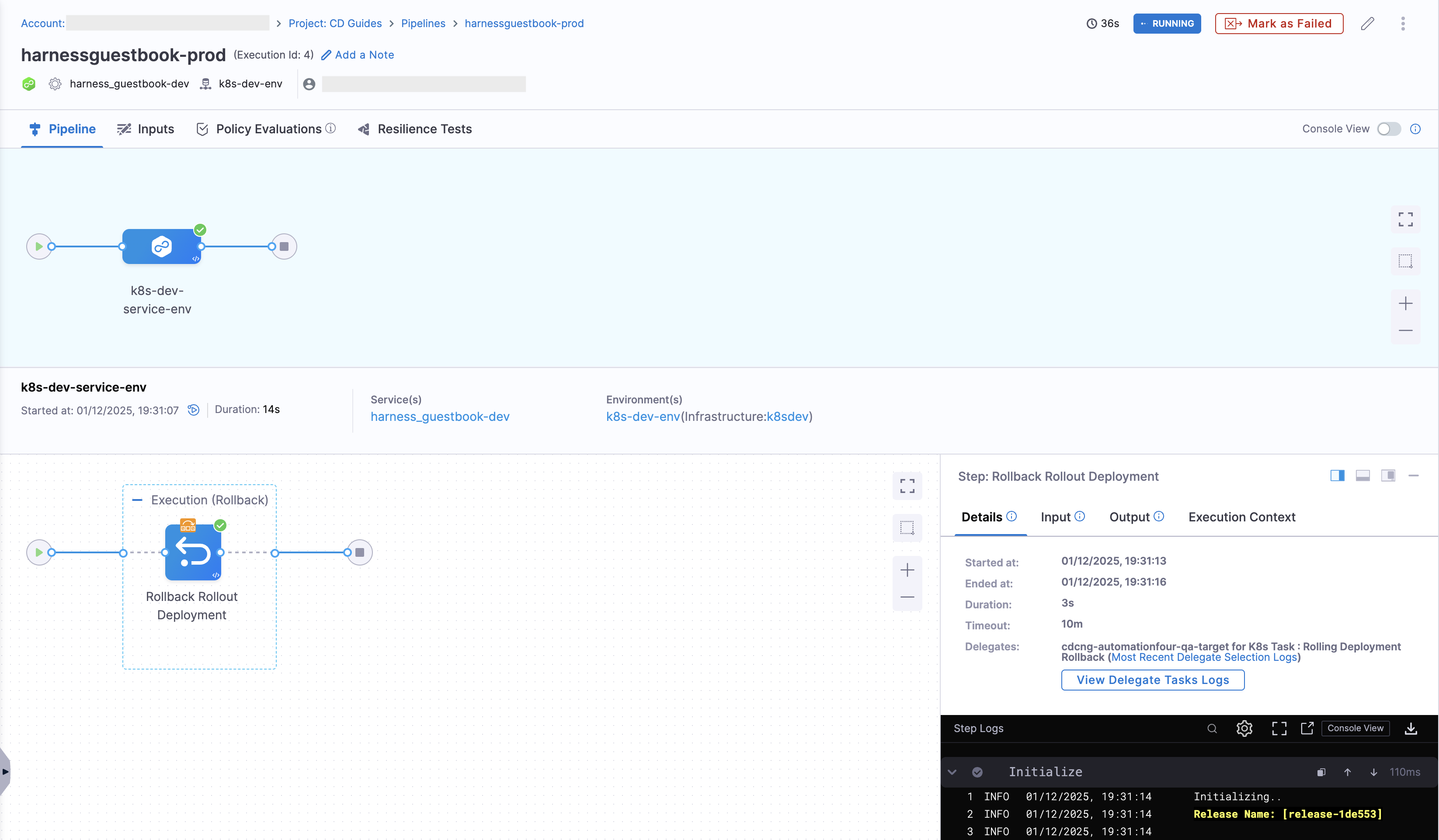
The rollback execution will begin immediately, and you can track its progress in real-time through the pipeline execution view.
Rollback Using API
You can roll back deployments programmatically using Harness APIs. For more information, go to Harness API Documentation.
To roll back multiple service, environment, and infrastructure targets in a single request, go to the batch rollback API reference.