Run step
The Run step allows you to run scripts using specific container images and shells.
The Run step can be used for operations such as running configuration scripts that apply configuration settings specific to the deployment environment, or running database migration scripts that handle database schema changes or migrations required for the deployment.
Harness CD also includes a general scripting step, the Shell Script step, but the Shell Script step is a Bash or PowerShell scripting step and does not let you select a container.
This topic describes the Run step settings.
When you run a Run step within a Containerized Step Group, go to Harness permissions inheritance logic to review how permissions are inherited.
What will you learn in this topic?
- How to set the container registry and image for the step.
- How to define the shell and command to run.
- How to configure environment variables and output variables.
- How to set the privileged mode, image pull policy, and container resources.
Container Registry and Image
The Run step runs your commands inside a container image. When the Run step is inside a Containerized Step Group with container-based execution enabled, the Registry Type setting controls where Harness pulls the container image from. Two options are supported:
- Artifact Registry: Pull the image directly from a Harness Artifact Registry, without a Docker connector.
- Third-Party Artifact Registry: Pull the image from an external Docker registry through a Harness Docker connector. This is the default option.
Artifact Registry
Select Artifact Registry as the Registry Type to pull the image directly from a Harness Artifact Registry. You do not need a Docker connector.
- In Container Registry, select the Harness Artifact Registry that hosts the image.
- In Image, enter the image reference in the
imageName:tagformat, such asmyapp:1.2.3.
Third-Party Container Registry
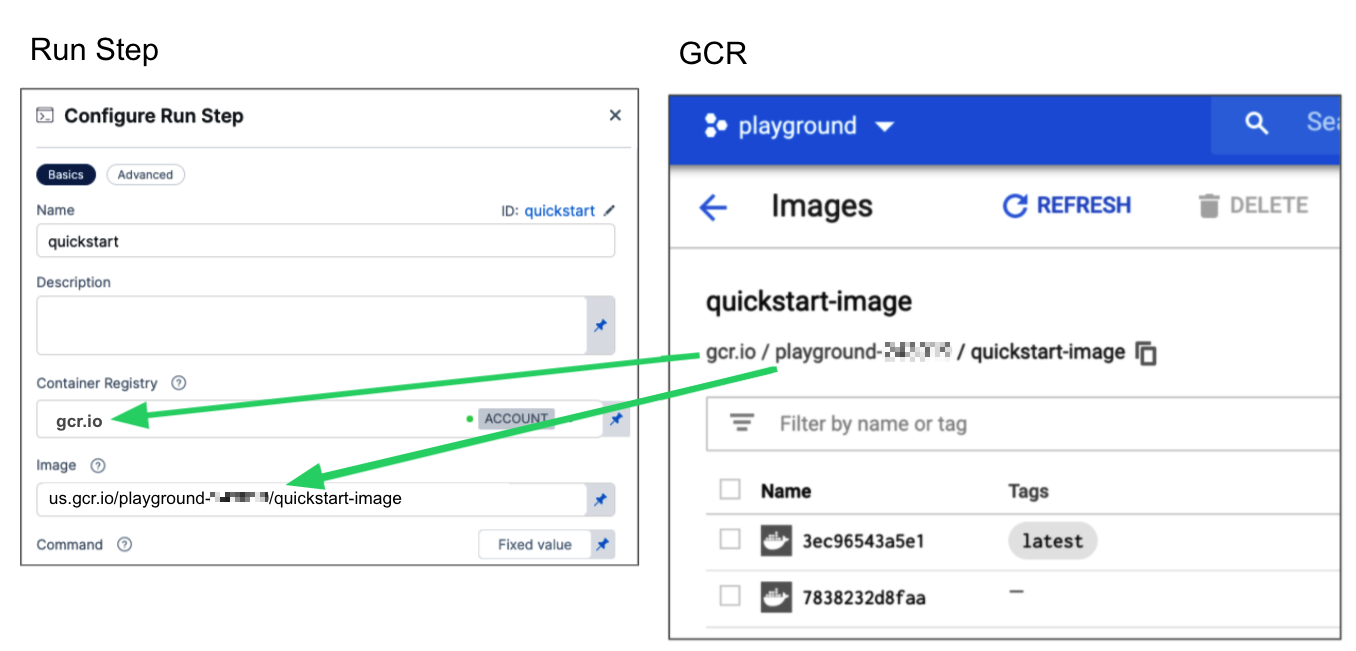
Container Registry field is a Harness Docker registry connector for the image that you want Harness to run commands in, such as an image hosted on Docker Hub.
The Image field is the Fully-qualified name (FQN) or artifact name of the Docker image to use when this step runs commands. For example us.gcr.io/playground-123/quickstart-image. The image name should include the tag. If you do not include a tag, Harness uses the latest tag.
You can use any Docker image from any Docker registry, including private registries. Different container registries require different name formats:
- Docker Registry: Enter the name of the artifact you want to use, such as
library/tomcat. Wildcards are not supported. An FQN is required for images in private container registries. - ECR: Enter the fully qualified name (FQN) of the artifact that you want to use. Images stored in repositories must reference a path. For example:
40000005317.dkr.ecr.us-east-1.amazonaws.com/todolist:0.2. - GCR: Enter the fully qualified name (FQN) of the artifact that you want to use. Images stored in repositories must reference a path that starts with the project ID where the artifact is stored. For example:
us.gcr.io/playground-243019/quickstart-image:latest.
Google Container Registry (GCR) is being deprecated. Go to the Deprecation Notice to review the details.
Shell and Command
Use Shell and Command to define the commands that you need to run in this step.
For Shell, select the shell script type. Options include: Bash, PowerShell, Pwsh, Sh, and Python. If the step includes commands that are not supported for the selected shell type, the step fails.
The binaries required by the script must be available on the infrastructure running the step or the image specified in Container Registry and Image.
In Command, enter POSIX shell script commands for this step. The commands are executed inside the container.
You can reference services started in CD Background steps by using the Background step's Id in your Run step's Command. For example, a cURL command could call STEPGROUPID_BACKGROUNDSTEPID:5000 where it might otherwise call localhost:5000.
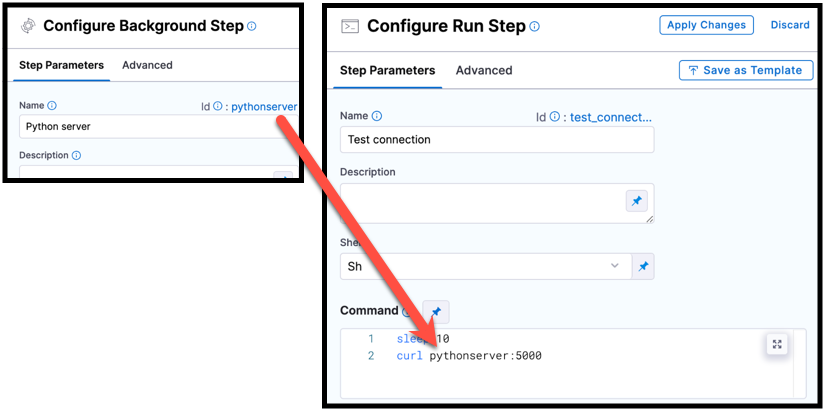
You must include step group Id, such as curl STEPGROUPID_BACKGROUNDSTEPID:5000, even if both steps are in the same step group.
Select each tab below to view examples for each shell type.
- Bash
- PowerShell
- Pwsh
- Sh
- Python
This Bash script example checks the Java version.
              - step:
                  ...
                  spec:
                    shell: Bash
                    command: |-
                      JAVA_VER=$(java -version 2>&1 | head -1 | cut -d'"' -f2 | sed '/^1\./s///' | cut -d'.' -f1)
                      if [[ $JAVA_VER == 17 ]]; then
                        echo successfully installed $JAVA_VER
                      else
                        exit 1
                      fi
This is a simple PowerShell Wait-Event example.
              - step:
                  ...
                  spec:
                    shell: Powershell
                    command: Wait-Event -SourceIdentifier "ProcessStarted"
This PowerShell Core example runs ForEach-Object over a list of events.
              - step:
                  ...
                  spec:
                    shell: Pwsh
                    command: |-
                      $Events = Get-EventLog -LogName System -Newest 1000
                      $events | ForEach-Object -Begin {Get-Date} -Process {Out-File -FilePath Events.txt -Append -InputObject $_.Message} -End {Get-Date}
You can run PowerShell Core commands in pods or containers that have pwsh installed.
In this example, Harness pulls a python image and executes a shell script (Sh) that runs pytest with code coverage.
              - step:
                  ...
                  spec:
                    connectorRef: account.harnessImage
                    image: python:latest
                    shell: Sh
                    command: |-
                      echo "Welcome to Harness CI"
                      uname -a
                      pip install pytest
                      pip install pytest-cov
                      pip install -r requirements.txt

                      pytest -v --cov --junitxml="result.xml" test_api.py test_api_2.py test_api_3.py
If the shell is Python, supply Python commands directly in command.
This example uses a basic print command.
            steps:
              - step:
                  ...
                  spec:
                    shell: Python
                    command: print('Hello, world!')
If your script produces an output variable, you must declare the output variable in the Run step's Output Variables. For example, the following step runs a python script that defines an output variable called OS_VAR, and OS_VAR is also declared in the outputVariables.
              - step:
                  type: Run
                  name: Run_2
                  identifier: Run_2
                  spec:
                    shell: Python
                    command: |-
                      import os
                      os.environ["OS_VAR"] = value
                    outputVariables:
                      - name: OS_VAR
Privileged
Enable this option to run the container with escalated privileges. This is equivalent to running a container with the Docker --privileged flag.
Report paths
Specify one or more paths to files that store information in JUnit XML format. You can add multiple paths. If you specify multiple paths, make sure the files contain unique information to avoid duplicates. Glob is supported.
Environment variables
You can inject environment variables into a container and use them in the Command script. You must input a Name and Value for each variable.
You can reference environment variables in the Command script by their name. For example, a Bash script would use $var_name or ${var_name}, and a Windows PowerShell script would use $Env:varName.
Variable values can be Fixed Values, Runtime Inputs, and Expressions. For example, if the value type is expression, you can input a value that references the value of some other setting in the stage or pipeline.
Output variables
Output variables expose values for use by other, subsequent steps or stages in the pipeline.
YAML example: Output variable
In the following YAML example, step alpha exports an output variable called myVar, and then step beta references that output variable.
              - step:
                  type: Run
                  name: alpha
                  identifier: alpha
                  spec:
                    shell: Sh
                    command: export myVar=varValue
                    outputVariables:
                      - name: myVar
              - step:
                  type: Run
                  name: beta
                  identifier: beta
                  spec:
                    shell: Sh
                    command: |-
                      echo <+steps.alpha.output.outputVariables.myVar>
                      echo <+execution.steps.alpha.output.outputVariables.myVar>
If an output variable value contains a secret, be aware that the secret will be visible in the following areas of the pipeline execution:
- On the Output tab of the step where the output variable originates.
- In the step logs for any later steps that reference that variable.
For information about best practices for using secrets in pipelines, go to the Secrets documentation.
Create an output variable
Perform the following steps to create an output variable in the step where it originates:
-
In Command, export the output variable. For example, the following command exports a variable called
myVarwith a value ofvarValue:export myVar=varValue -
In the same step's Output Variables, declare the variable name, such as
myVar.
Reference an output variable
To reference an output variable in a later step or stage in the same pipeline, use a variable expression that includes the originating step's Id and the variable's name.
Use either of the following expressions to reference an output variable in another step in the same stage:
<+steps.STEP_ID.output.outputVariables.VAR_NAME>
<+execution.steps.STEP_GROUP_ID.steps.STEP_ID.output.outputVariables.VAR_NAME>
To reference an output variable in a stage other than the one where the output variable originated, use either of the following expressions:
<+stages.STAGE_ID.spec.execution.steps.STEP_ID.output.outputVariables.VAR_NAME>
<+pipeline.stages.STAGE_ID.spec.execution.steps.STEP_GROUP_ID.steps.STEP_ID.output.outputVariables.VAR_NAME>
Scoping output variables using aliases
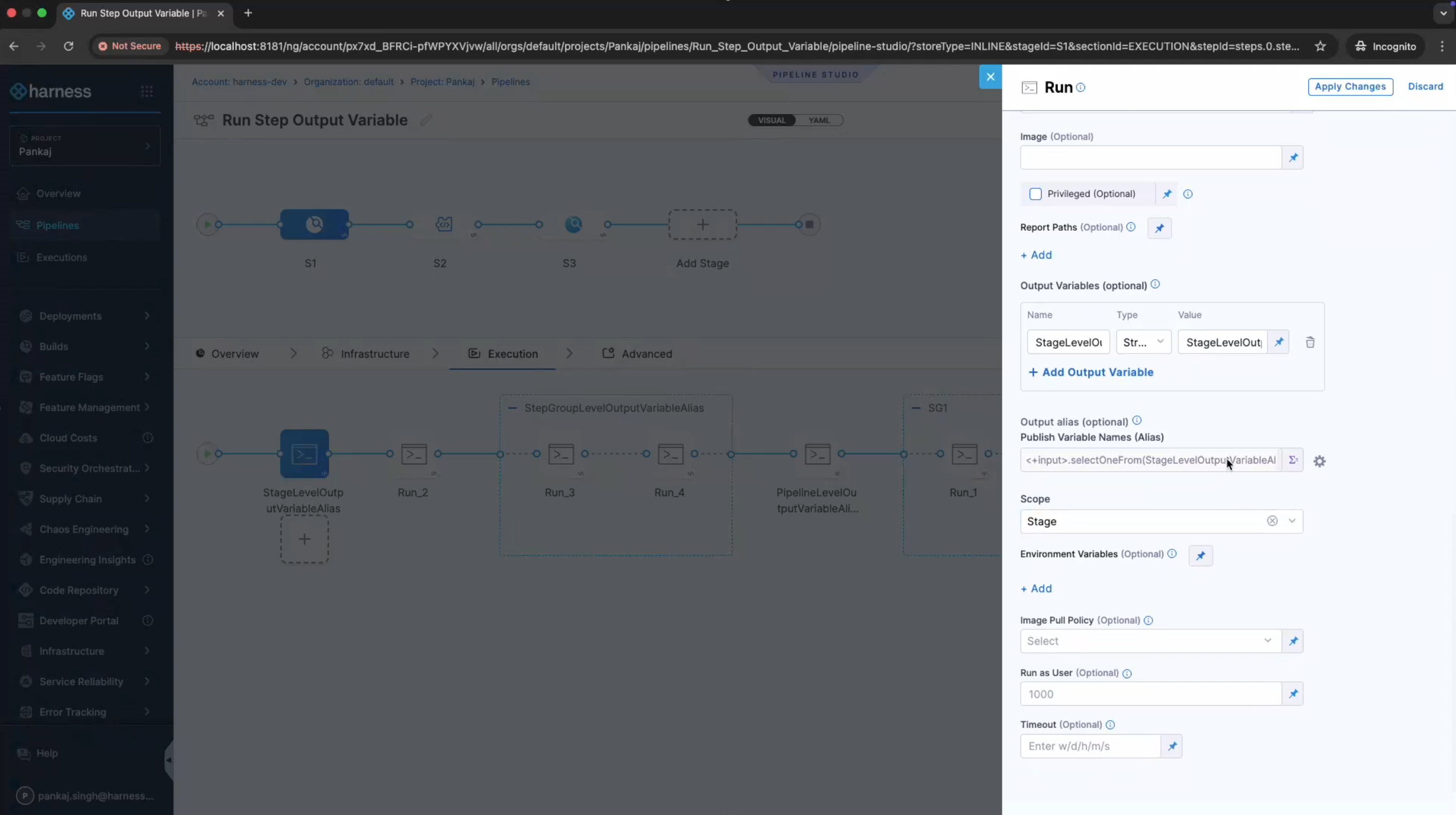
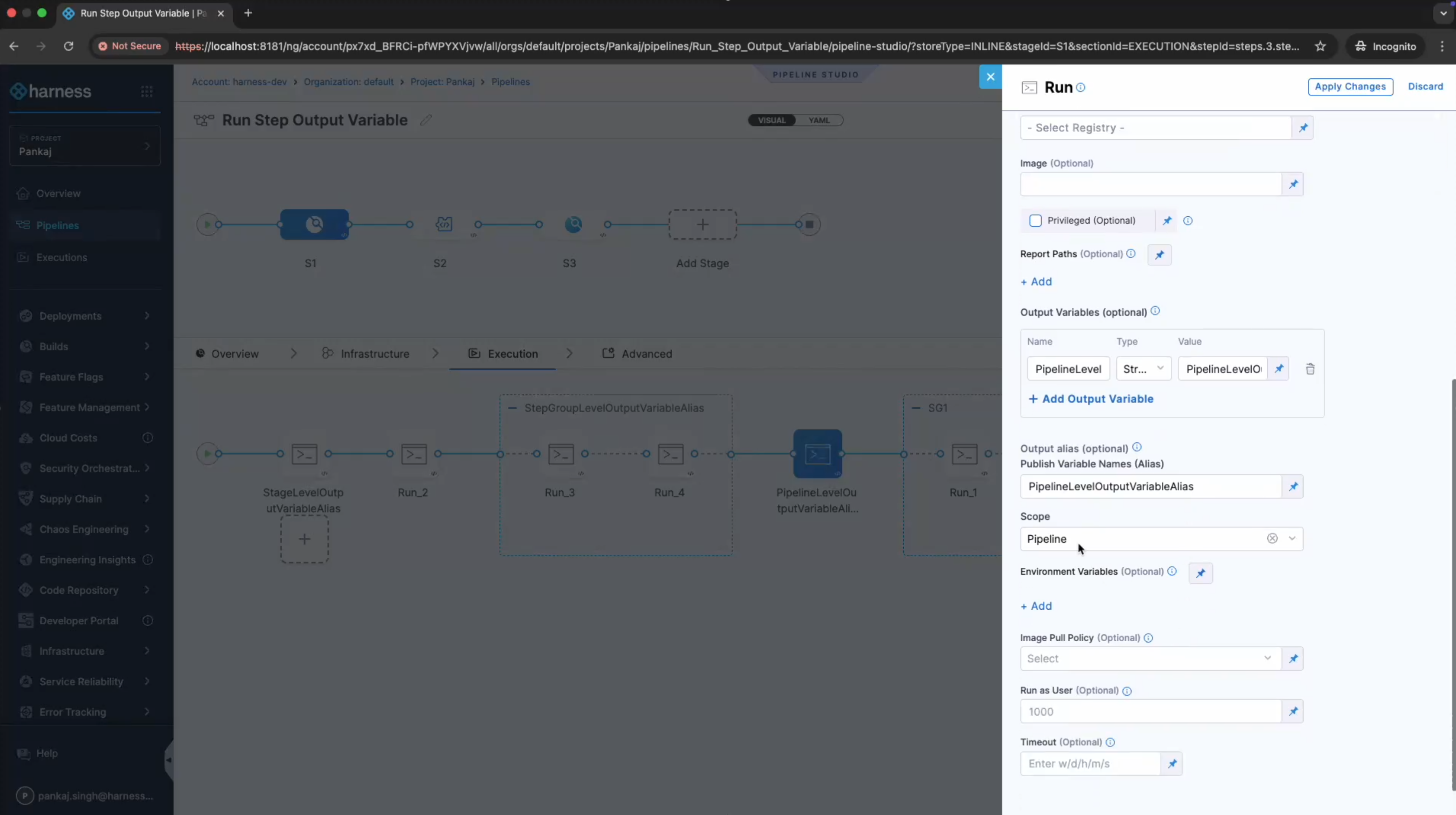
To prevent variable name conflicts, you can use Publish Variable Names (Alias) to scope output variables to different entities.
- Export the variables: Use Output Variables to export the variables.
- Define an alias: In Publish Variable Names (Alias), enter an alias to use to reference the exported output variables.
- Select a scope: In Scope, select the scope for the exported output variable.
The following screenshot shows the output alias configured with Stage scope:
The following screenshot shows the output alias configured with Pipeline scope:
You can scope output variables to the following entities:
-
Step group:
-
The output variable must be used in the same step group, including nested child step groups.
-
The format for referencing an exported step group output variable using its alias is:
<+exportedVariables.getValue("stepGroup.ALIAS_NAME.OUTPUT_VARIABLE_NAME")>
-
-
Stage:
-
The output variable can be used anywhere in the same stage, including step groups in the same stage. It cannot be used outside of the same stage.
-
The format for referencing an exported stage output variable using its alias is:
<+exportedVariables.getValue("stage.ALIAS_NAME.OUTPUT_VARIABLE_NAME")>
-
-
Pipeline:
-
The output variable can be used anywhere in the same pipeline but not in a chained pipeline.
-
The format for referencing an exported pipeline output variable using its alias is:
<+exportedVariables.getValue("pipeline.ALIAS_NAME.OUTPUT_VARIABLE_NAME")>
-
To reference a map of exported output variables, reference the alias in the format <+exportedVariables.getValue("SCOPE.ALIAS_NAME")>, like <+exportedVariables.getValue("stepGroup.info")>.
- Exported variables are immutable.
- Variables cannot be exported in looping strategies.
- Exported variables are not supported in pipeline chaining.
- All output variables are exported. You cannot select a subset.
Step group scope pipeline example
pipeline:
  projectIdentifier: myproject
  orgIdentifier: default
  tags: {}
  stages:
    - stage:
        identifier: testSimple
        type: Custom
        name: testSimple
        description: ""
        spec:
          execution:
            steps:
              - stepGroup:
                  identifier: stepGroup1
                  name: stepGroup1
                  steps:
                    - step:
                        identifier: Run_1
                        type: Run
                        name: Run_1
                        spec:
                          shell: Bash
                          command: |-
                            export var1="val1"
                            export var2="val2"
                          outputVariables:
                            - name: var1
                            - name: var2
                          outputAlias:
                            key: info
                            scope: StepGroup
                        timeout: 10m
                    - step:
                        type: Run
                        name: outputs
                        identifier: outputs
                        spec:
                          shell: Bash
                          command: |-
                            echo "reference using aliases:"

                            echo "var1:" <+exportedVariables.getValue("stepGroup.info.var1")>
                            echo "var2:" <+exportedVariables.getValue("stepGroup.info.var2")>
                            echo "var map:" <+exportedVariables.getValue("stepGroup.info")>

                            echo "reference using standard output exp:"

                            echo "var1:" <+pipeline.stages.testSimple.spec.execution.steps.stepGroup1.steps.Run_1.output.outputVariables.var1>
                            echo "var2:" <+pipeline.stages.testSimple.spec.execution.steps.stepGroup1.steps.Run_1.output.outputVariables.var2>
                          outputVariables: []
                        timeout: 10m
        tags: {}
  identifier: StepGroupExport
  name: StepGroupExport
Go to Scoping output variables using aliases in the Shell Script step documentation to review more examples.
Image pull policy
Select an option to set the pull policy for the image.
- Always: The kubelet queries the container image registry to resolve the name to an image digest every time the kubelet launches a container. If the kubelet encounters an exact digest cached locally, it uses its cached image; otherwise, the kubelet downloads (pulls) the image with the resolved digest, and uses that image to launch the container.
- If Not Present: The image is pulled only if it is not already present locally.
- Never: The image is assumed to exist locally. No attempt is made to pull the image.
Run as user
You can define the UID to run all policies within the pod. Go to Security Context for a Pod to review the Kubernetes security context, and go to Harness permissions inheritance logic to review permission inheritance when you use Containerized Step Groups.
Set container resources
Set the resource limits and requests for the container's CPU and memory. Go to Manage Resource Containers to review CPU and memory limits and requests.
The ability to set resource requests is behind the feature flag CI_SUPPORT_RESOURCE_REQUESTS. To enable it, contact Harness Support.
Define the resource limits and requests by using the units defined by Kubernetes. Go to Resource units in Kubernetes to review the units.
If you use a Run step in a Step Group and define resources with variables, the variables must be at the Stage or Pipeline level. Step Group variables are not evaluated at the correct time when the resource is launched.
Hidden or invisible characters
You might experience unexplained behavior in your scripts due to hidden or invisible characters. These characters often appear when you paste from non-plain-text resources, and can cause errors in how the script operates. Harness has a function to display invisible characters, which is enabled by default.
You see a highlighted space within your scripts when an invisible character is present:

To see which character is present, hover over the highlight and select adjust settings:

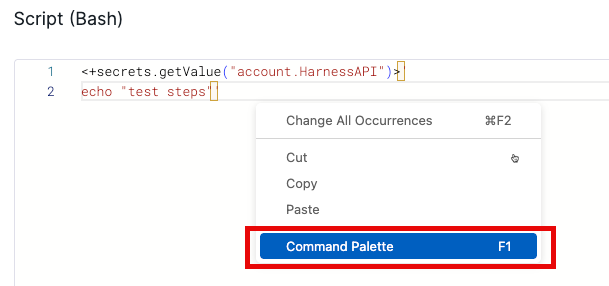
If you make a selection accidentally, right-click within the script space and select the Command Palette to make adjustments:
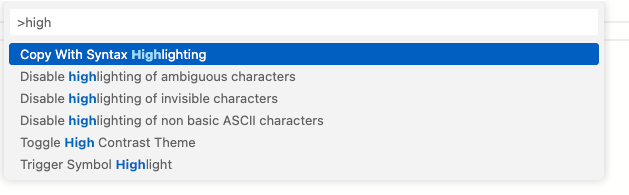
A dialog box appears where you can search for the option to toggle how the highlighting is set:
Advanced settings
On the Advanced tab, you can use the following options:
Next steps
- Shell Script step: Run a Bash or PowerShell script without selecting a container.
- Background step: Start a service that your Run step can reference.
- Containerized Step Groups: Configure the step group that runs the Run step in a container.