Harness Feature Management & Experimentation (FME) MCP Tools
The Harness FME Model Context Protocol (MCP) tools enable developers, product managers, and experimentation teams to discover, inspect, and understand feature flags and experiments using natural language. MCP tools can be accessed in several AI-powered environments, including Claude Code, Windsurf, Cursor, and VS Code.
Harness FME MCP provides a conversational interface for exploring your feature management data in an IDE. You can:
- Discover projects, environments, and active feature flags
- Inspect feature flag definitions, targeting rules, and rollout status
- Create and update feature flag definitions, treatments, and targeting rules
- Filter flags by name, tags, or rollout status without listing all flags
- Manage rule-based segment definitions
- Compare configurations across environments for governance and consistency
By providing structured access to FME data through natural language, MCP tools help reduce context switching, accelerate experimentation setup, and improve visibility into release safety and governance.
Installation and configuration
Prerequisites
Before you begin, ensure you have the following:
- Go version 1.23 or later
- Claude Code (paid version) or another MCP-compatible AI tool
- Access to the Harness platform with Feature Management & Experimentation (FME) enabled
- A Harness API key for authentication
Build the MCP server binary
- Clone the Harness MCP Server GitHub repository.
- Build the binary from source.
- Copy the binary to a directory accessible by Claude Code.
Configure Claude Code for FME
-
Open your Claude configuration file at
~/claude.json. If it doesn't exist already, you can create it manually or runtouch claude.jsonat the root of your repository. -
Add the Harness FME MCP server configuration:
{..."mcpServers": {"harness": {"command": "/path/to/harness-mcp-server","args": ["stdio","--toolsets=fme"],"env": {"HARNESS_API_KEY": "your-api-key-here","HARNESS_DEFAULT_ORG_ID": "your-org-id","HARNESS_DEFAULT_PROJECT_ID": "your-project-id","HARNESS_BASE_URL": "https://your-harness-instance.harness.io"}}}} -
Save the file and restart Claude Code for the changes to take effect.
Go to Configure your AI client to configure additional MCP-compatible AI tools like Windsurf, Cursor, or VS Code. This includes detailed setup instructions for all supported platforms.
Verify the installation
-
Open Claude Code (or the AI tool that you configured).
-
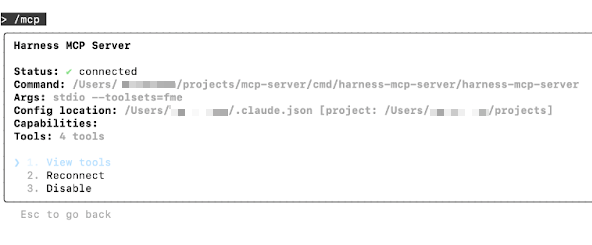
Navigate to the Tools/MCP section.
-
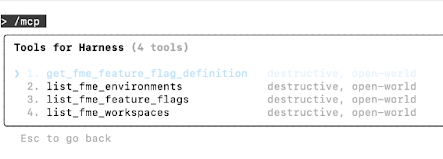
Verify Harness tools are available.
FME resource types
The FME toolset exposes the following resource types through the generic Harness MCP tools (harness_list, harness_get, harness_create, harness_update, harness_delete, harness_execute):
| Resource Type | Operations | Description |
|---|---|---|
fme_workspace | List | Discover available FME projects (workspaces). |
fme_environment | List | Explore environments within a workspace. |
fme_feature_flag | List, Get, Create, Update, Delete, Execute | Full lifecycle management for feature flags. |
fme_feature_flag_definition | List, Get, Create, Update | Environment-level flag configurations (rules, treatments, targeting). |
fme_rule_based_segment | List, Get, Create, Delete | Rule-based segment metadata at the workspace level. |
fme_rule_based_segment_definition | List, Get, Update, Execute | Environment-level segment definitions with targeting rules. |
fme_rollout_status | List | View available rollout status stages for a workspace. |
Use harness_describe(resource_type='fme_feature_flag') to see the full operation set and available fields for any resource type.
Feature flag operations
The fme_feature_flag resource type supports:
- List with filters (name, tags, rollout status)
- Get a specific flag by name
- Create a new flag with treatments and traffic type
- Update flag metadata (description, tags) via JSON Patch
- Delete a flag
- Execute lifecycle actions:
kill,restore,archive,unarchive
Feature flag definition operations
The fme_feature_flag_definition resource type manages the environment-level configuration for a flag:
- Get the full definition (treatments, rules, default treatment, traffic allocation)
- Create a definition in a new environment
- Update treatments, targeting rules, default treatment, baseline treatment, and traffic allocation
Filter flags
The list operation for fme_feature_flag supports filters that narrow results server-side, reducing the number of API calls needed:
| Filter | Description | Example |
|---|---|---|
name | Partial match on flag name | name='billing' returns all flags containing "billing" |
tags | Filter by tag value | tags='enterprise' returns flags tagged "enterprise" |
rollout_status_id | Filter by rollout status UUID | rollout_status_id='uuid-here' |
Example queries:
harness_list(resource_type='fme_feature_flag', workspace_id='ws-123', name='checkout')
harness_list(resource_type='fme_feature_flag', workspace_id='ws-123', tags='q4-launch')
Populate tags on your flags (for example, enterprise, billing, onboarding) to enable filtered queries. This eliminates the need to list all flags and filter client-side.
Rate limiting
The Harness FME Admin API enforces rate limits on all API calls made by the MCP server. The default limit is approximately 20 requests per 10-second window, tracked per organization and per IP address. When a limit is exceeded, the API returns HTTP 429 with a TOO_MANY_REQUESTS error code.
Rate limit responses include the following headers:
X-RateLimit-Remaining-OrgX-RateLimit-Remaining-IPX-RateLimit-Reset-Seconds-OrgX-RateLimit-Reset-Seconds-IP
The MCP server also enforces a client-side throttle of 10 requests per second, configurable via the HARNESS_RATE_LIMIT_RPS environment variable. If the server receives a 429 response, it retries with exponential backoff up to 3 times, controlled by the HARNESS_MAX_RETRIES variable.
Rate limits apply only to the Admin API (api.split.io). SDK evaluation traffic uses a separate path and is not affected.
Harness recommends the following best practices for AI workflows:
- Use filters to reduce list sizes. A filtered list call costs one API request, regardless of how many flags match.
- Cache flag definitions that do not change frequently, as they are stable between deployments.
- Spread calls across rate limit windows if your workflow requires many individual flag definitions.
- Monitor
X-RateLimit-Remaining-Orgif you are building custom tooling on top of the MCP server to pace requests appropriately.
Usage
The following examples demonstrate how to interact with the Harness FME MCP tools using natural language.
Discovery & Organization
List all projects (workspaces)
"Show me all FME projects in my Harness account." Output: A list of all available projects with IDs, owners, and linked environments.
Explore environments
"List the environments under the
checkout-serviceproject." Output: Displays development, staging, and production environments with deployment contexts.
Identify feature flags
"What feature flags are defined in the
checkout-serviceproject?" Output: Returns flag details such as name, status, and variation type. The display format depends on the IDE or AI tool you're using.
Filter flags by tag
"Show me all feature flags tagged 'enterprise'." Output: Returns only flags with the
enterprisetag, avoiding the need to list all flags.
Filter flags by name
"Find flags related to billing." Output: Returns flags whose names contain "billing" (partial match).
Inspection & Understanding
Inspect flag definitions
"Describe the flag definition for
enable_discount_bannerin the staging environment." Output: Includes flag variations, targeting rules, default values, and rollout strategies.
Understand flag configurations
"Show me the configuration of all flags that are currently active in production." Output: Returns flag keys, current variations, and targeted segments. The display format depends on the IDE or AI tool you're using.
View targeting rules
"What targeting rules are set for
premium_checkout_flowin production?" Output: Returns the complete rule set including attribute matchers, segment references, and percentage splits.
Management & Updates
Update flag metadata
"Add the tag 'deprecated' to the
old_payment_flowflag." Output: Updates the flag's tags via JSON Patch.
Update targeting rules
"Set the default treatment for
enable_new_dashboardto 'on' in staging." Output: Updates the flag definition's default treatment in the specified environment.
Kill a flag
"Kill the
experimental_searchflag in production." Output: Executes the kill action, forcing the flag to serve the off treatment to all users.
Restore a killed flag
"Restore the
experimental_searchflag in production." Output: Removes the kill override, returning the flag to its configured targeting rules.
Analysis & Impact
Understand release safety
"List feature flags that are safe to remove from code based on current rollout data." Output: Returns flags that have been fully rolled out and can be cleaned up from the codebase. Depending on the AI agent, the prompt can also be extended to automatically remove the flags from the code where safe.
Check environment consistency
"Compare flag definitions for
enable_checkout_flowbetween staging and production." Output: Diff view showing differences in variations, targeting, and rules across environments.
Inspect segments
"Show me all rule-based segments in the production environment." Output: Returns segment definitions with their targeting rules and conditions.
Environment variables
The following environment variables configure FME-specific behavior:
| Variable | Default | Description |
|---|---|---|
HARNESS_FME_BASE_URL | https://api.split.io | Base URL for FME API calls. |
HARNESS_RATE_LIMIT_RPS | 10 | Client-side rate limit (requests per second). |
HARNESS_MAX_RETRIES | 3 | Number of retries on 429 responses with exponential backoff. |
Further reading
Additional documentation, blog links, and articles: