Tags
Use tags to organize and manage your feature flags, segments, metrics, and experiments in Harness FME. Tags can represent a particular team or feature release, e.g., reporting team, front end, or geo search release.
Harness recommends creating tags that are specific to your workflow. For example:
| Category | Description | Example tags |
|---|---|---|
| By team | Identify the responsible team. | front end, infrastructure, web, mobile |
| By feature release | Group flags associated with a specific release. | reporting, new permissioning, contact database migration |
| By feature flag type | Categorize flags related to paywalls or whether they're permanent or temporary. | paywall, permanent, temporary |
| By experiment purpose or scope | Group experiments related to onboarding, checkout flows, or other test initiatives. | onboarding, checkout, retention-test |
Adding tags
You can add tags to feature flags, segments, metrics, and experiments. Tag names are case sensitive, and tags are shared across projects. The process is similar across all FME objects, but the UI controls differ slightly.
Allowed characters for tag names include the following:
- Letters:
a-z,A-Z - Numbers:
0-9 - Separators:
-,_,:
- Feature Flags
- Experiments
- Segments
- Metrics
-
Navigate to the Feature Flags page in Harness FME and select a feature flag.
-
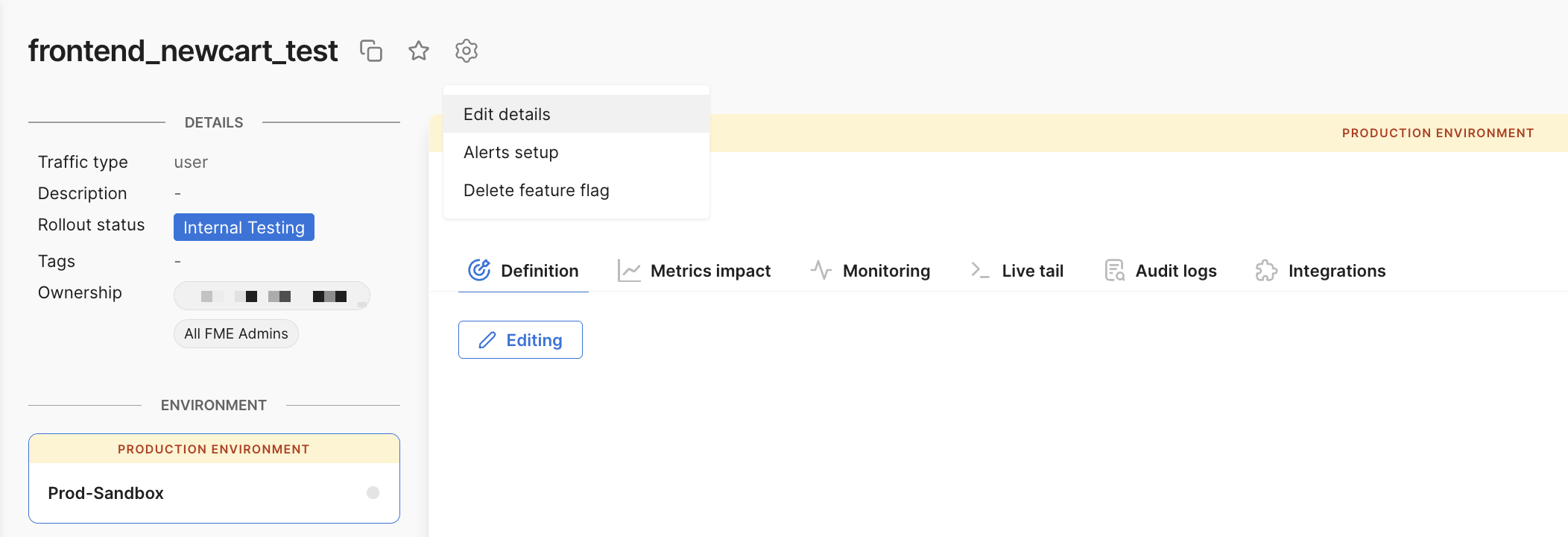
Click the Gear icon next to the feature flag title and select Edit details.
-
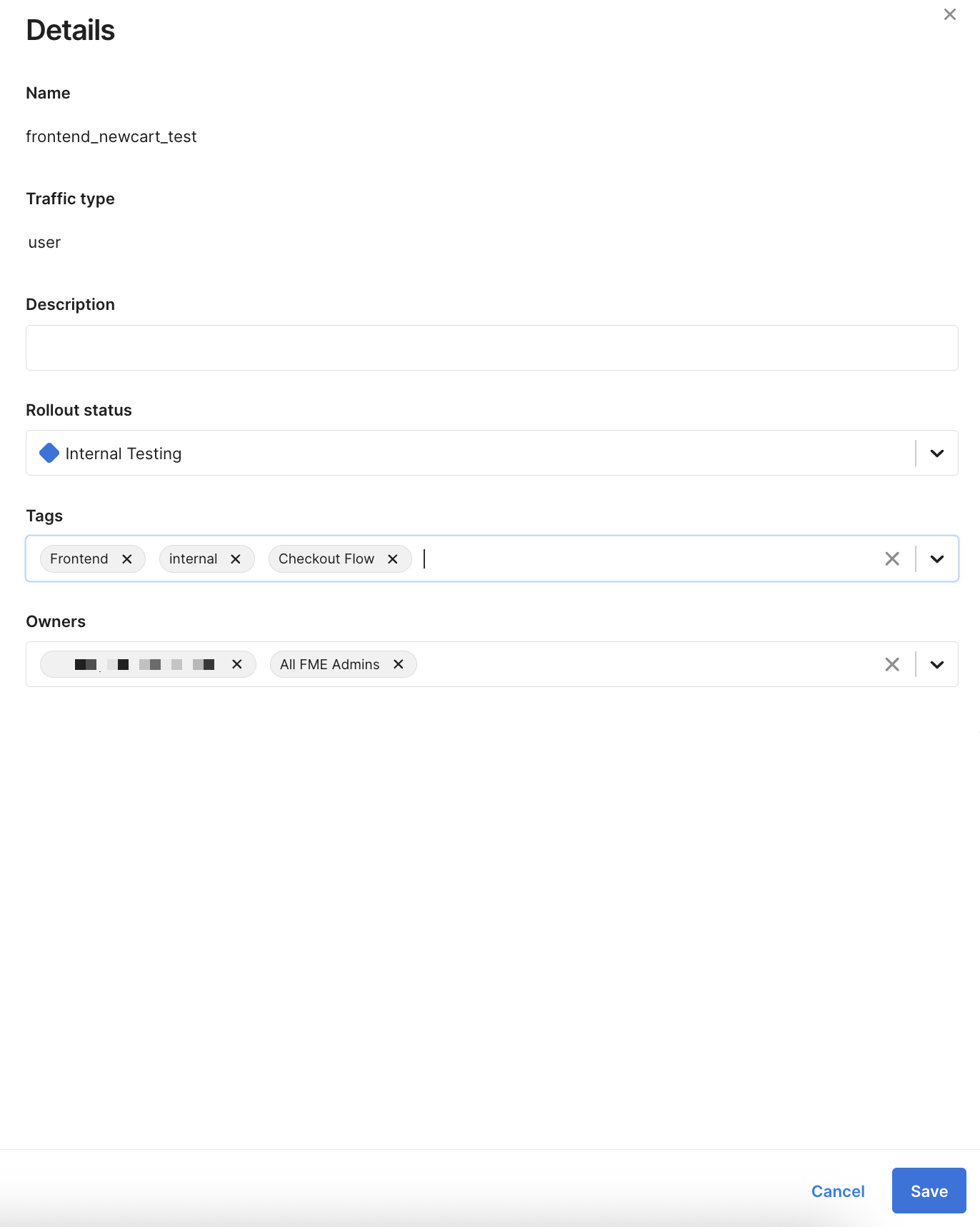
In the Tags field of the side panel, select an existing tag or enter a tag name.
-
Click Save.
-
Navigate to the Experiments page in Harness FME and select an experiment.
-
Click Edit experiment next to Settings.

-
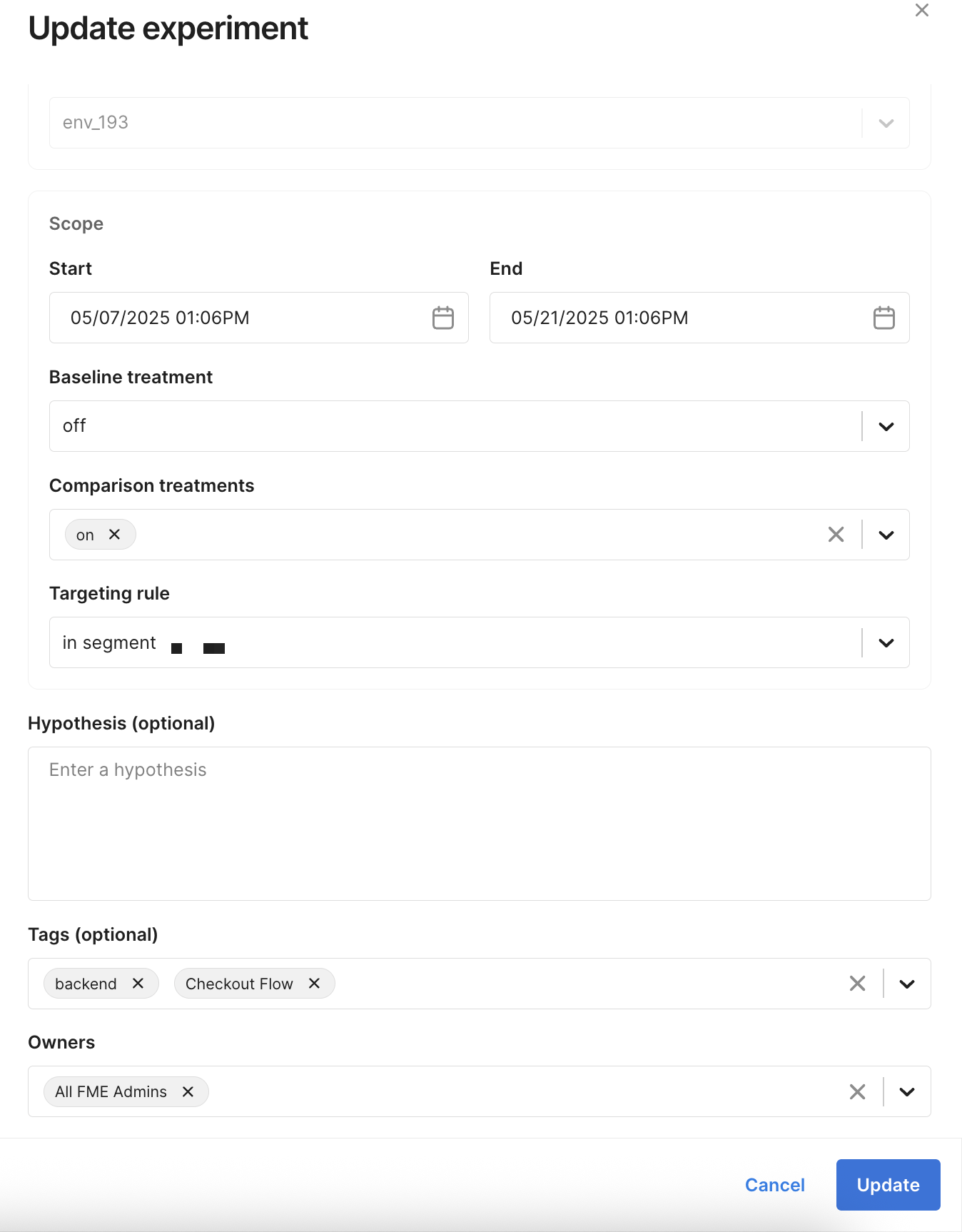
In the Tags field of the side panel, select an existing tag or enter a tag name.
-
Click Update.
-
Navigate to the Segments page in Harness FME and select a segment.
-
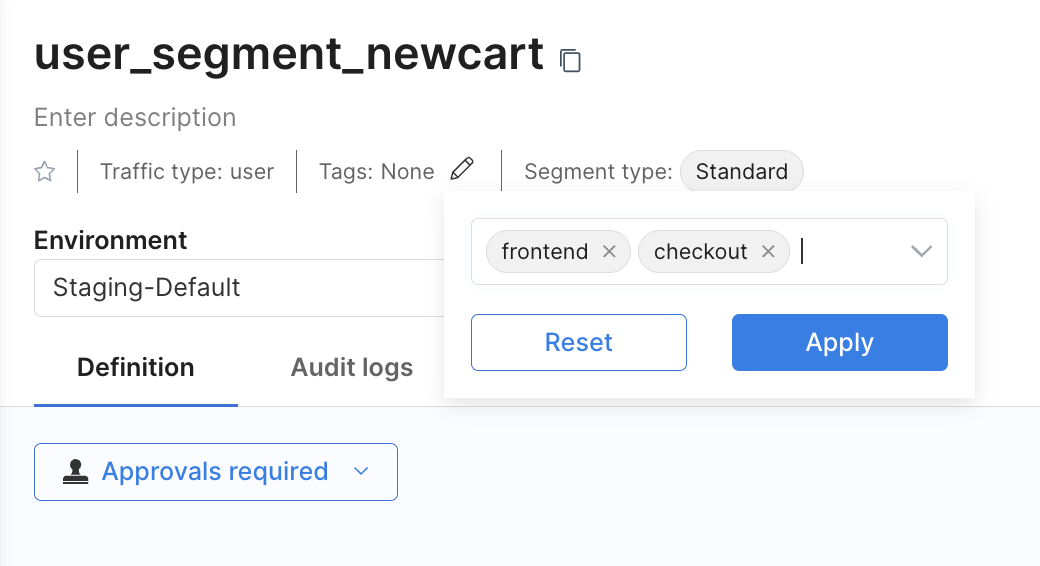
Click the Edit icon next to the Tags field under the segment name.
-
Select an existing tag or enter a tag name.
-
Click Apply.
-
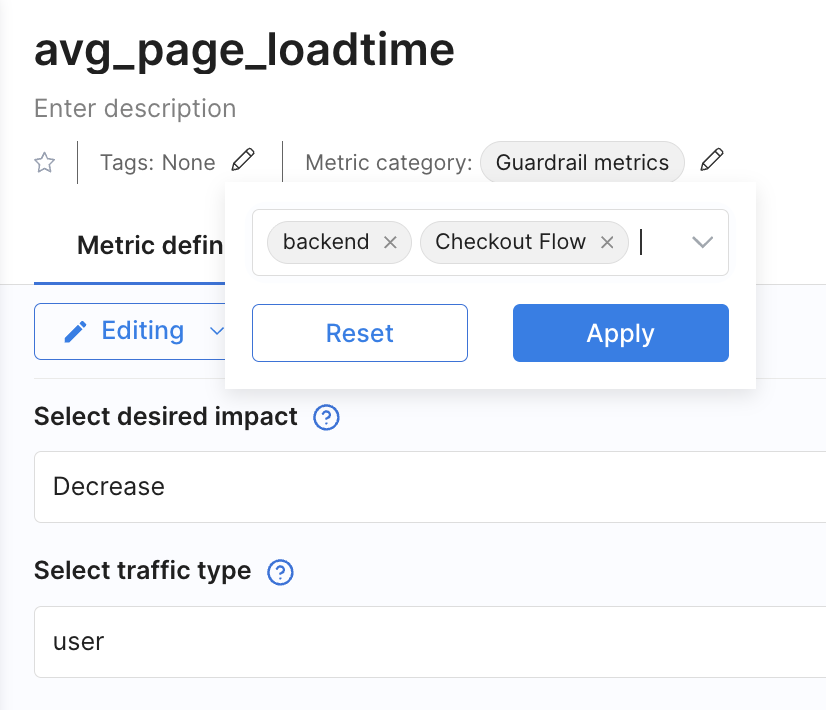
Navigate to the Metrics page in Harness FME and select a metric.
-
Click the Edit icon next to the Tags field under the metric name.
-
Select an existing tag or enter a tag name.
-
Click Apply.
Removing tags
You can remove tags from any feature flag, segment, metric, or experiment.
- Feature Flags
- Experiments
- Segments
- Metrics
-
Navigate to the Feature Flags page in Harness FME and select a feature flag.
-
Click the Gear icon next to the feature flag title and select Edit details.
-
In the Tags field of the side panel, delete individual tags or click X to remove all.
-
Click Save.
-
Navigate to the Experiments page in Harness FME and select an experiment.
-
Click Edit experiment next to Settings.
-
In the Tags field of the side panel, delete individual tags or click X to remove all.
-
Click Update.
-
Navigate to the Segments page in Harness FME and select a segment.
-
Click the Edit icon next to the Tags field under the segment name.
-
Delete individual tags.
-
Click Apply.
-
Navigate to the Metrics page in Harness FME and select a metric.
-
Click the Edit icon next to the Tags field under the metric name.
-
Delete individual tags.
-
Click Apply.
Filtering by tags
Use tags to narrow feature flags, segments, metrics, or experiments to only the objects that match one or more tags.
- Feature Flags
- Experiments
- Segments
- Metrics
-
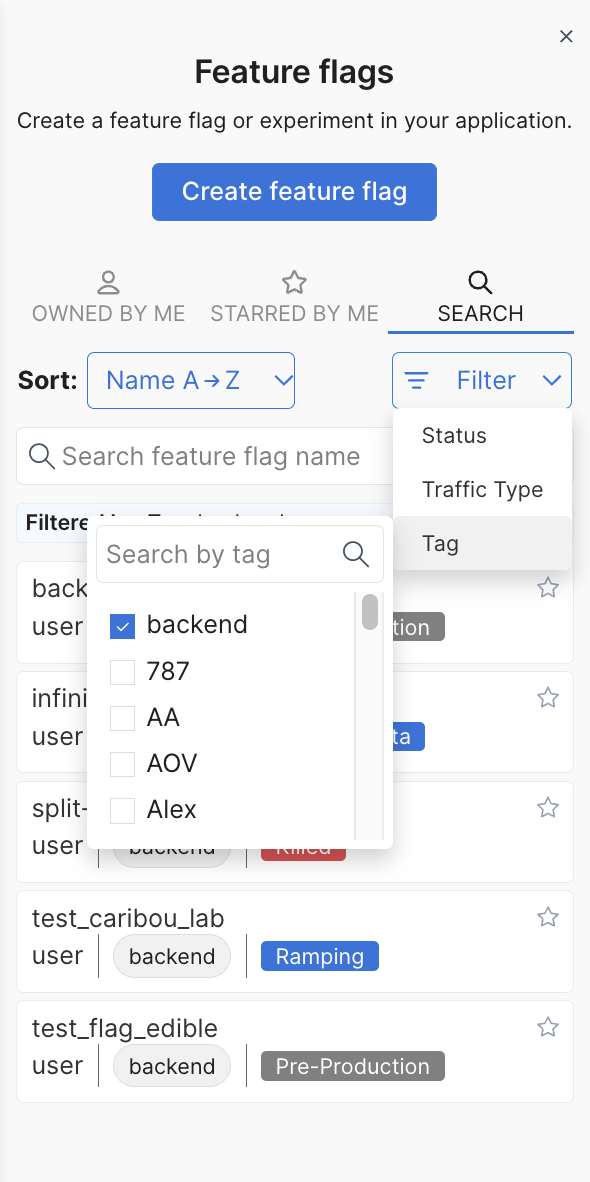
Navigate to the Feature Flags page in Harness FME.
-
In the list view, click Filter under the Search tab and select Tag.
-
Select one or more tags to filter the list.
-
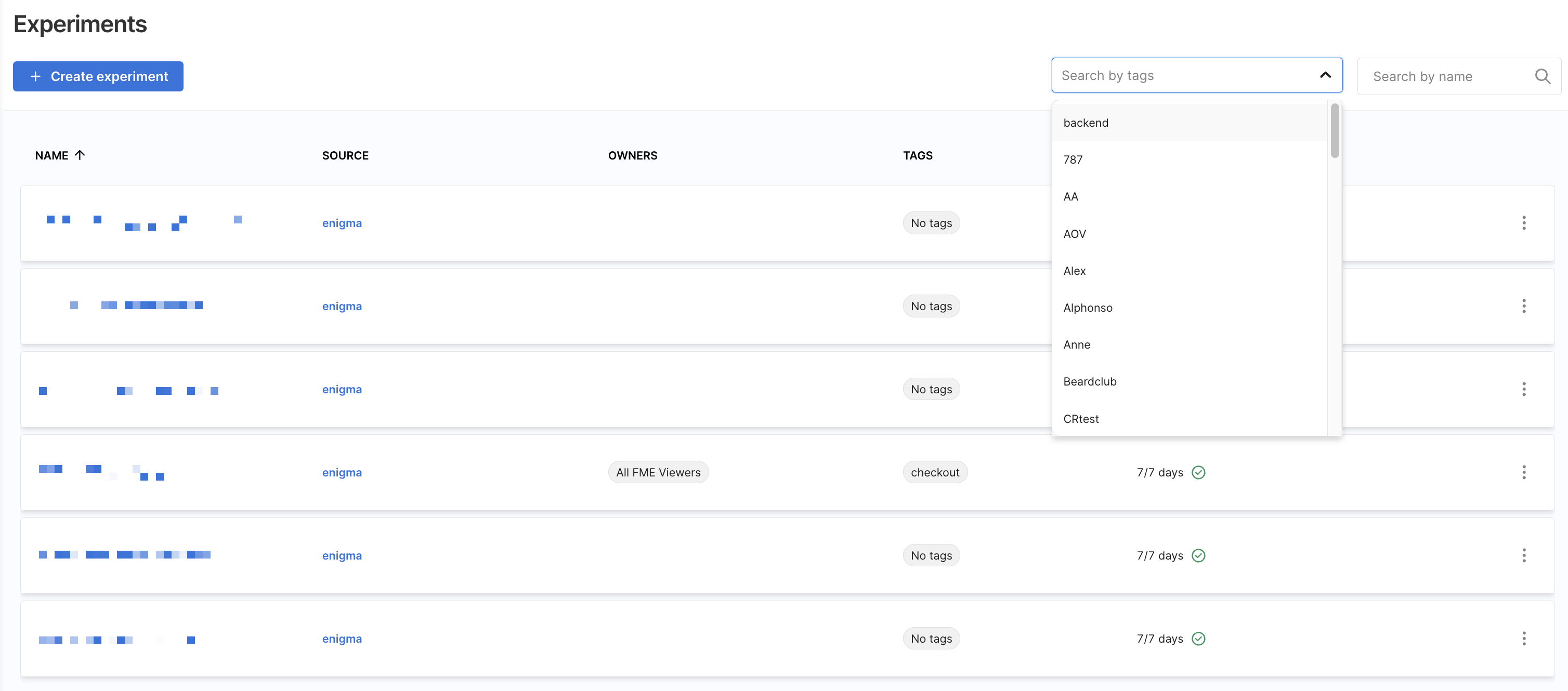
Navigate to the Experiments page in Harness FME.
-
Click Search by tags and select one or more tags to filter the list.
-
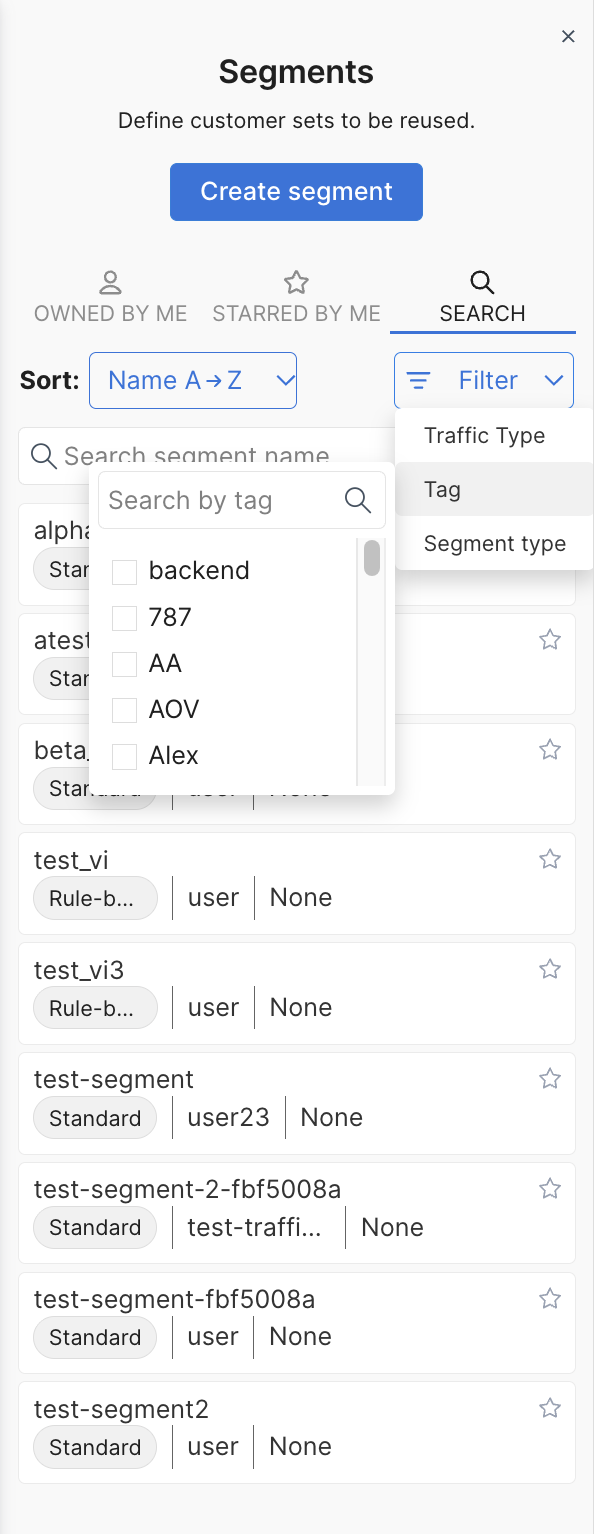
Navigate to the Segments page in Harness FME.
-
In the list view, click Filter under the Search tab and select Tags.
-
Select one or more tags to filter the list.
-
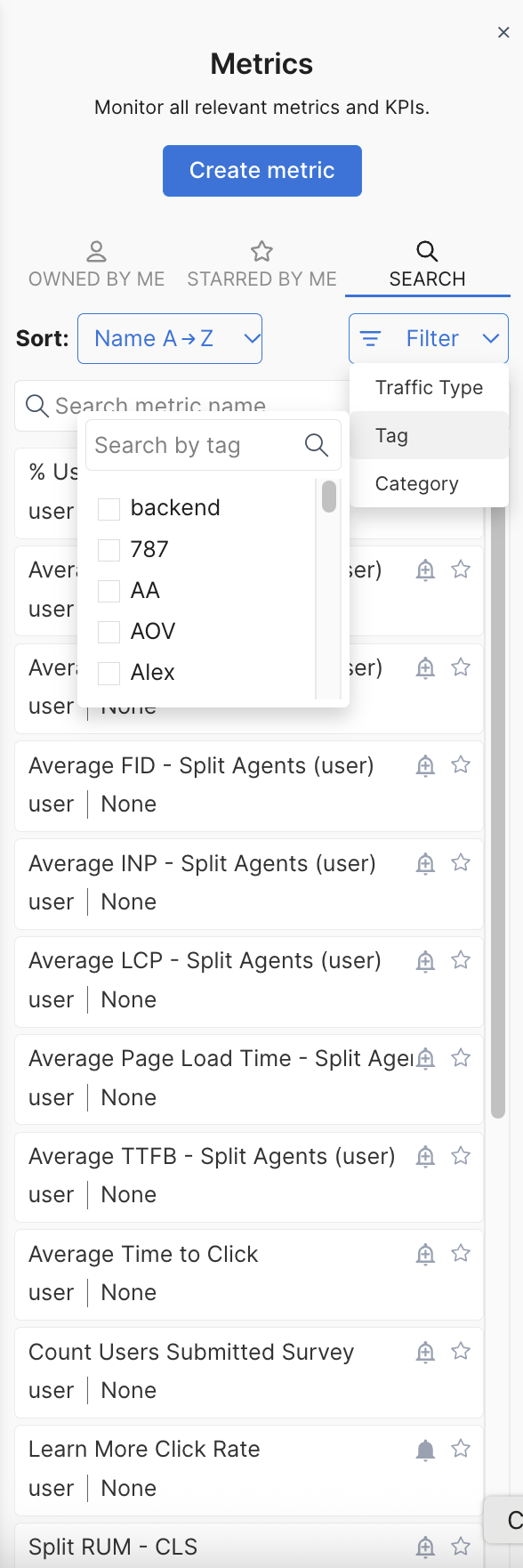
Navigate to the Metrics page in Harness FME.
-
In the list view, click Filter under the Search tab and select Tags.
-
Select one or more tags to filter the list.