OneLogin
OneLogin acts as a SAML identity provider for Harness, enabling users to authenticate with their existing OneLogin credentials. When a user attempts to log in to Harness, they are redirected to OneLogin for authentication. After successful authentication, OneLogin sends a signed SAML assertion back to Harness, which validates it and grants access. Optionally, OneLogin can include role information in the SAML assertion through custom parameters, allowing Harness to automatically assign users to corresponding Harness user groups based on their OneLogin roles for role-based access control.
If you use Harness Self-Managed Enterprise Edition, your instance must be accessed via an HTTPS load balancer, otherwise SAML authentication will fail over HTTP.
What you will learn in this topic
By the end of this topic, you will be able to:
- Set up the Harness application in OneLogin with SAML configuration.
- Enable SSO authentication.
- Configure OneLogin roles and parameters to sync user permissions with Harness user groups.
- Test and verify OneLogin authentication and authorization.
- Use Just-in-Time (JIT) provisioning to automatically create users on first login.
Before you begin
Before you configure OneLogin as the SAML identity provider for Harness, ensure you have the following:
- A Harness account with Account Admin permissions.
- An existing OneLogin account with admin access to create and configure applications.
- A user group in Harness to link to OneLogin.
- Understand SAML SSO with Harness .
OneLogin authentication on Harness
Enabling OneLogin authentication on Harness requires configuration on both Harness and OneLogin.
Use two browser windows or tabs for this process. Open OneLogin in one tab and Harness in the other.
Step 1: Obtain SAML endpoint URL
To get the SAML Endpoint URL from Harness to configure OneLogin:
- In Harness, go to Account Settings and select Authentication.
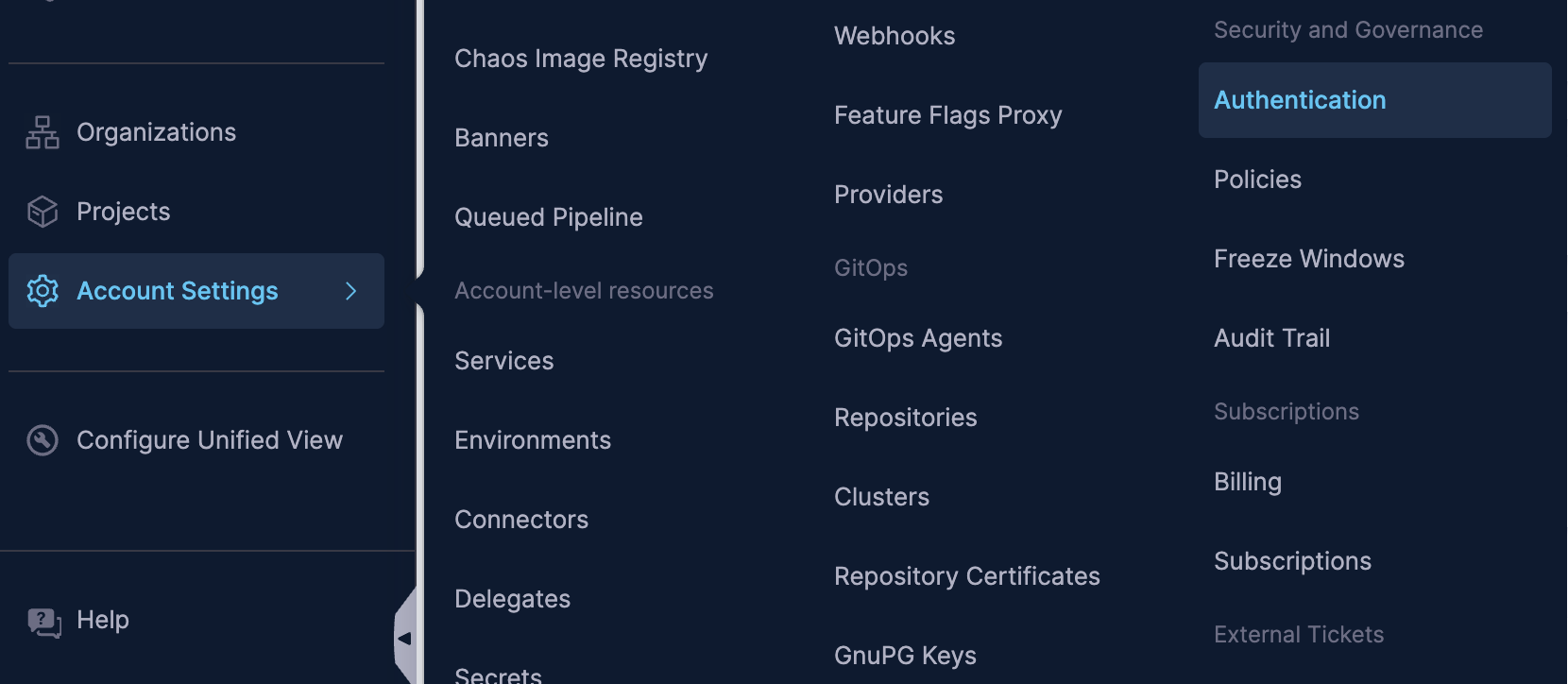
The Authentication page appears.
- Click + SAML Provider (if you are configuring SAML for the first time) or Login via SAML (if you have already configured SAML providers). Select Add SAML Provider.
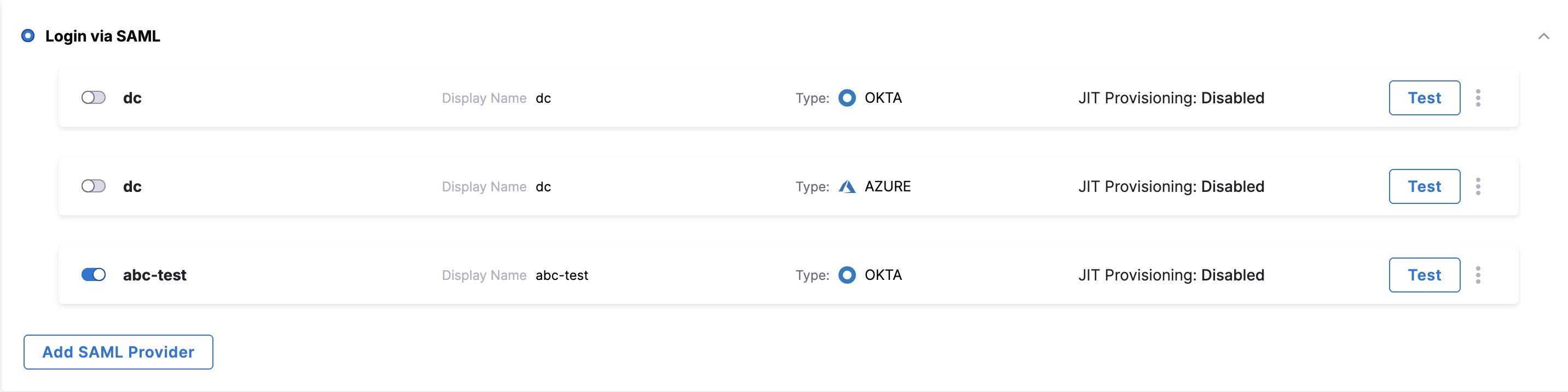
-
In Name, enter a name for the SAML SSO Provider. Select Continue.
-
Select OneLogin under Select a SAML Provider. Select Continue.
The settings to configure OneLogin setup are displayed.
- Copy the URL provided under Enter the SAML Endpoint URL, as your Harness OneLogin application's ACS URL, to clipboard.
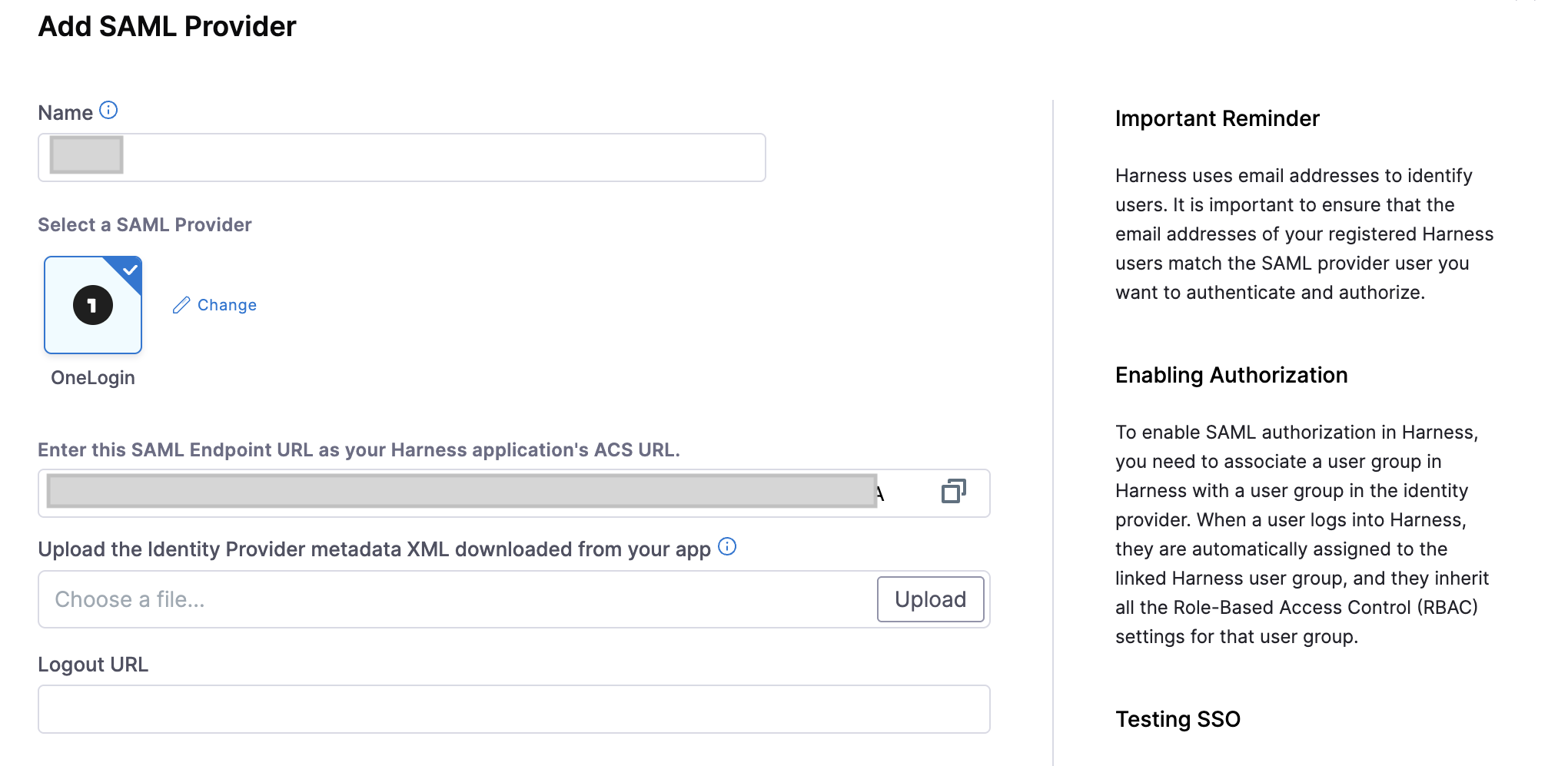
After copying the URL in step 5, keep the tab open, and Add Harness app to OneLogin.
Step 2: Add Harness app to OneLogin
Add the Harness app (for SaaS setup) (or Harness (On Prem) app for Harness Self-Managed Enterprise Edition setup) and configure it inside OneLogin so OneLogin knows where to send SAML metadata.
- Log in to OneLogin. Under the Applications tab, click Applications.

- Select Add App.

-
Find Harness or Harness (On Prem) based on your setup, and then select it.
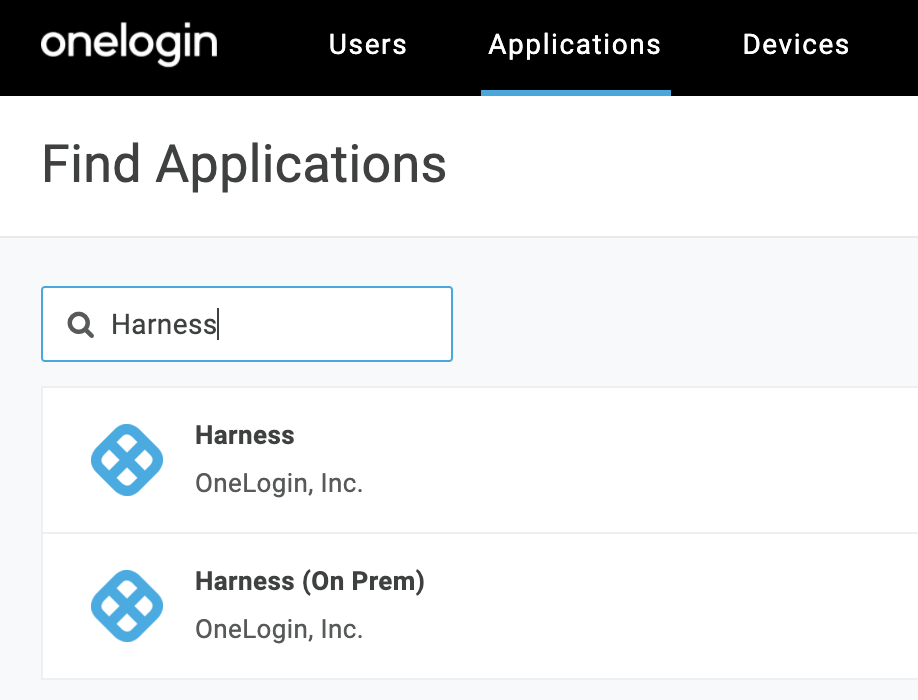
-
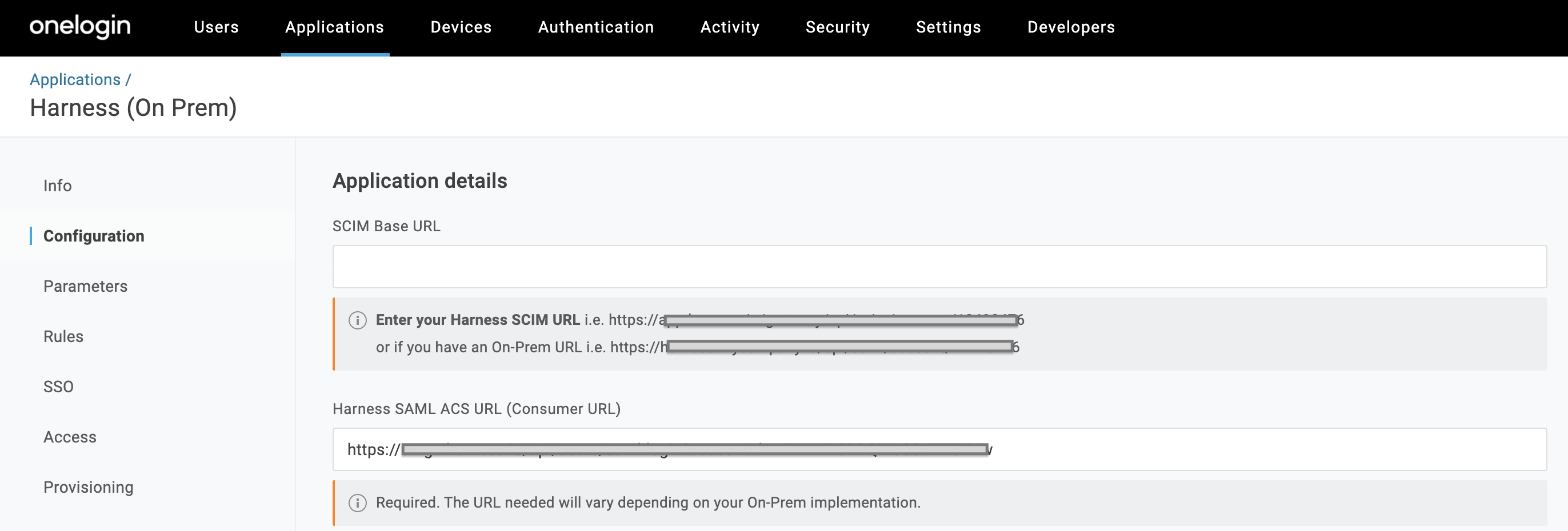
In Configuration, paste this URL into the SCIM Base URL field. Skip all other Application Details fields, and click Save.
-
Navigate to SSO tab. At the upper right corner, select More Actions and then select SAML Metadata. This downloads the .xml authentication file that you'll need to upload to Harness when you enable OneLogin as a Harness SSO provider.

Step 3: Assign users to roles
To provide a OneLogin user access to the Harness application to authenticate via SSO:
- In OneLogin, under Users tab, select Users.

-
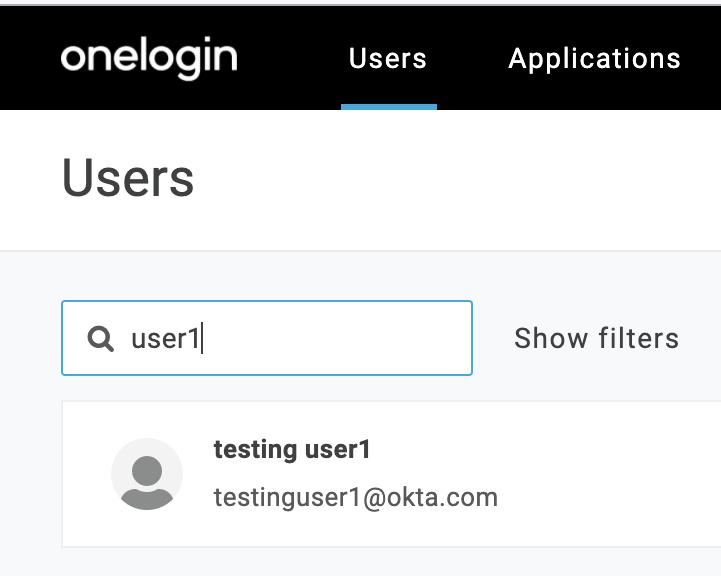
Search for a user that you want to add to Harness. Select the user.
-
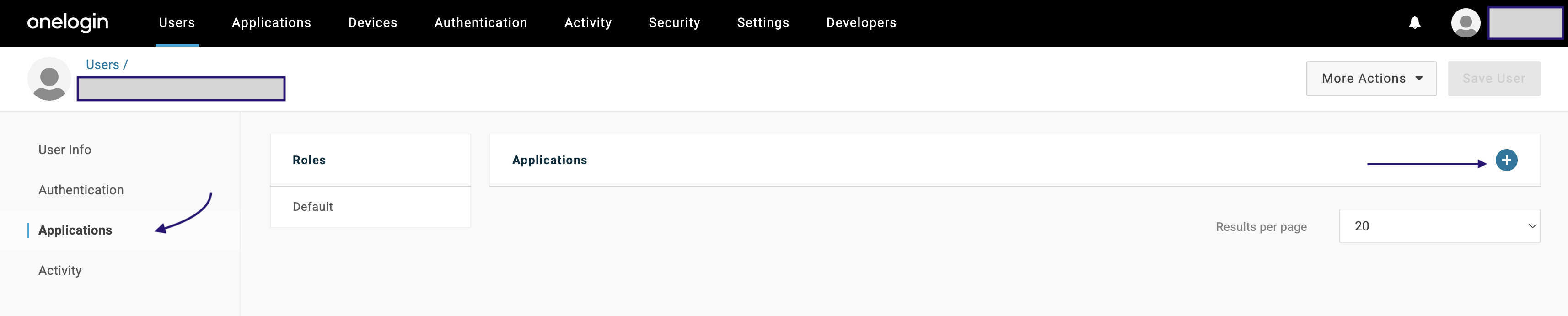
The Users page appears. Click the Applications tab. Click the + button at the upper right to assign an Application.
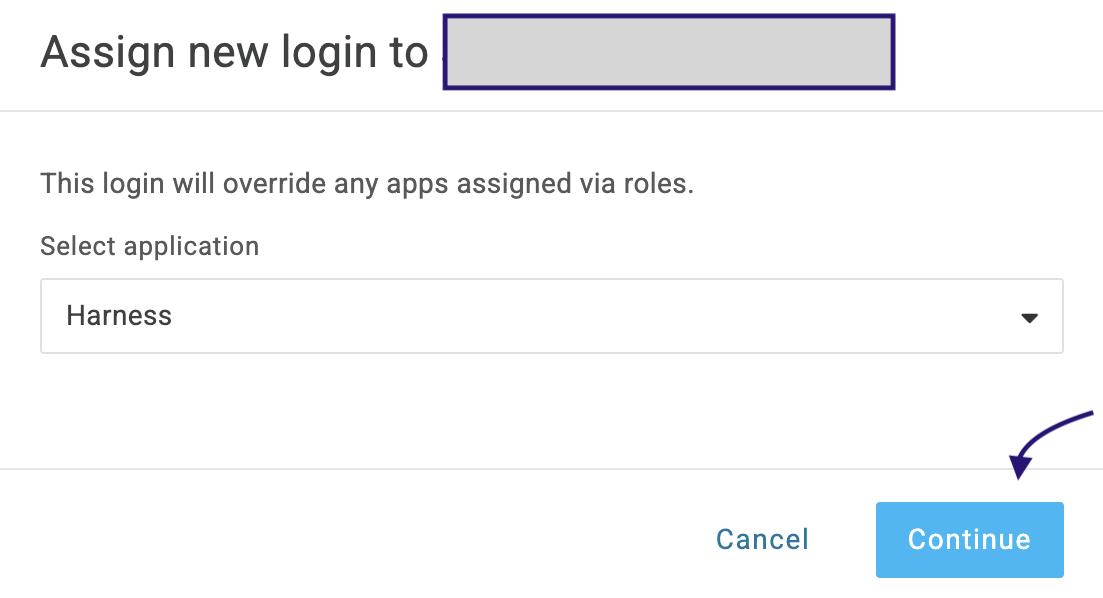
- Select the Application, then select Continue.
- Repeat this section for other users (or groups) that you want to add to Harness.
Step 4: Assign users to groups
If you have multiple users requiring OneLogin access, you can (optionally) create a group and add multiple users into it. To create a group:
-
In OneLogin, under Users, select Groups.
-
Select New Group on upper right to create a group.
-
Provide a Name, select the green check mark. Click Save.
-
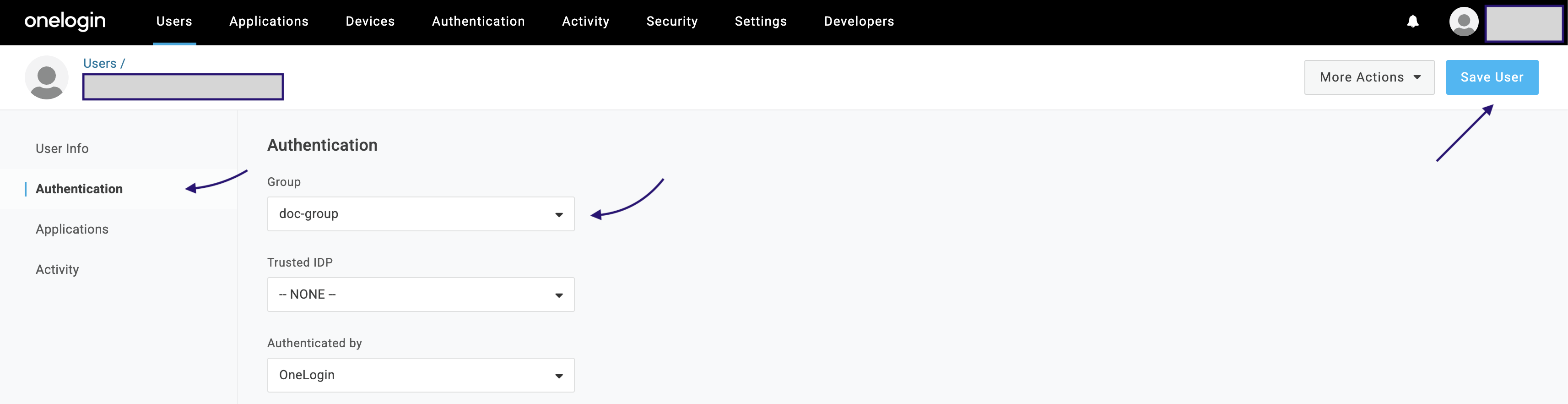
Under Users tab, select Users and select the user you want to add to a group. Go to Authentication tab and select the group from the dropdown, and select Save User.
Step 5: Enable OneLogin as a Harness SSO provider
To upload the OneLogin metadata into Harness and activate the SAML connection to complete the authentication setup:
Return to the Harness browser tab you left open in step 5 of Obtain SAML endpoint URL from Harness.
-
Select Upload to upload the .xml file that you obtained from OneLogin.
-
Deselect Enable Authorization. Select Add Entity ID and enter your custom Entity ID. The default Entity ID is app.harness.io. The value you enter here overrides the default Entity ID. Select Add.
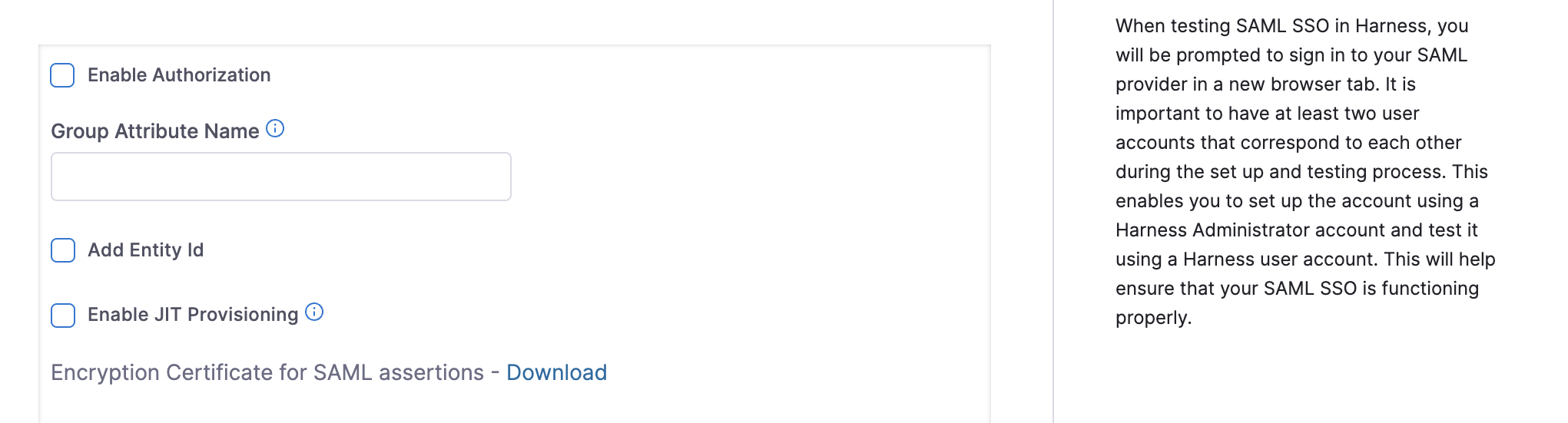
This configures a new OneLogin provider that you can use to log in to Harness.
-
To enable the new provider that you configured, click Login via SAML toggle.
-
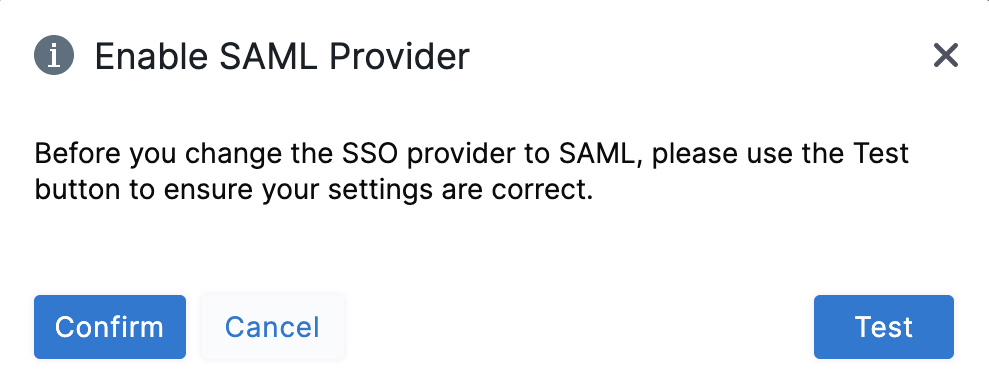
In the resulting Enable SAML Provider dialog, click Test to verify the SAML connection you've configured.
-
Once the test is successful, select Confirm to finish setting up OneLogin authentication.
OneLogin authorization on Harness
Once you've enabled OneLogin authentication on Harness, refer to the below sections to enable authorization between the two platforms to control what users can do inside Harness.
Step 1: Assign roles to users
Harness' SAML authorization replicates OneLogin Roles as Harness User Groups.
Harness User Groups is a collection of multiple Harness users. You assign roles and resource groups to a user group, and the permissions and access granted by those assignments are automatically applied to all members of the group. For more information, go to Manage Harness Groups.
Follow the steps below to map these entities:
-
From OneLogin's menu, under Users tab, select Users.
-
Find and select a user that is assigned to Harness, to assign appropriate OneLogin Roles. Select the Applications tab of the user you selected. Select the specific Roles you want to assign to this user. Select Save User at the upper right.

Repeat this section for other users to whom you want to assign Roles.
Step 2: Define parameters
Before defining parameters, enable provisioning in your OneLogin application. Go to Applications → your application → Provisioning, and under Workflows, select the Enable provisioning checkbox.
Once provisioning is enabled, define a parameter to include role information in the SAML assertion so Harness can map users to the correct User Groups.
- Under Applications, select your application.

Your application page appears in OneLogin.
-
Select the Parameters tab in your application, then select the
+button to add a new Parameter. -
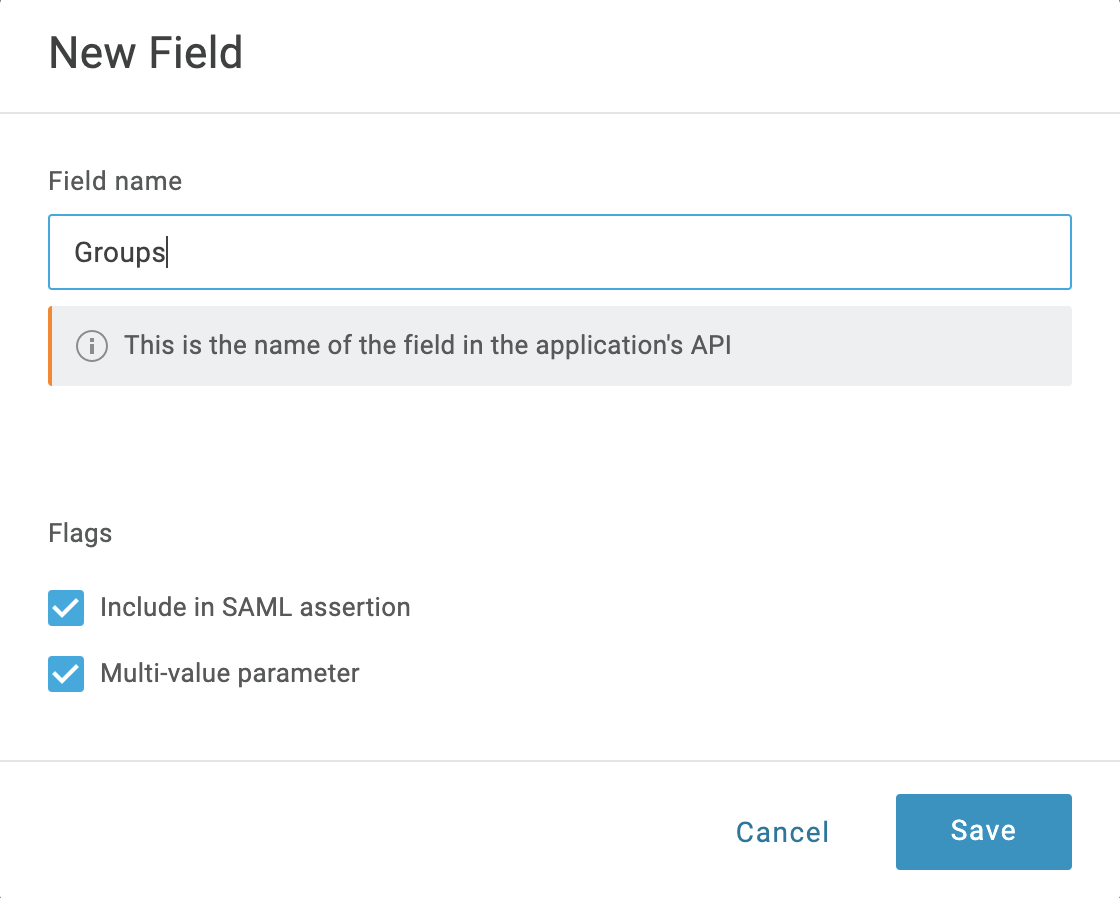
In the resulting New Field dialog, assign a Field name (for example Groups).
-
Select Include in SAML assertion and Multi-value parameter. Then click Save.
-
Back on the Parameters tab, select your new Groups field.
-
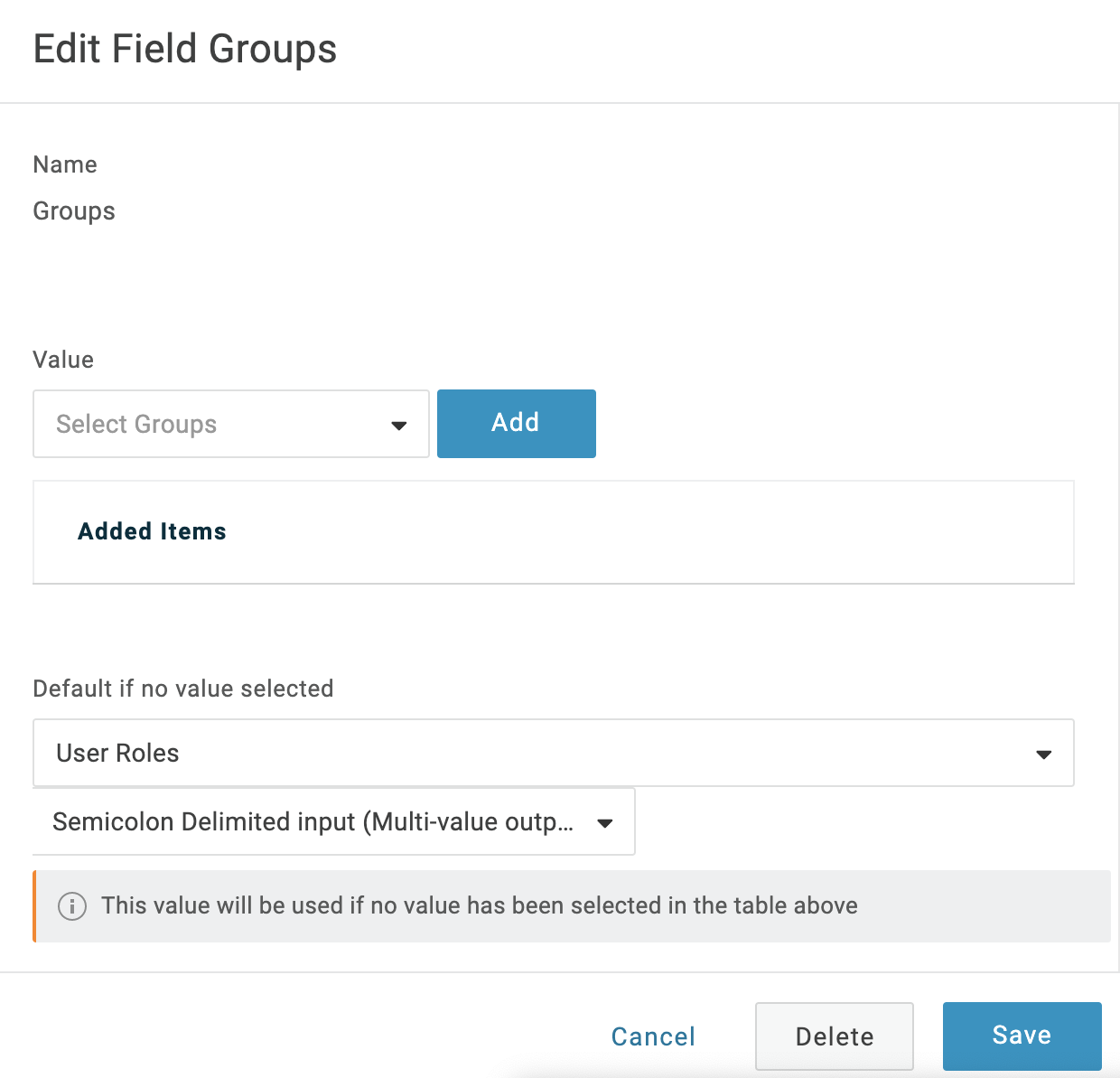
In the resulting Edit Field Groups dialog, set Default if no value selected to User Roles. Below that, select Semicolon Delimited input (Multi-value output). Click Save.
-
Click Save again at the Parameters page's upper right.
Step 3: Sync users in Harness
Configure Harness to recognize the OneLogin group and link it to a Harness user group so permissions are inherited on login.
-
In Account Settings, select Authentication.
-
Click to expand the Login via SAML section.
-
You can see the SSO Provider you have set up listed in this section. Select the vertical ellipsis (︙) next to the SSO Provider you have set up for SSO authentication, and select Edit.

-
In the Edit SAML Provider dialog, enable Enable Authorization. In Group Attribute Name, enter the name of the Field Group you configured in OneLogin. Click Save.
-
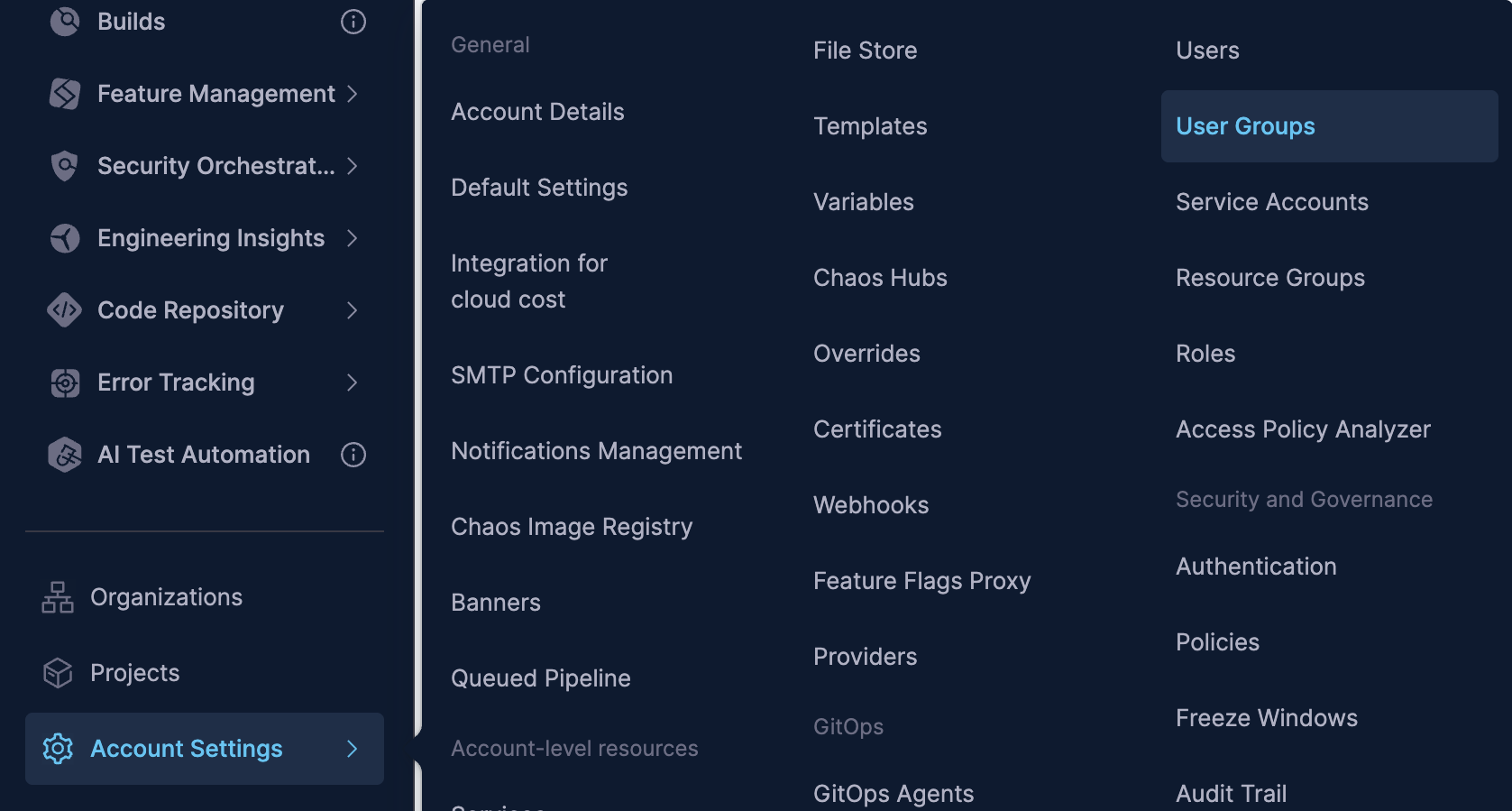
Under Account Settings, under Users, select User Groups.
-
Click on the User Group that you want to link the SAML SSO Provider to. To create a new user group, go to Create User Groups manually .
-
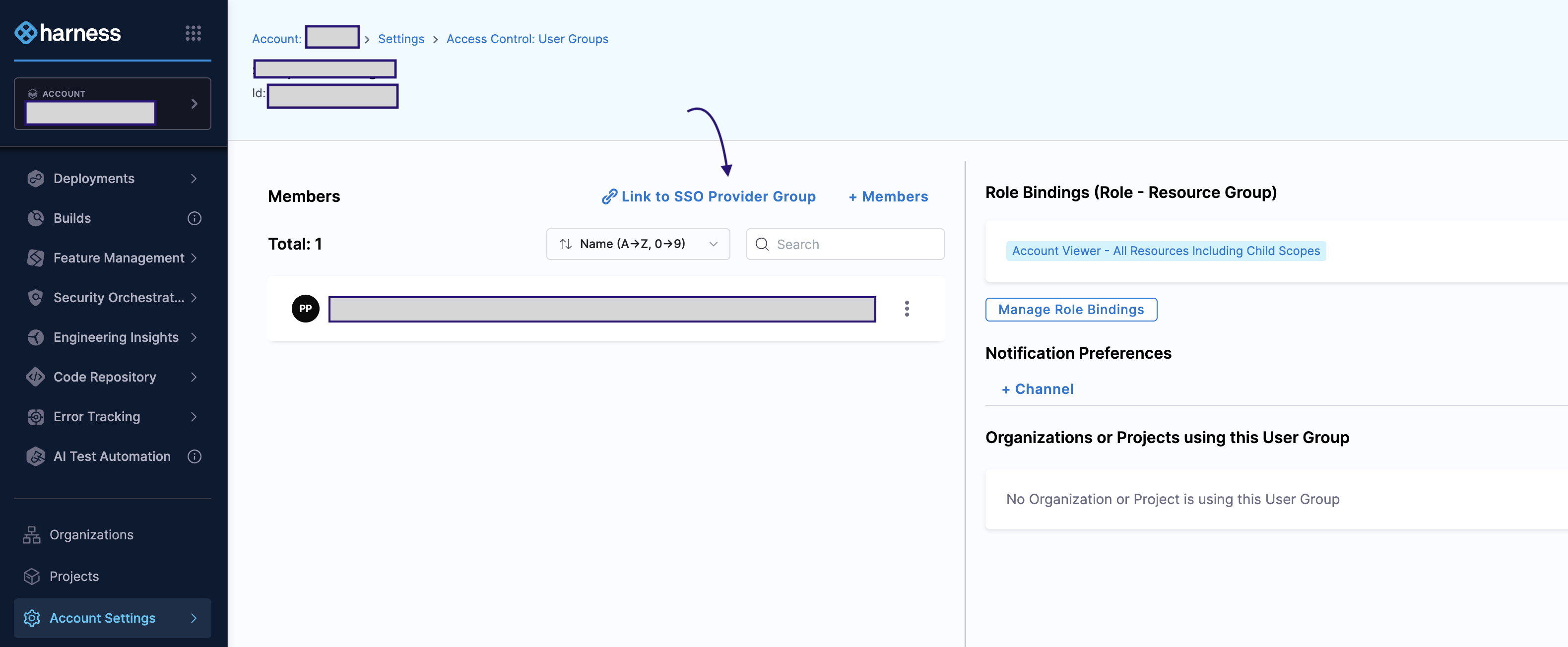
Select Link to SSO Provider Group.
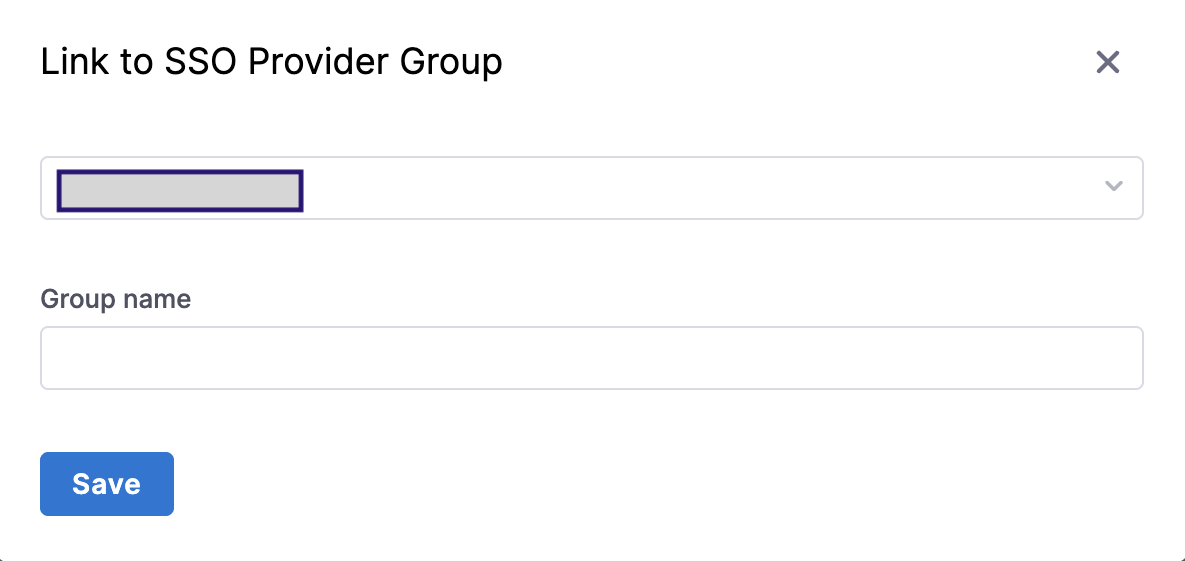
- In the Link to SSO Provider Group dialog, in Search SSO Settings, select the SAML SSO Provider you have set up. In the Group Name, enter the name of the Field Groups you configured in OneLogin. Click Save.
Step 4: Test the integration
After you've synced Users between OneLogin and Harness, users will be assigned to the designated Harness User Group upon your next login to Harness. To test whether OneLogin authentication and authorization on Harness are fully functional do the following:
-
In Chrome, open an Incognito window, and navigate to Harness.
-
Log into Harness using the email address of a Harness User that is also used in the SAML provider group linked to the Harness User Group.
Result: When the user submits their email address in Harness Manager, the user is redirected to the SAML provider to log in.
-
Log into the SAML provider using the same email that the user is registered with, within Harness.
Result: Once the user logs in, the user is redirected to Harness and logged into Harness using the SAML credentials.
-
In your Harness account in the other browser window, check the User Group you linked with your SAML provider.
Result: The user that logged in is now added to the User Group, receiving the authorization associated with that User Group.
You cannot delete a SAML SSO Provider from Harness that is linked to a Harness Group. You must first remove the link to the SSO Provider from the Group.
Just-In-Time (JIT) provisioning
Harness supports SAML configuration with or without JIT user provisioning. Go to Just-in-Time (JIT) user provisioning to understand how Harness creates users on first SAML login when JIT is enabled.
Troubleshooting
SAML authentication fails with OneLogin
Ensure the SAML Endpoint URL from Harness is pasted into the SCIM Base URL field in OneLogin's Configuration tab. Verify the SAML Metadata XML file has been downloaded from OneLogin's SSO tab and uploaded to Harness.