Single Sign-On (SSO) with OAuth
Harness supports Single Sign-On (SSO) with OAuth 2.0 identity providers, such as GitHub, Bitbucket, GitLab, LinkedIn, Google, and Microsoft Entra ID. This integration allows you to use an OAuth 2.0 provider to authenticate your Harness Users.

Once you enable OAuth 2.0 SSO, users can log into Harness using their GitHub, Google, or other provider's email address.
What you will learn in this topic
By the end of this topic, you will be able to:
- Set up OAuth 2.0 SSO with your preferred identity provider.
- Configure user access controls and domain restrictions.
- Implement security best practices to prevent account lockouts.
- Test user login with OAuth SSO providers.
Before you begin
Before you integrate Harness with OAuth 2.0, ensure you have the following:
- Understanding of Authentication concepts.
- Understanding of Role-based access control (RBAC) in Harness.
- Understanding of OAuth 2.0.
- A Harness account that is a member of the Administrator User Group with Create/Edit, and Delete permissions for Authentication Settings. To check the permissions associated with your account, go to roles in Harness.
- An active OAuth 2.0 provider account (GitHub, Google, Bitbucket, etc.) that uses the same email address as your Harness account. This is also applicable to all users that you wish to invite to Harness after you enable OAuth 2.0 SSO. For example, if a Harness user is registered with Harness using the email address JohnOAuth20@outlook.com, and OAuth SSO is enabled in Harness using Bitbucket as the provider, then the user must also be registered with Bitbucket using JohnOAuth20@outlook.com.
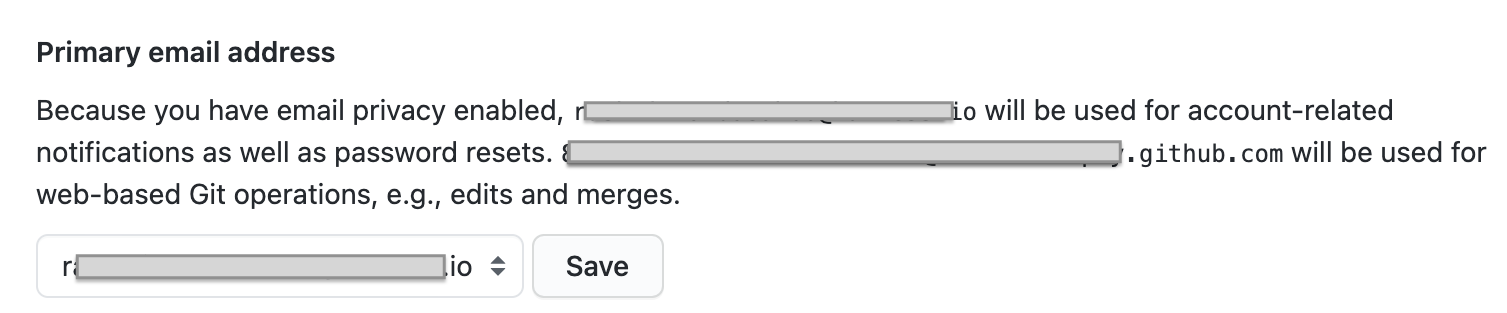
- GitHub users: If you use GitHub for OAuth 2.0 SSO, you must use your primary email address for your Harness account and login. GitHub supports primary and secondary email addresses:
Set up OAuth 2.0 SSO
To set up OAuth 2.0 SSO, do the following:
-
Sign in to your Harness account (that has the relevant permissions to configure Authentication Settings). For information on Harness RBAC, go to RBAC in Harness.
-
Select Account Settings and select Users under Access Control.
The Access Control page opens.
-
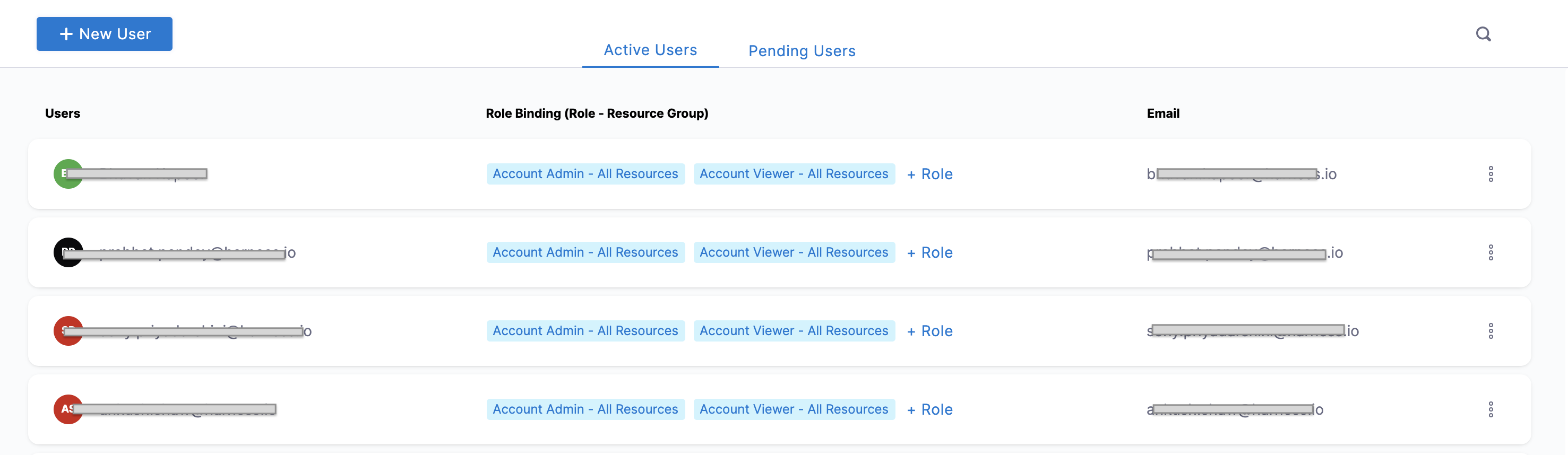
In the Users tab, you will see the list of all the Active Users and their Email.
-
Before you set up SSO, confirm that your users' email addresses registered with Harness are the same email addresses they use to log into the OAuth 2.0 provider you are enabling for Harness SSO.
-
Select Account Settings -> Authentication.
The Authentication: Configuration page appears.
-
If not already enabled, enable Use Public OAuth Providers.
-
Enable each public OAuth 2.0 provider you want to use for SSO.

Log in with an OAuth 2.0 provider
The first time you log into Harness using OAuth 2.0 SSO, Harness redirects you to the OAuth 2.0 provider. Authenticate using your OAuth provider credentials. The provider then redirects you back to Harness and logs you in automatically.
For all future logins, if you are already logged into your OAuth 2.0 provider in the same browser as Harness, enter your email address in Harness and log in automatically.
The following example demonstrates the OAuth 2.0 login flow for a user registered in Harness and OAuth provider Google:
ExampleUser is registered in Harness with the email address exampleharnessUser@gmail.com:

The email address exampleharnessUser@gmail.com is also registered with Google:
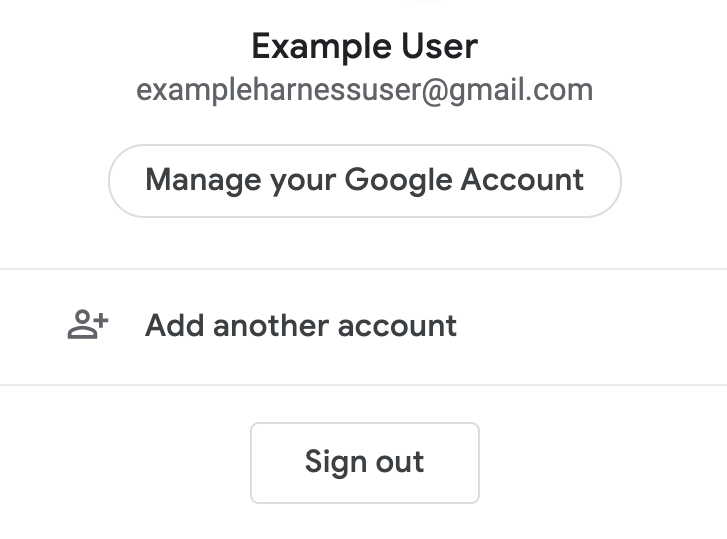
And Google is enabled as the Harness SSO provider.
ExampleUser logs into Harness with the email address exampleharnessUser@gmail.com:
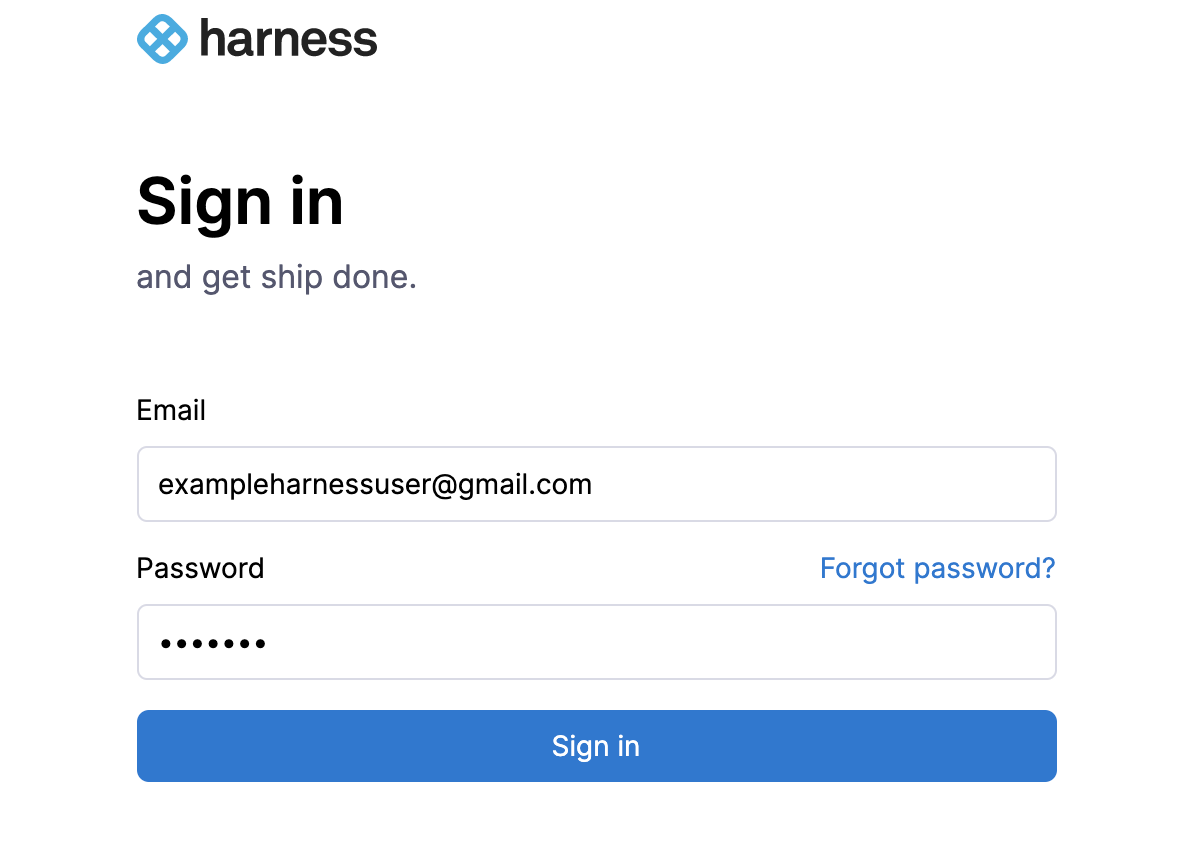
When ExampleUser selects Google as the authentication provider, Harness redirects the browser to the Google sign-in page:
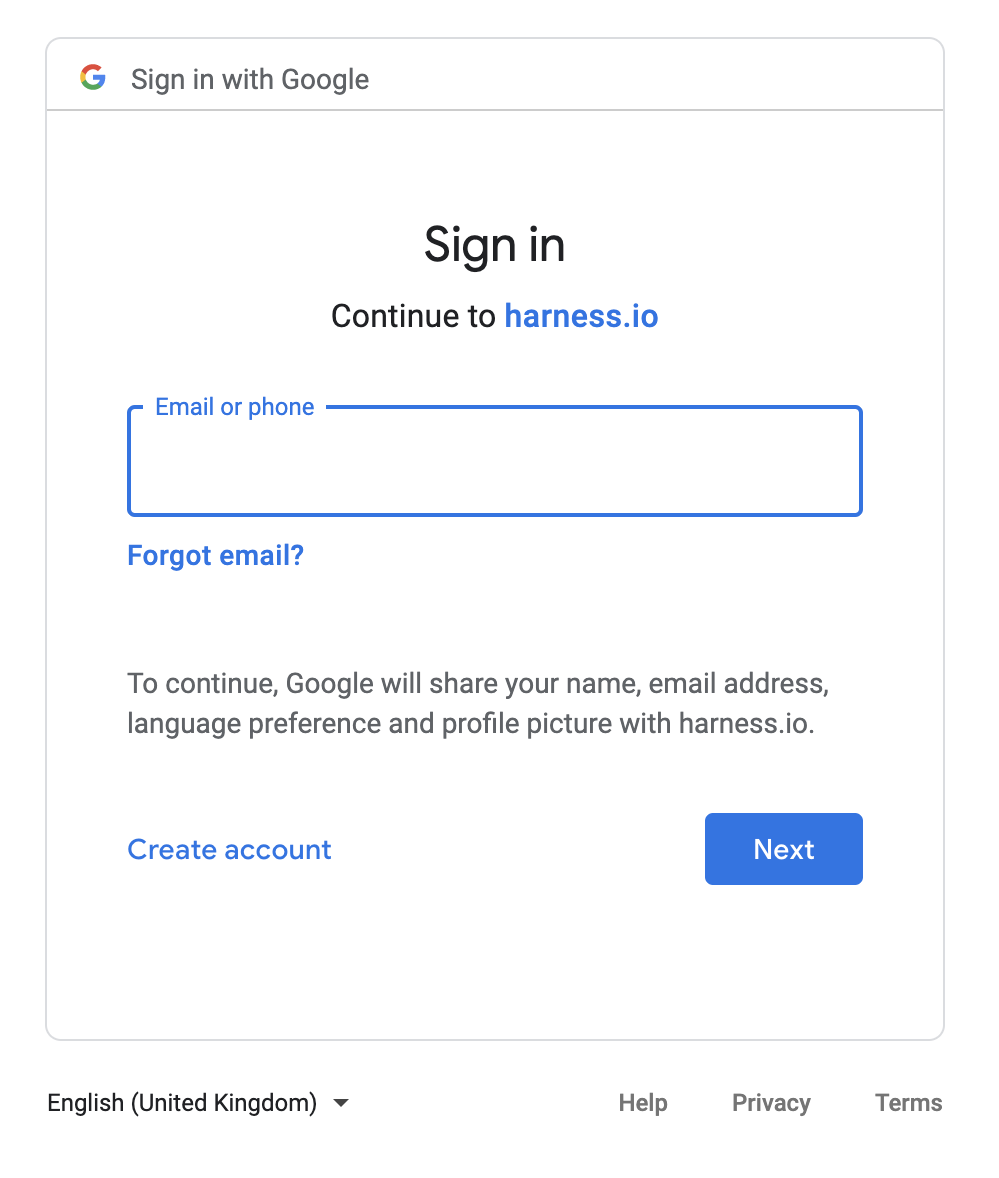
The user enters the email address exampleharnessUser@gmail.com and clicks Next. The user then enters the password and clicks Next.
Google verifies the email address and password and redirects the browser back to Harness, where ExampleUser logs in automatically.
Harness OAuth 2.0 login successful!
Each time you use the OAuth provider to log into Harness, you must log into the OAuth provider first. This is the standard OAuth process.
Restrict email domains for OAuth SSO
By default, any member invited to Harness by a Harness Administrator can log in using an OAuth 2.0 SSO identity provider that's enabled on Harness. However, you can limit which email domain names can be used to log into Harness.
For example, you might set up Google as a Harness OAuth 2.0 SSO provider, but you want only users who have example.io in their (login) email address to be able to log in via Google.
To restrict which email domains can access Harness via OAuth, go to Restrict email domains.
Harness local login
In the case of lockouts or OAuth downtime, go to Harness Local login.
Prevent lockouts
The following steps help you prevent lockouts when setting up SSO in Harness:
- When you enable OAuth 2.0 SSO, use a Harness user account that is a member of the Administrator Group and remain logged in until you have tested SSO using a separate user account. If there is any error, you can disable OAuth 2.0 SSO.
- Ensure that one or more Harness users in the Administrators Group are registered with Harness using the same email address they use to log into the OAuth 2.0 provider you plan to use for SSO. Repeat this test for each enabled OAuth 2.0 provider.
If you accidentally get locked out of Harness, email support@harness.io, call 855-879-7727, or contact Harness Sales.
Set the default experience
For each user to land on the relevant part of the product after login, go to Set the default experience.
Related articles
- Two-Factor Authentication - Add an extra layer of security to your Harness login.
- Single Sign-On (SSO) with SAML - Authenticate users with SAML 2.0 identity providers.
- Single Sign-On (SSO) with LDAP - Integrate Harness with LDAP directory services for authentication.