Fix security vulnerabilities using Harness AI
Harness uses state-of-the-art AI technology to streamline the process of triaging and fixing security vulnerabilities. For every vulnerability finding scanned and ingested into STO, Harness AI explains the issue precisely and provides detailed advice in addition to the remediation suggestion provided by the scanner itself. This includes code changes and package upgrades on how to fix it. The feature is based on large, well-trained language models. You can regenerate advice with additional context to optimize your results.
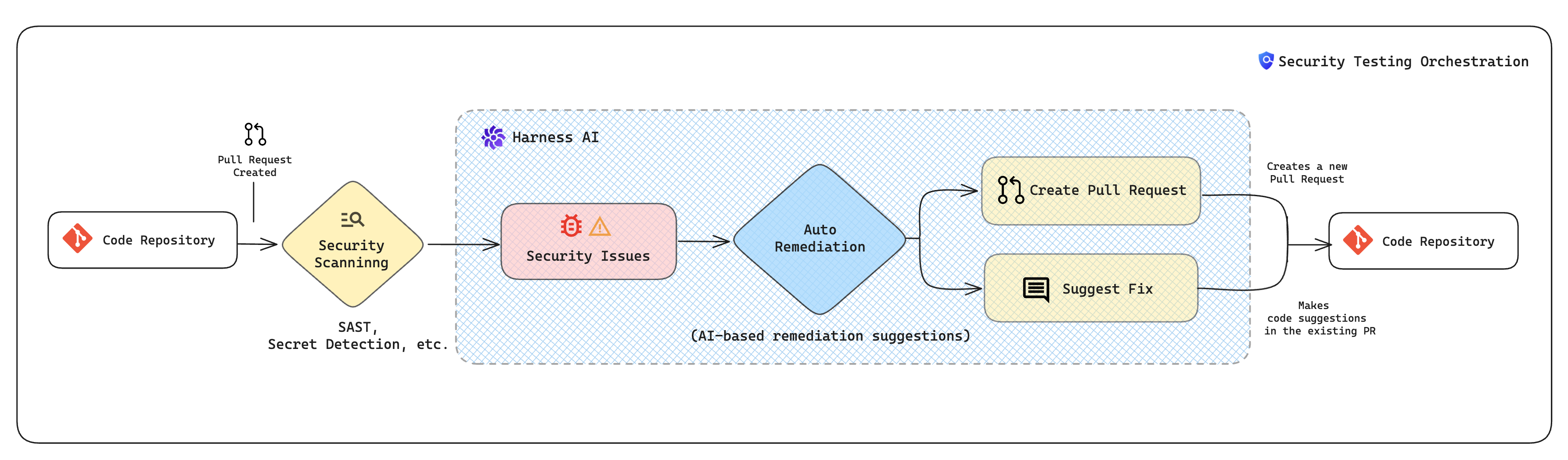
Harness AI reduces developer workload by streamlining and simplifying the process of fixing vulnerabilities. It enables developers and security personnel to manage security-issue backlogs and address critical issues promptly. It helps you create code suggestions and pull requests to remediate the issue directly from STO. It can dramatically reduce your time to resolution (TTR), speed up your software delivery lifecycle, and improve the security posture of your applications and services.
What you will learn in this topic
By the end of this topic, you will be able to:
- Understand prerequisites and considerations for using Harness AI in STO.
- Refine AI remediation suggestions with additional context and code snippets.
Before you begin
Before you fix security vulnerabilities using Harness AI, ensure you have the following:
- Harness account access: Access to your Harness account with permissions to view and manage security findings.
- Security Testing Orchestration module access: Access to the Security Testing Orchestration (STO) module with at least one security scan completed.
- End-User License Agreement: Signed End-User License Agreement with Harness for AI features.
- Harness AI enabled: Harness AI enabled in your account settings. Navigate to Account Settings > Default Settings > Harness AI tile and enable the setting.
Prerequisites and considerations
Before you can use Harness AI in STO, you must complete the following:
- Read the Harness AI Data Privacy Overview.
- Sign an End-User License Agreement with Harness.
- Enable Harness AI in your Harness account. Navigate to Account Settings, select Default Settings, select the Harness AI tile, and then enable the Harness AI setting. Select Allow Overrides if you want to be able to enable or disable Harness AI for individual projects.
-
AI always provides an answer. However, if there is no known remediation within the model's training, the answer might be invalid. For this reason, an AI suggestion might require further research to confirm its validity.
-
Before you implement an AI-generated suggestion, consider carefully the reliability and extent of the publicly-known information about the detected issue. The accuracy, reliability, and completeness of a suggestion depend on the public knowledge about that issue. An AI-generated suggestion is not guaranteed to remediate the issue and could introduce other issues.
-
You should also consider the suggestion's applicability to your specific target and use case. An issue might have no known remediation, especially if it was recently discovered. An issue might have multiple suggested remediations that are contradictory or applicable only to specific use cases.
-
A specific remediation might involve installing components with usage and license requirements. Check any requirements in advance.
Refine AI remediation suggestions
This procedure describes how to refine a suggestion by providing more information, such as additional context or code snippets, to Harness AI.
-
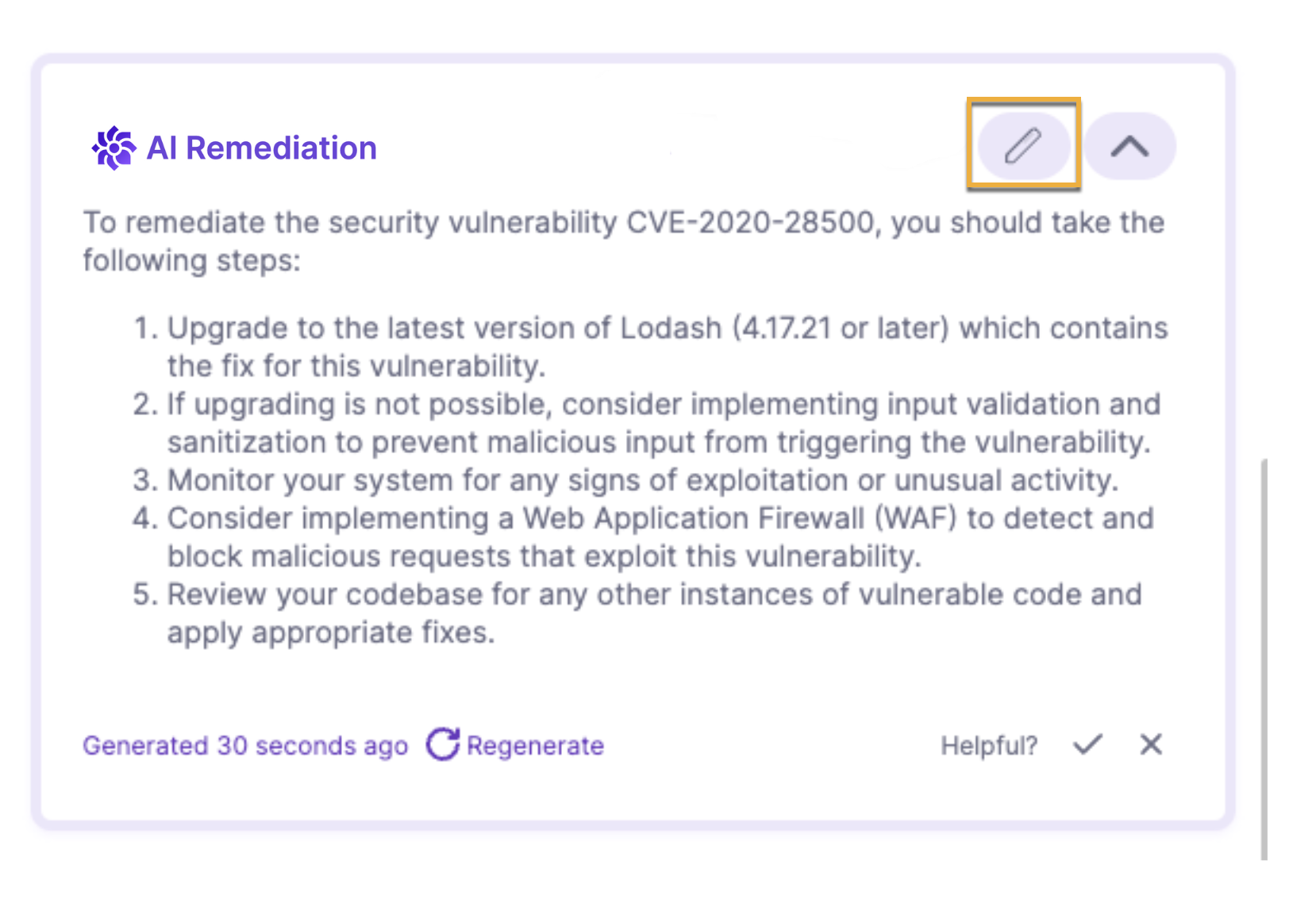
When you navigate to the Vulnerabilities tab and select an issue, select the Remediation tab in the Issue Details pane to view the AI Remediation.
This suggested remediation is based on public information about the CVE or CWE and the first detected occurrence (Occurrence 1) in the target. If the scanner captures the code snippet where the vulnerability occurs, the query to Harness AI includes this snippet as well.
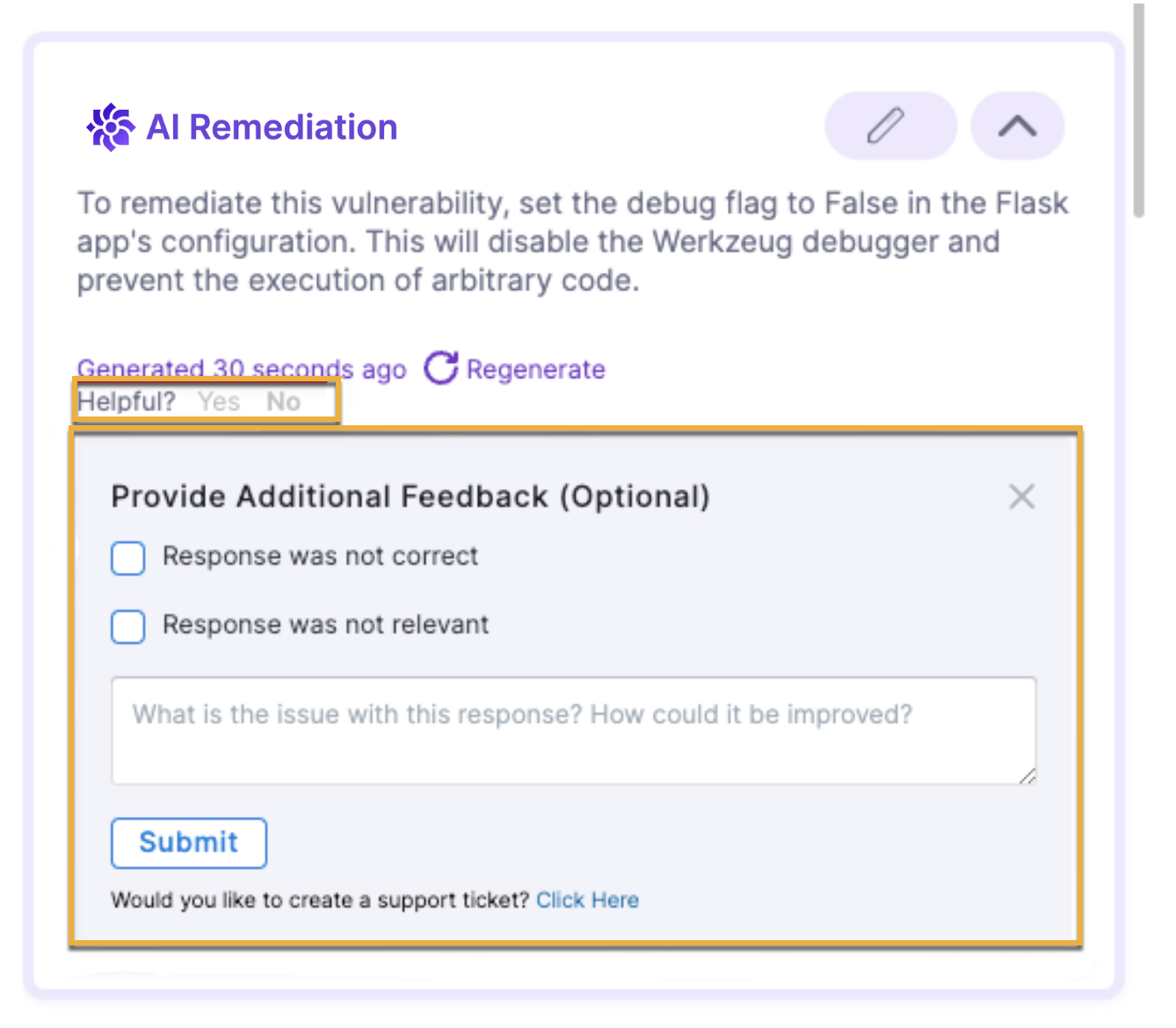
You can send feedback to Harness about a specific remediation. Under Helpful?, click No. Then enter your feedback and click Submit.
-
If you want to optimize the advice with additional information or context, perform the following steps:
-
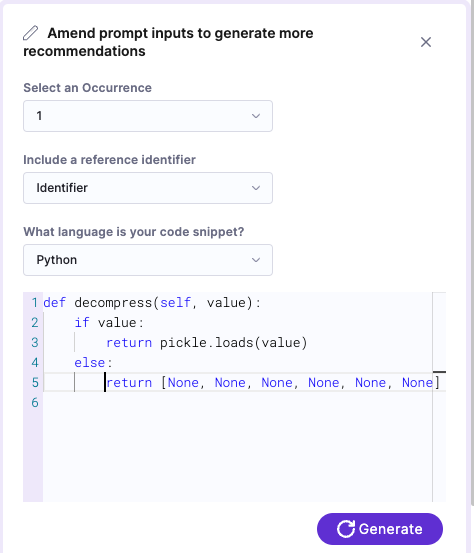
Select Edit Input.
-
Specify the occurrence, reference ID, and language (if you scanned a codebase).
Harness AI can often auto-detect the language of a code snippet, but it is good practice to confirm that the language setting is correct.
Some scanners provide details on the location of the vulnerable code, such as the file name and line number, but may not offer the specific code snippet itself. With the Edit Input option, you can copy and paste the exact vulnerable code snippet. Harness AI then uses this information to recommend code changes, which can be used to create a pull request or make a code suggestion.
-
Add any additional context in the text pane. For example, you might want to include relevant code immediately before the snippet where the vulnerability was identified, in addition to the snippet itself. Then select Generate.
-
-
To generate remediations for another occurrence, perform the following steps:
-
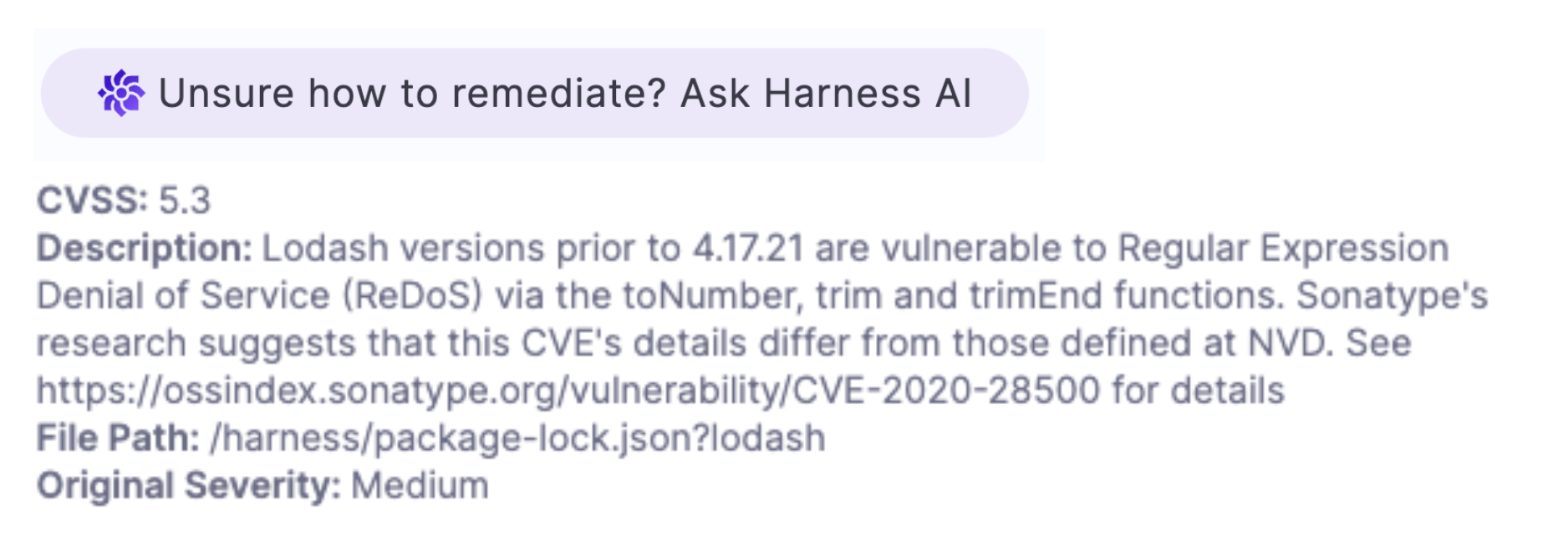
In Issue Details, scroll down to the occurrence of interest and then select Unsure how to remediate? Ask AI. (You might need to wait a few seconds for the remediation to appear.)
-
To further refine the suggested remediation with an additional code snippet, select Edit Snippet and then regenerate.
-
Next steps
- AI-based remediations: Create pull requests and code suggestions from AI remediation advice.
- View scan results: Access and analyze security vulnerability findings.
- Harness AI overview: AI capabilities across Harness modules.
- Harness AI Data Privacy: Data privacy policies.