Input sets and overlays
With input sets and overlays, you can reuse a single pipeline across multiple scenarios.
Runtime inputs are placeholders whose values are provided when a pipeline runs. Input sets store predefined values for runtime inputs, allowing you to reuse the same configuration across multiple pipeline executions. Overlays combine multiple input sets so you can build a configuration from reusable sets of values.
For example, you can create separate input sets for development, QA, and production environments and select the appropriate input set at runtime. This reduces errors and eliminates the need to manually enter each runtime input value.
What you will learn in this topic?
- How to specify settings that use runtime input in your pipeline.
- How to create input sets for different scenarios.
- How to create overlays to combine multiple input sets.
- How to manage access to input sets using RBAC permissions.
- How to run pipelines with input sets or overlays and understand value resolution.
- How to define the input set branch for trigger-based executions.
Before you begin
- Harness project: You need an existing project with at least one pipeline. For more information, refer to Organizations and Projects.
- Pipeline with runtime inputs: You need a pipeline that uses runtime inputs. For more information, refer to Runtime inputs.
- Pipeline permissions: You need Pipeline: Create/Edit permission to create input sets and Pipeline: Execute permission to run pipelines with input sets. For more information, refer to RBAC in Harness.
Specify settings that use runtime input
To be included in an input set, settings must be configured to use runtime input. Settings that do not use runtime input cannot be included in input sets. You can configure runtime input in either the Visual or YAML editors in the Pipeline Studio.
- Visual editor
- YAML editor
In the Pipeline Studio's Visual Editor, you can use the Value type selector to select Runtime input.
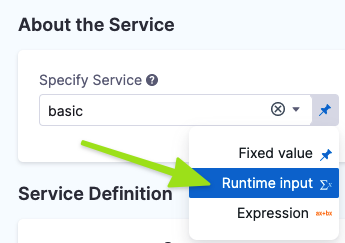
In free-text fields, you can directly enter <+input> to specify runtime input without changing the value type.
When writing pipelines in YAML, enter <+input> for a setting's value to indicate runtime input.
              - step:
                  identifier: Run_1
                  type: Run
                  name: Run_1
                  spec:
                    shell: <+input>      # Runtime input for shell type
                    command: <+input>    # Runtime input for command
Almost any setting in a pipeline can use runtime input, including variables, artifacts, connectors, environments, infrastructures, services, secrets, step settings, looping strategies, and more.
Create input sets
Perform the following steps to create an input set:
-
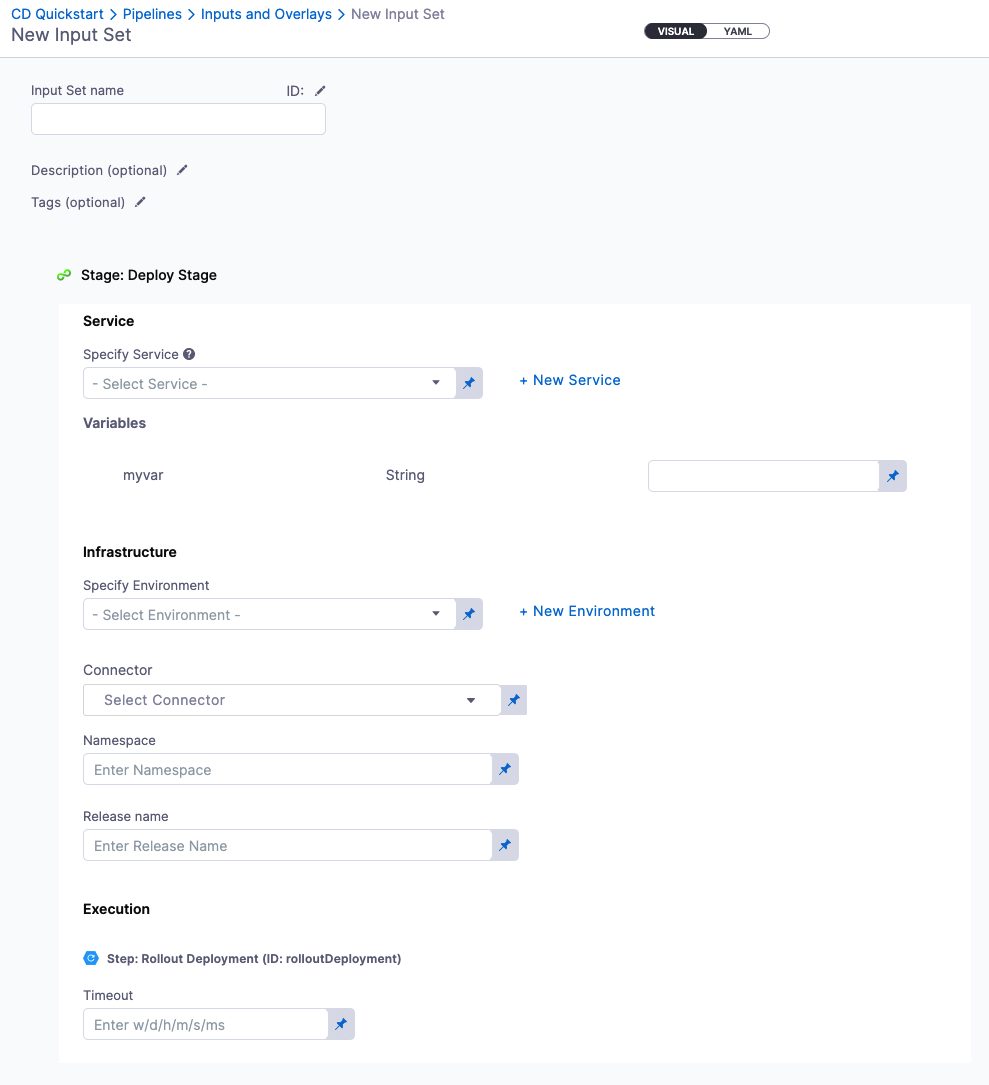
In the Pipeline Studio header, select Input Sets.
-
Click New Input Set.
-
Enter a Name for the input set. Description and Tags are optional.
-
Enter values for the settings that use runtime input.
-
Select Save.
If a setting does not use runtime input (
<+input>), you cannot define a value for it in an input set.You do not have to provide a value for every setting. For example, you can leave some settings as manual runtime input. Or you can create multiple input sets that populate different values, which you can then combine into overlays.
Harness handles blank input variables differently when running pipelines with or without input sets. To preserve empty strings consistently across pipeline executions, enable the Save Blank Fields as Empty String setting at the account level. For more information, refer to Handle empty strings in input variables.
YAML example
You can use the YAML editor to write input sets. When creating an input set, select YAML to switch to the YAML editor.
The following example shows a YAML definition for an input set for a Deploy stage. This input set specifies the service to deploy, the primary artifact reference, and the value of the replicas variable:
inputSet:
  name: Artifact Input Set
  tags: {}
  identifier: Artifact_Input_Set
  orgIdentifier: default
  projectIdentifier: CD_Docs
  pipeline:
    identifier: kubernetes_demo    # Reference to the pipeline
    stages:
      - stage:
          identifier: k8s_deployment
          type: Deployment
          spec:
            service:
              serviceRef: Kubernetes    # Service to deploy
              serviceInputs:
                serviceDefinition:
                  type: Kubernetes
                  spec:
                    artifacts:
                      primary:
                        primaryArtifactRef: nginx    # Primary artifact reference
                        sources: ""
                    variables:
                      - name: replicas
                        type: String
                        value: "3"    # Number of replicas to deploy
Create input sets at runtime
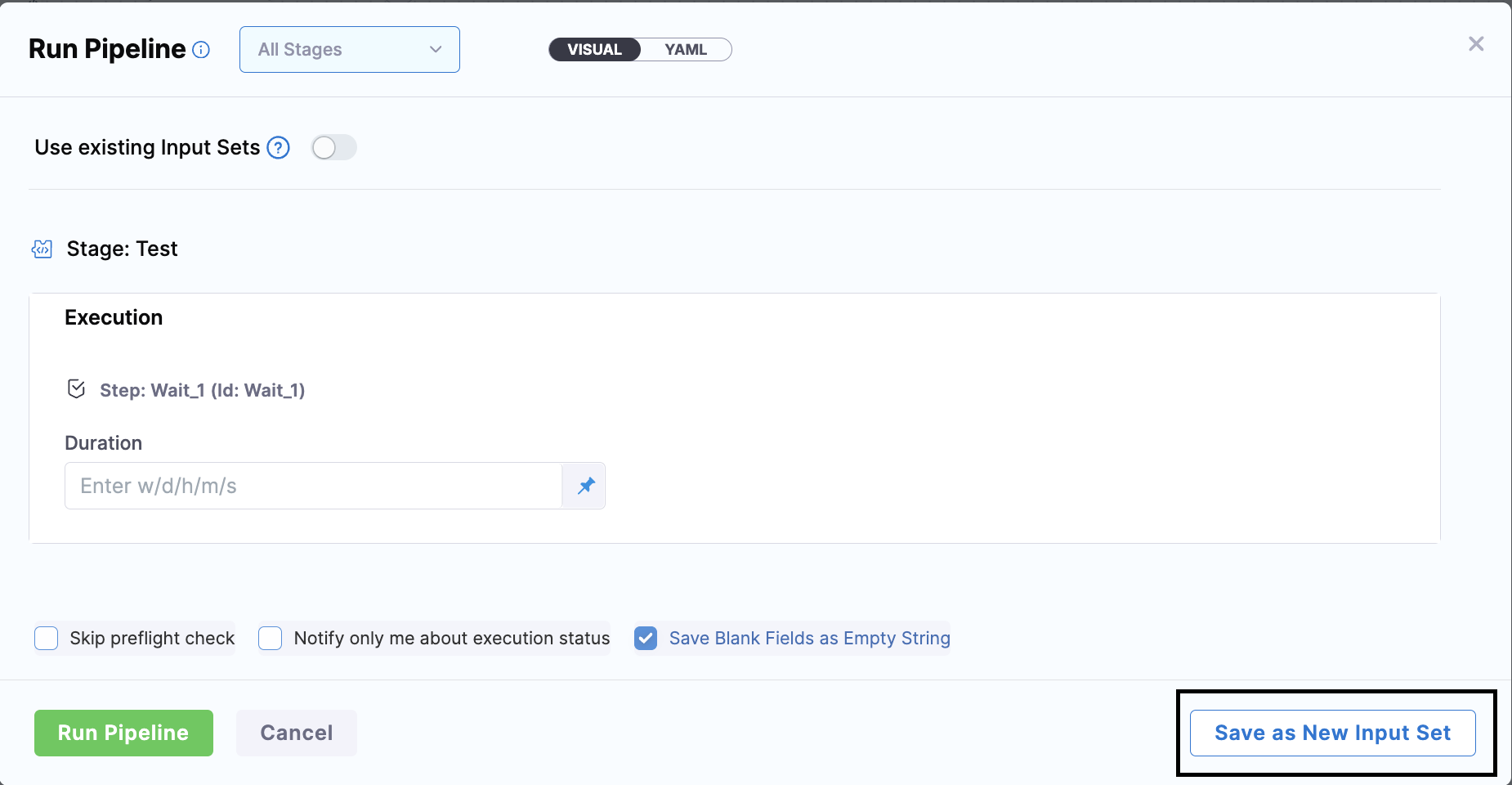
When you run a pipeline that requires runtime input, you can select Save as New Input Set to quickly create an input set from your provided values.
Import input sets
With the Harness Git Experience, you can also import input sets from a Git repository. For more information, refer to Import input sets.
Create overlays
You can combine multiple input sets into overlays, and then, when you run the pipeline, you choose which input sets to use for that run. With overlays, you do not have to define every runtime input value in every input set, providing a flexible, build-your-own input set experience.
For example, you might create the following input sets:
- Common: Shared configuration used by every deployment.
- Service A: Configuration specific to Service A.
- Production: Production-specific values.
You can combine these input sets in an overlay and select the appropriate combination when running the pipeline.
As another example, assume you have a Continuous Delivery (CD) pipeline that is used for multiple services. The services have some common configurations, but there are some differences. You can create an overlay consisting of multiple input sets so that you can pick and choose the input sets that correspond with your deployment scenario:
- One input set for the common or default configurations. This set should be used for every run, regardless of the selected service.
- Input sets for each service. Each of these input sets contains the configurations for that service. These input sets can modify values defined in the default input set, and they can provide values for empty fields that weren't specified in the default input set.
- Input sets for edge cases, such as an input set that contains a specific build number.
When you run a pipeline with the overlay, select Use multiple input sets, and then select the input sets from the overlay that you want to use for that particular run.
Perform the following step to configure overlays:
- Create input sets.
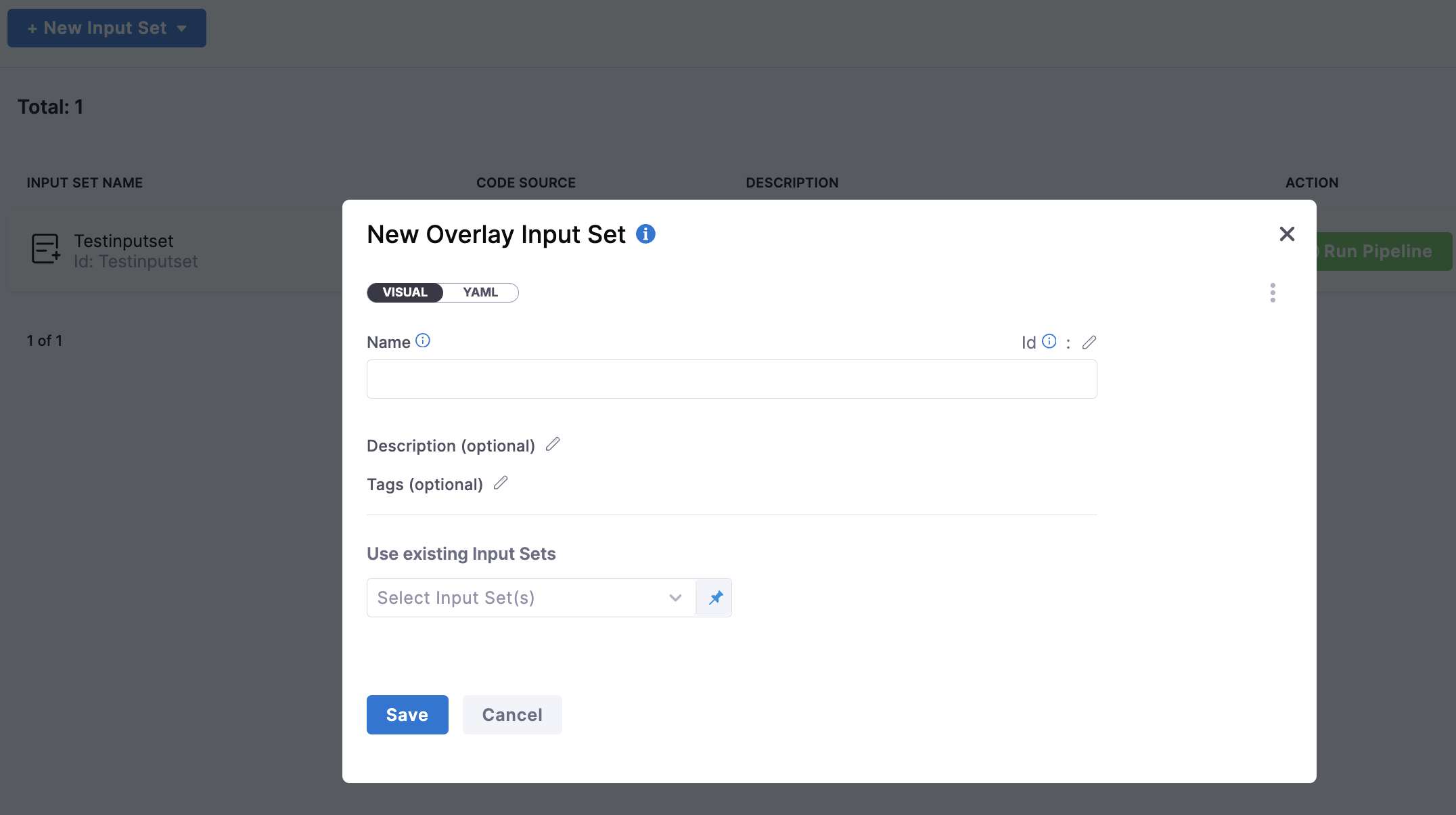
- On the Input Sets page, select New Input Set, and then select Overlay Input Set from the drop down.
- Enter a Name for the overlay. Description and Tags are optional.
- In Use existing Input Sets, select the input sets to include in this overlay, and select Apply Input Sets
- Drag and drop the input sets to define their priority in the overlay.
- Select Save.
YAML example
overlayInputSet:
  name: TestOverlay
  tags: {}
  identifier: TestOverlay
  orgIdentifier: default
  projectIdentifier: KrishnamoorthyTest
  pipelineIdentifier: TestPipeline
  inputSetReferences:
    - Testinputset
Priority in overlays
In an overlay, you specify the order in which to resolve the input sets. The first input set in the sequence is resolved first. Then, input sets resolved after the first either replace values specified in prior input sets or populate values not specified in prior input sets.
If a setting is specified in multiple input sets, the value is replaced as each input set is resolved, and the setting's final value is the value assigned in the last input set to be resolved.
For example, suppose the following input sets are resolved in this order:
- Common
- Production
If both input sets define replicas, the value from Production is used because it is resolved last. If Production does not define replicas, the value from Common is retained.
However, it is possible that you will not use every input set in the overlay for every run. When you run a pipeline with an overlay, you can select specific input sets to use. If an input set is not selected for a particular run, it is skipped.
Manage access to input sets
Input set access control is currently behind the PIE_INPUTSET_RBAC_PERMISSIONS feature flag. Contact Harness Support to enable this feature.
Before enabling PIE_INPUTSET_RBAC_PERMISSIONS, Harness Support will run a migration using the CDS_INPUT_SET_MIGRATION feature flag. This migration ensures that existing input sets remain accessible.
Input sets support Role-Based Access Control (RBAC), similar to pipelines and other Harness entities. You can control who can view, create, edit, or delete input sets.
You can manage input set permissions from Access Control > Roles. Input sets are available as resources in the Resource Group section of the Access Control settings.
For more information about configuring permissions with Resource Groups and Roles, go to Manage resource groups.
Input set permissions
| Permission | Description |
|---|---|
| View | Allows a user to view and use an input set. |
| Create/Edit | Allows a user to create or modify input sets. |
| Delete | Allows a user to delete input sets. |
To use an input set when executing a pipeline, a user must have:
- View permission for the input set.
- Execute permission for the pipeline.
To modify an input set, you must have Create/Edit permission for the input set.
When a user creates a new input set, View and Create/Edit permissions are granted to that user by default.
Run pipelines with input sets or overlays
When starting a pipeline through a trigger, you can use either an input set or provide runtime values directly, but not both at the same time. If you select an input set, any fields not covered by the input set use their default values. To override specific values from an input set while keeping the rest, use the override YAML approach in the trigger configuration.
To run a pipeline with an input set or overlay:
-
In the Pipeline Studio, select Run.
-
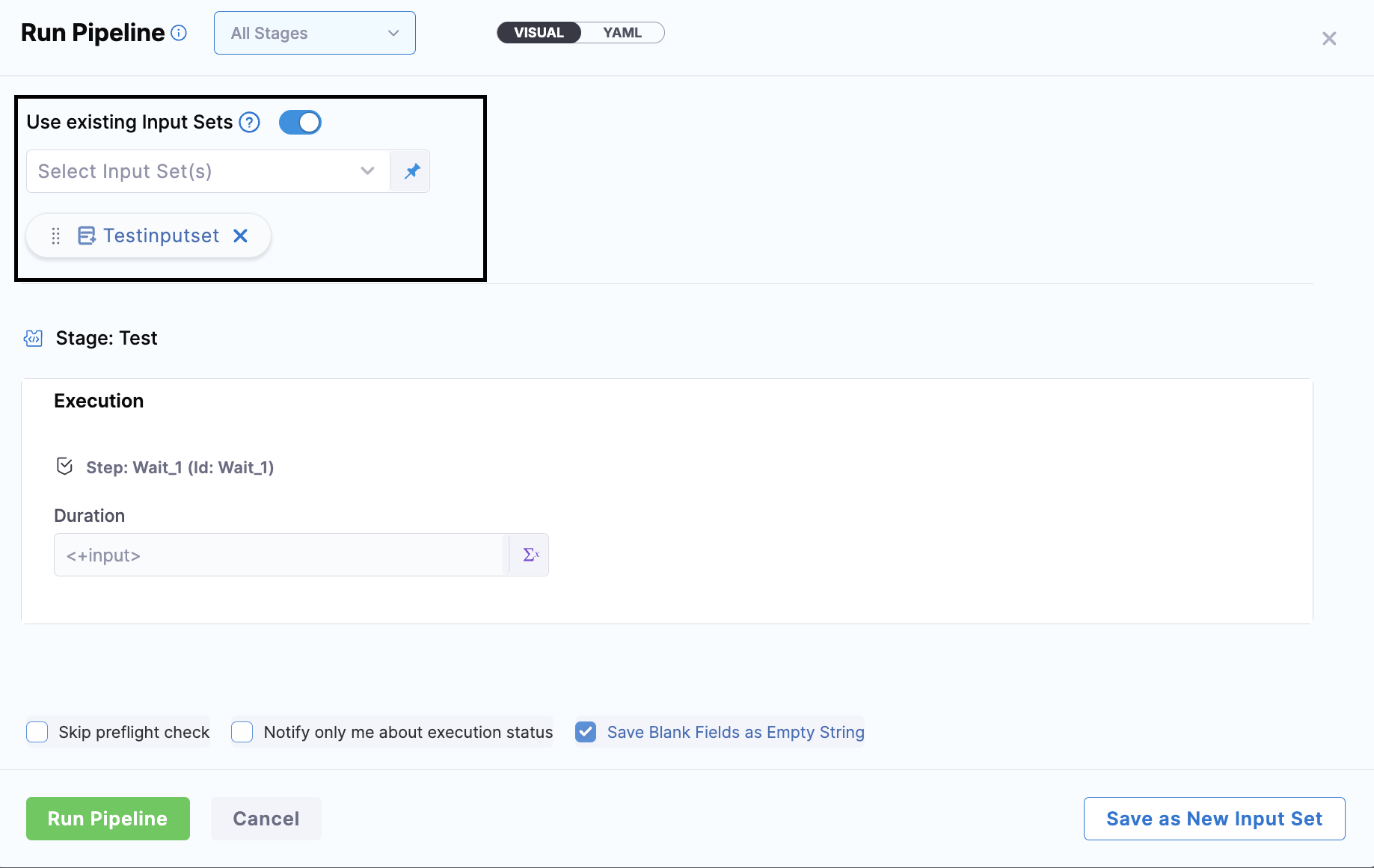
On the Run Pipeline window, select Use existing Input Sets.
-
Select input sets or overlays to use for the run.
-
On the Run Pipeline window, the settings that require runtime input are populated with the values from the selected input sets. If necessary, you can manually change any of the values before running the pipeline.
-
Select Run Pipeline.
You can also run a pipeline with an input set or overlay from the Input Sets page.
Value resolution
When you select input sets or overlays to use for a pipeline run, Harness applies the values from the input sets to their corresponding pipeline settings. With an overlay, the values are resolved according to the specified priority in the overlay.
For each setting that requires runtime input, Harness either:
- Displays the value assigned to the setting, as resolved from the input sets.
- Displays an error for any required settings that do not have a value assigned.
If any required settings do not have a value, you must manually input a value before you can run the pipeline.
Get the resolved input
You can use the expression <+inputSet> to retrieve the input set values used for a pipeline execution.
Enclose <+inputSet> in single quotes to ensure that the resolved input is parsed correctly.
For example:
echo '<+inputSet>' | jq -s
The <+inputSet> expression resolves to the input values used for the pipeline execution. For example:
{pipeline:identifier:Custom} {pipeline:stages:[{stage:identifier:Custom}]} {pipeline:stages:[{stage:type:Custom}]} {pipeline:stages:[{stage:spec:{execution:steps:[{step:identifier:ShellScript_1}}}]} {pipeline:stages:[{stage:spec:{execution:steps:[{step:type:ShellScript}}}]} {pipeline:stages:[{stage:spec:{execution:steps:[{step:timeout:10s}}}]} {pipeline:stages:[{stage:spec:{execution:{step:identifier:json_format}]}}]} {pipeline:stages:[{stage:spec:{execution:{step:type:ShellScript}]}}]} {pipeline:stages:[{stage:spec:{execution:{step:timeout:10m}]}}]}
Define the input set branch for trigger-based executions
When using Harness Git Experience, Harness automatically determines which Git branch to fetch input sets from based on the relationship between the pipeline and input set repositories. You can override this default behavior by specifying the inputSetBranchName property in your trigger YAML to fetch input sets from a specific branch or tag.
This is especially useful when your pipeline resides on a static branch, such as main, but your input sets are updated on feature or pull request (PR) branches that change with each trigger event.
Git tag support for pipeline and input set sources
This feature requires delegate version 26.04.89002 or later. It supports all Git providers, including GitHub, GitLab, and Bitbucket.
You can reference Git tags when specifying both the pipeline YAML and input set source locations. This enables you to execute specific versions of your pipeline and input sets that are tagged in your repository, making it easier to maintain stable configurations alongside your release workflow.
Using Git tags for input sets
To reference a Git tag for an input set, use the $tag: format in the Input Set Source field or the inputSetBranchName property in trigger YAML.
- Specific Git tag:
$tag:<tag-name>. For example,$tag:v1.0.0or$tag:release-2024.01. - Dynamic Git tag:
<+"$tag:"+<expression>>. The expression resolves at runtime to the tag name. For example,<+"$tag:"+<+trigger.tag>>resolves to the Git tag from the trigger payload.
Example use cases:
- Use
$tag:v1.0.0to always fetch an input set from a specific release tag. - Use
<+"$tag:"+<+trigger.tag>>in a webhook trigger to fetch the input set from the same tag that triggered the pipeline.
Using Git tags for pipeline YAML
Similarly, you can reference Git tags when specifying the pipeline source location. Use the $tag: format in the Pipeline Reference Branch field or the pipelineBranchName property in trigger YAML.
- Specific Git tag:
$tag:<tag-name>. For example,$tag:v1.0.0or$tag:release-2024.01. - Dynamic Git tag:
<+"$tag:"+<expression>>. The expression resolves at runtime to the tag name. For example,<+"$tag:"+<+trigger.tag>>resolves to the Git tag from the trigger payload.
Example use cases:
- Use
$tag:v1.0.0to execute a pipeline from a specific release tag. - Use
<+"$tag:"+<+trigger.tag>>in a webhook trigger to load the pipeline and input set from the same tag that triggered the execution.
When using Git tag-based triggers, you can load both the pipeline YAML and input sets from the same tag by using <+"$tag:"+<+trigger.tag>> for both pipelineBranchName and inputSetBranchName. This ensures that your pipeline executions use versioned configurations that match your Git tags, enabling reliable rollbacks and release management.
Default branch resolution
When inputSetBranchName is not specified, Harness determines the input set branch based on the relationship between the pipeline and input set repositories:
- Same repository as the pipeline: The input set is fetched from the same branch selected for pipeline execution.
- Different repository from the pipeline: The input set is fetched from its own default branch.
You can override this behavior by specifying inputSetBranchName in the trigger configuration.
For more information on default entity linking logic, go to Harness Git Experience workflow.
Override the pipeline and input set branches
You can add the pipelineBranchName and inputSetBranchName properties to your trigger YAML to specify the exact branch or tag from which Harness should fetch the pipeline YAML and input sets at trigger time.
These properties support static branch or tag names and Harness expressions, such as <+trigger.sourceBranch> or <+trigger.tag>.
Use pipelineBranchName for the pipeline source
The pipelineBranchName property specifies the branch or tag from which to load the pipeline YAML. This is useful when you want to execute a specific version of your pipeline from a particular branch or release tag.
Supported values:
- Branch name:
main,develop,feature-branch - Git tag:
$tag:v1.0.0,<+"$tag:"+<+trigger.tag>> - Expression:
<+trigger.sourceBranch>
Use inputSetBranchName for the input set source
The inputSetBranchName property specifies the branch or tag from which to load input sets. This is useful when your input sets are versioned separately from your pipeline or updated on different branches.
Supported values:
- Branch name:
main,develop,feature-branch - Git tag:
$tag:v1.0.0,<+"$tag:"+<+trigger.tag>> - Expression:
<+trigger.sourceBranch>
Example trigger YAML configurations
Example 1: Load pipeline from main, input set from PR branch
trigger:
  name: PR Trigger
  identifier: pr_trigger
  enabled: true
  description: ""
  tags: {}
  orgIdentifier: default
  projectIdentifier: myProject
  pipelineIdentifier: myPipeline
  source:
    type: Webhook
    spec:
      type: Github
      spec:
        type: PullRequest
        spec:
          connectorRef: myGithubConnector
          autoAbortPreviousExecutions: false
          repoName: myRepo
          actions:
            - Open
            - Reopen
            - Synchronize
  pipelineBranchName: main
  inputSetBranchName: <+trigger.sourceBranch>
  inputSetRefs:
    - myInputSet
In this example, the pipeline is always fetched from main, while the input set is fetched from the PR's source branch.
Example 2: Load both pipeline and input set from the same Git tag
trigger:
  name: Tag-based Release Trigger
  identifier: tag_release_trigger
  enabled: true
  description: "Execute pipeline from Git tag for releases"
  tags: {}
  orgIdentifier: default
  projectIdentifier: myProject
  pipelineIdentifier: myPipeline
  source:
    type: Webhook
    spec:
      type: Github
      spec:
        type: Push
        spec:
          connectorRef: myGithubConnector
          autoAbortPreviousExecutions: false
          repoName: myRepo
  pipelineBranchName: <+"$tag:"+<+trigger.tag>>
  inputSetBranchName: <+"$tag:"+<+trigger.tag>>
  inputSetRefs:
    - production-input-set
In this example, both the pipeline YAML and input set are fetched from the Git tag that triggered the execution (for example, when pushing tag v1.0.0). This ensures that pipeline executions use versioned configurations that match your release tags.
Example 3: Load pipeline from a specific tag, input set from main
trigger:
  name: Stable Pipeline Trigger
  identifier: stable_pipeline_trigger
  enabled: true
  description: "Use stable pipeline version with latest input set"
  tags: {}
  orgIdentifier: default
  projectIdentifier: myProject
  pipelineIdentifier: myPipeline
  source:
    type: Webhook
    spec:
      type: Github
      spec:
        type: PullRequest
        spec:
          connectorRef: myGithubConnector
          autoAbortPreviousExecutions: false
          repoName: myRepo
          actions:
            - Open
  pipelineBranchName: $tag:v1.0.0
  inputSetBranchName: main
  inputSetRefs:
    - myInputSet
In this example, the pipeline is loaded from the stable release tag v1.0.0, while the input set is always fetched from the main branch, allowing you to use the latest configurations with a stable pipeline version.
Pipeline and input set branch behavior
The following rules apply when using these properties in your trigger YAML:
pipelineBranchName behavior
- Not provided: The pipeline is fetched from the default branch configured for the pipeline entity.
- Empty or blank value (
""," "): The pipeline is fetched from the default branch. - Valid branch name, tag, or expression: The pipeline is fetched from the specified branch or tag.
- Correct pipeline and branch/tag: The pipeline YAML is loaded successfully.
- Pipeline exists, but not in the specified branch/tag: An error is thrown.
- Invalid branch/tag name or expression: An error is thrown.
- Tag format: When using tags, you must use the
$tag:prefix (for example,$tag:v1.0.0or<+"$tag:"+<+trigger.tag>>).
Input set branch behavior
- Not provided: Harness uses the default branch resolution described above.
- Empty or blank value (
""," "): Harness uses the default branch resolution. - Valid branch name, tag, or expression: The input set is fetched from the specified branch or tag.
- Correct input set and branch/tag: The input set is loaded successfully.
- Input set exists, but not in the specified branch/tag: An error is thrown.
- Input set does not exist: An error is thrown.
- Invalid branch/tag name or expression: An error is thrown.
- Multiple input sets: When multiple input sets are referenced in
inputSetRefs, all input sets are fetched from the branch or tag specified ininputSetBranchName. - Tag format: When using tags, you must use the
$tag:prefix (for example,$tag:v1.0.0or<+"$tag:"+<+trigger.tag>>).
For PR-based triggers: Use the expression <+trigger.sourceBranch> to automatically fetch the input set from the source branch of the pull request.
For tag-based triggers: Use <+"$tag:"+<+trigger.tag>> for both pipelineBranchName and inputSetBranchName to load versioned pipeline configurations from Git tags, enabling reliable rollbacks and release management.
Handle input changes when rerunning a pipeline
When you rerun a pipeline, input values from the original execution may be reused. This is especially important for pipelines with multi-deployment or looping stages.
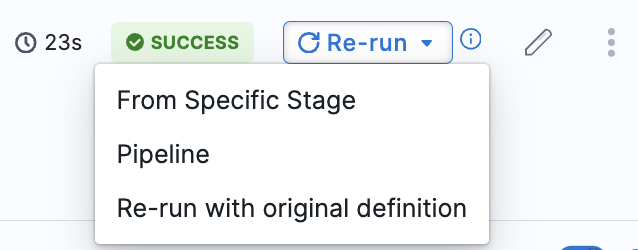
If you change an input before rerunning the pipeline, the new value is not used when you select From Last Failed Stage.
Rerun from the last failed stage
When you select From Last Failed Stage, Harness reuses metadata from the previous execution, including input values. Changes made to input values before the rerun are not applied.
Rerun from a specific stage
When you select From Specific Stage, Harness reloads the inputs for the selected stage, allowing you to apply updated input values.
Example
If the first pipeline execution uses poc.11 as the release version.
You rerun the pipeline and change the release version to poc.13:
- From Last Failed Stage: The pipeline continues to use poc.11 because the input value is reused from the previous execution.
- From Specific Stage: The pipeline uses the updated value, poc.13.
Recommendation
If you need to change input values when rerunning a pipeline, select From Specific Stage to ensure that the updated values are applied.
View and filter executions by input set
To view and filter executions by input set, the following feature flag must be enabled:
PIPE_ENABLE_INPUT_SET_FILTER– Enables input set-based filtering in the execution list.
Contact Harness Support to enable this flag.
You can now view and filter pipeline executions based on the input sets used.
-
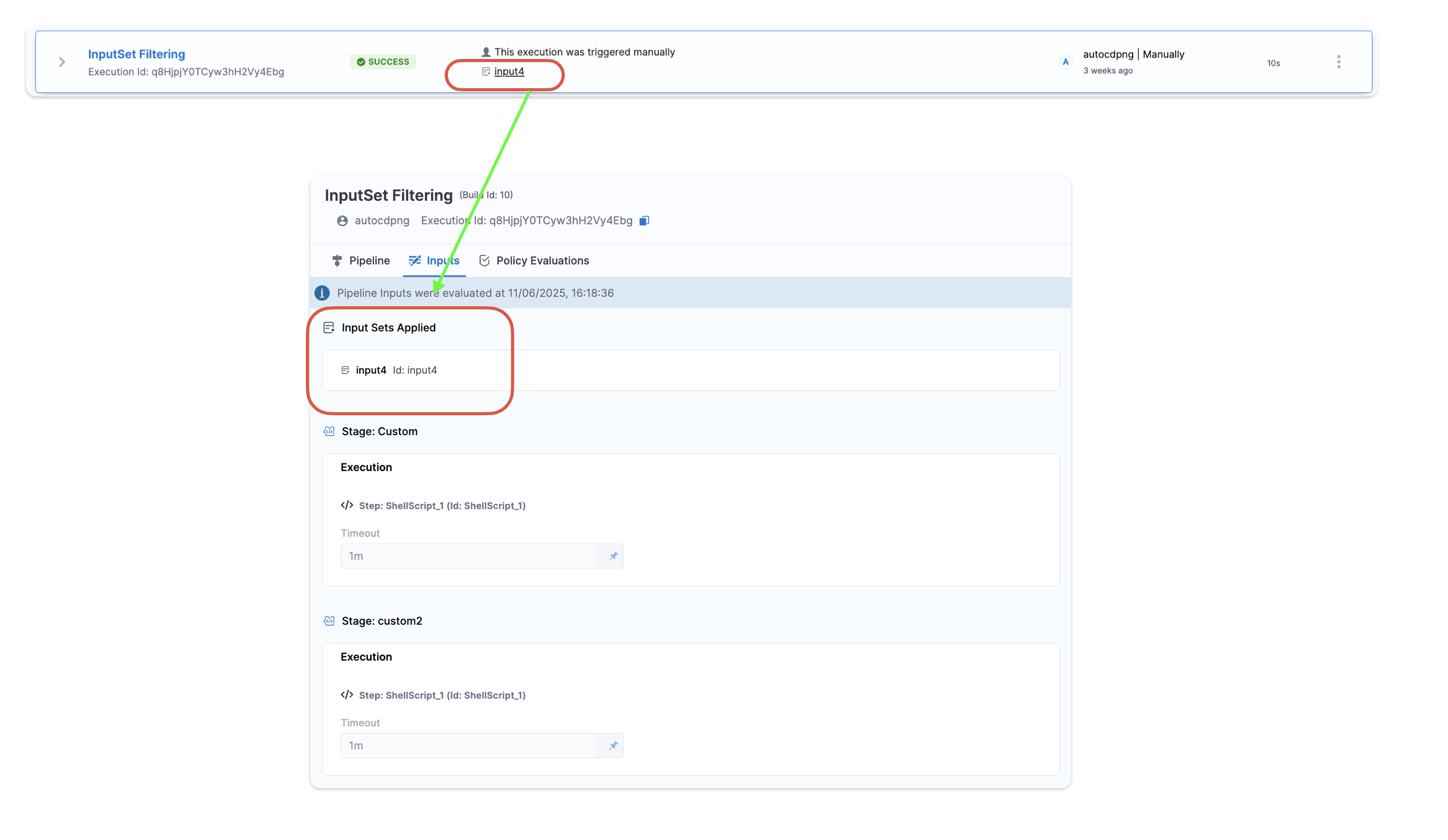
In the Execution History tab, the Input Set column shows the input sets applied to each run. These names are clickable and open the corresponding input set.
-
The Inputs tab of an execution shows the input sets applied, even when an overlay (multiple input sets) was selected during execution.
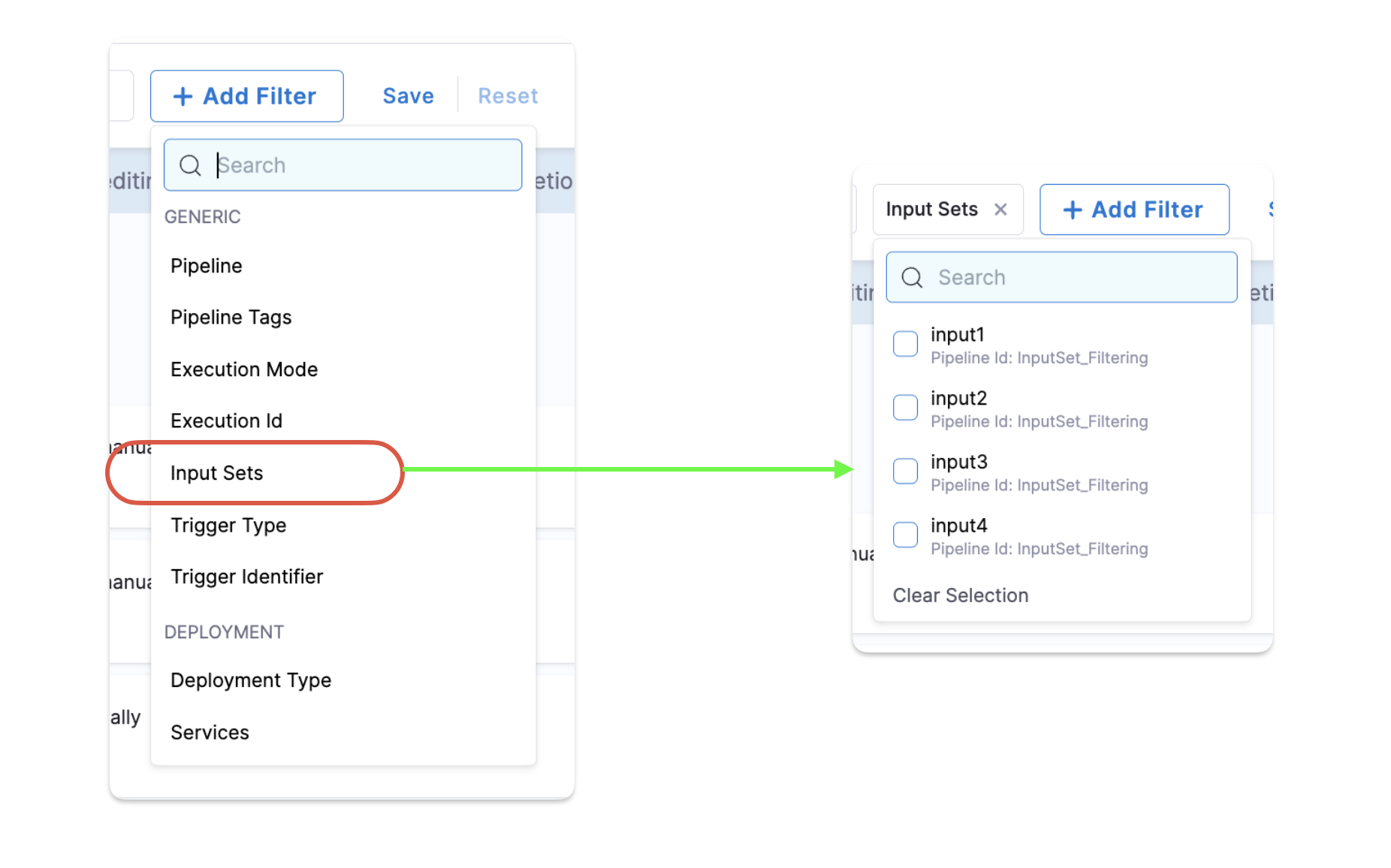
- You can filter pipeline executions by input set name using the Search filter in the Execution History page.
If you are using the API to track or filter executions, include the inputSetIdentifiers query parameter in your request. For more information, refer to API reference.
Next steps
- Runtime inputs: Learn more about runtime inputs and how to use them effectively in pipelines.
- Pipeline chaining: Execute one pipeline from another pipeline using input sets.
- Manage input sets in Git Experience: Learn how to manage input sets when using Git Experience.