Manage roles
Roles are an RBAC component that bundle together permissions. They define which actions a user can take on Harness resources, including view, create, edit, and delete operations. When you assign a role to a user, user group, or service account, Harness grants the permissions defined in the role to that principal.
Roles are scope-specific, and you can create them at any scope. For example, a role created at the project scope is available only in that project. Harness provides built-in roles for common use cases, and you can create custom roles for fine-grained access control.
What you will learn in this topic
By the end of this page, you will be able to:
- View built-in roles in Harness.
- Create custom roles with specific permissions.
- Edit and delete existing roles.
- Assign roles to users, user groups, and service accounts across different scopes.
- Reuse roles across account, organization, and project scopes.
Before you begin
Before you create or manage roles, ensure you have the following:
- Harness account access: Access to the account, organization, or project where you want to manage roles.
- Appropriate permissions: A role with permissions to view, create, edit, and delete roles, such as Account Admin, Organization Admin, or Project Admin.
- RBAC familiarity: Understanding of RBAC components and permissions hierarchy scopes. Go to RBAC components and permissions hierarchy scopes for more information on these concepts.
Navigate to Access Control
Many procedures on this page require you to navigate to Access Control at a specific scope:
- Account scope: Navigate to Account Settings → Access Control.
- Organization scope: Navigate to Organizations, select your organization, and then select Access Control.
- Project scope: Navigate to Projects, select your project, and then select Access Control.
Roles and resource groups
Roles work alongside resource groups to create a complete set of permissions and access. For example, you can:
- Assign the Organization Admin role with a resource group that is limited to specific projects or specific organizations.
- Assign the Pipeline Executor role with a resource group that allows access only to specific pipelines, rather than all pipelines in the project.
Follow the principle of least privilege (PoLP), and give users only the access they need to complete their tasks.
RBAC is additive. A user's total permissions come from:
- All roles and resource groups from user groups they are in.
- Any roles and resource groups assigned directly to them.
Built-in roles
Built-in roles provide ready-to-use permission sets, so you do not have to build access control from scratch. Harness pre-configures them with relevant permission sets for common responsibilities, such as admin and viewer, which saves setup time.
Built-in platform roles cover all levels of your hierarchy: Account, Organization, and Project. They give your teams a baseline for access control, which you can complement with custom roles for fine-grained control.
Harness includes several built-in roles. To examine the permissions assigned to these roles, do the following:
- In Harness, navigate to the scope where the role exists.
- Select Roles in the header.
- Select the role you want to view. Go to the permissions reference for more information on specific permissions.
Currently, some built-in roles are behind the feature flags PL_HIDE_PROJECT_LEVEL_MANAGED_ROLE, PL_HIDE_ORGANIZATION_LEVEL_MANAGED_ROLE, and PL_HIDE_ACCOUNT_LEVEL_MANAGED_ROLE. Contact Harness Support to enable them.
Harness provides built-in roles and resource groups, but you should:
- Be selective when you assign them. Do not give everyone the Account Admin role.
- Create custom roles and resource groups when built-in ones are too broad.
Platform roles
Platform roles are not specific to any module. Use them for administration and oversight of an entire Harness account, organization, or project. They also provide access to cross-module components, such as dashboards and pipelines.
| Role | Scope |
|---|---|
| Account Admin, Account Viewer, Dashboard Admin, Dashboard Viewer, Billing Admin | Account |
| Organization Admin, Organization Viewer | Organization |
| Project Admin, Project Viewer, Pipeline Executor | Project |
Module-specific roles
Harness creates these roles for you depending on the modules you use. These roles exist at all scopes.
- Feature Flag Manage Role: Manage feature flags, including creating, editing, and targeting flags.
- CET Admin: Administer Continuous Error Tracking, including managing monitored services and error events.
- Chaos Admin: Administer Chaos Engineering experiments and chaos infrastructure.
- CCM Admin: Administer Cloud Cost Management, including viewing costs, creating budgets, and managing cost optimization.
- CCM Viewer: View Cloud Cost Management dashboards and reports without editing capabilities.
- Security Testing AppSec Role: Manage security testing for application security teams, including reviewing scan results and configuring security policies.
- Security Testing Developer Role: View security testing scan results and exemptions for development teams.
- GitOps Admin Role: Administer GitOps applications, repositories, clusters, and agents.
- Code Admin: Administer Harness Code Repository, including managing repositories, branches, and pull requests.
Manage roles in Harness
To manage roles in Harness, you need a role, such as Account Admin, that has permission to view, create, edit, and delete roles.
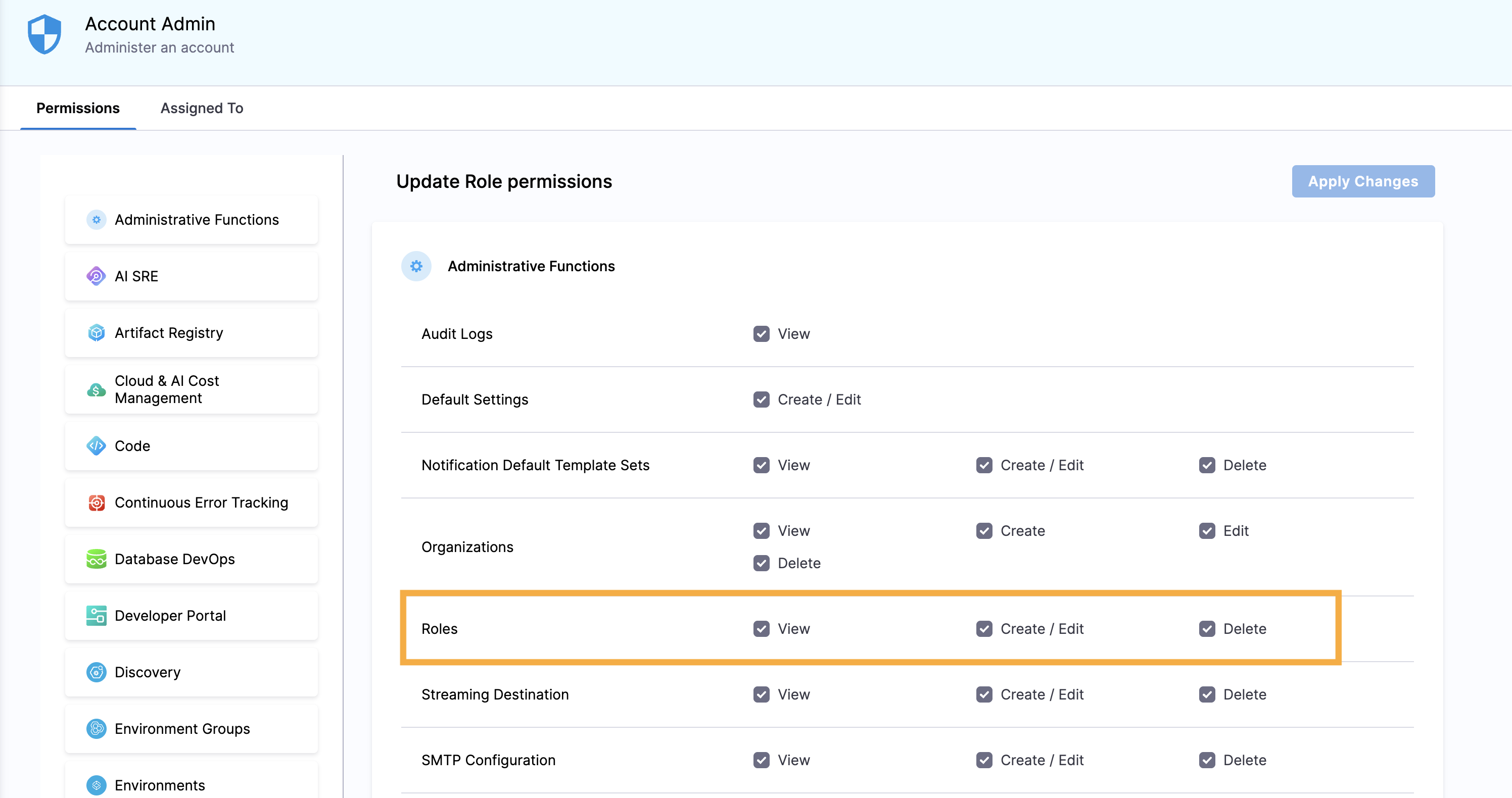
Create a role
- In Harness, navigate to the scope where you want to create the role.
- Select Roles in the header, and then click New Role.
- Enter a Name for the role. Description and Tags are optional.
- Click Save.
- Select the permissions for the role.
- Click Apply Changes.
Edit a role
- In Harness, navigate to the scope where the role exists.
- Select Roles in the header.
- Locate the role you want to edit.
- Select More options (⋮) on the role card, and then select Edit.
- Edit the role's name, description, or tags, if needed, and then click Save.
- Edit the role's permissions, and then click Apply Changes. Go to the permissions reference for more information on specific permissions.
Delete a role
- In Harness, navigate to the scope where the role exists.
- Select Roles in the header.
- Locate the role you want to delete.
- Select More options (⋮) on the role card, and then click Delete.
Reuse roles across scopes
Reuse roles across scopes to simplify access control configuration across your account, organizations, and projects. When you create a role at the account level, you can assign it to users, user groups, or service accounts at granular levels, such as the organization or project scope.
- Currently, this feature is behind the feature flag
PL_ROLE_REUSABILITY_ACROSS_CHILD_SCOPES. Contact Harness Support to enable it. - You can reuse only custom roles across scopes. Built-in roles are not reusable.
The following example walks through reusing a role across scopes. The role is created at the account scope, and then assigned to users at the organization and project scopes.
Create a role at the account scope
- In Harness, navigate to Account Settings → Access Control.
- Select Roles in the header, and then click New Role.
- For Name, enter
TEST_ROLE. Description and Tags are optional. - Click Save.
- Select the following permissions:
- For Pipelines, select Execute.
- Click Apply Changes.
Assign the role to users at the organization scope
-
In Harness, navigate to Account Settings → Organizations, select the relevant organization, and then select Access Control.
-
Select User Groups in the header, and then select the user group you want to assign the role to.
-
Select Manage Role Bindings.
-
Under Role Bindings, click Add.
-
Under Select an Existing Role, select Account in the header, and then select the role you want to assign.
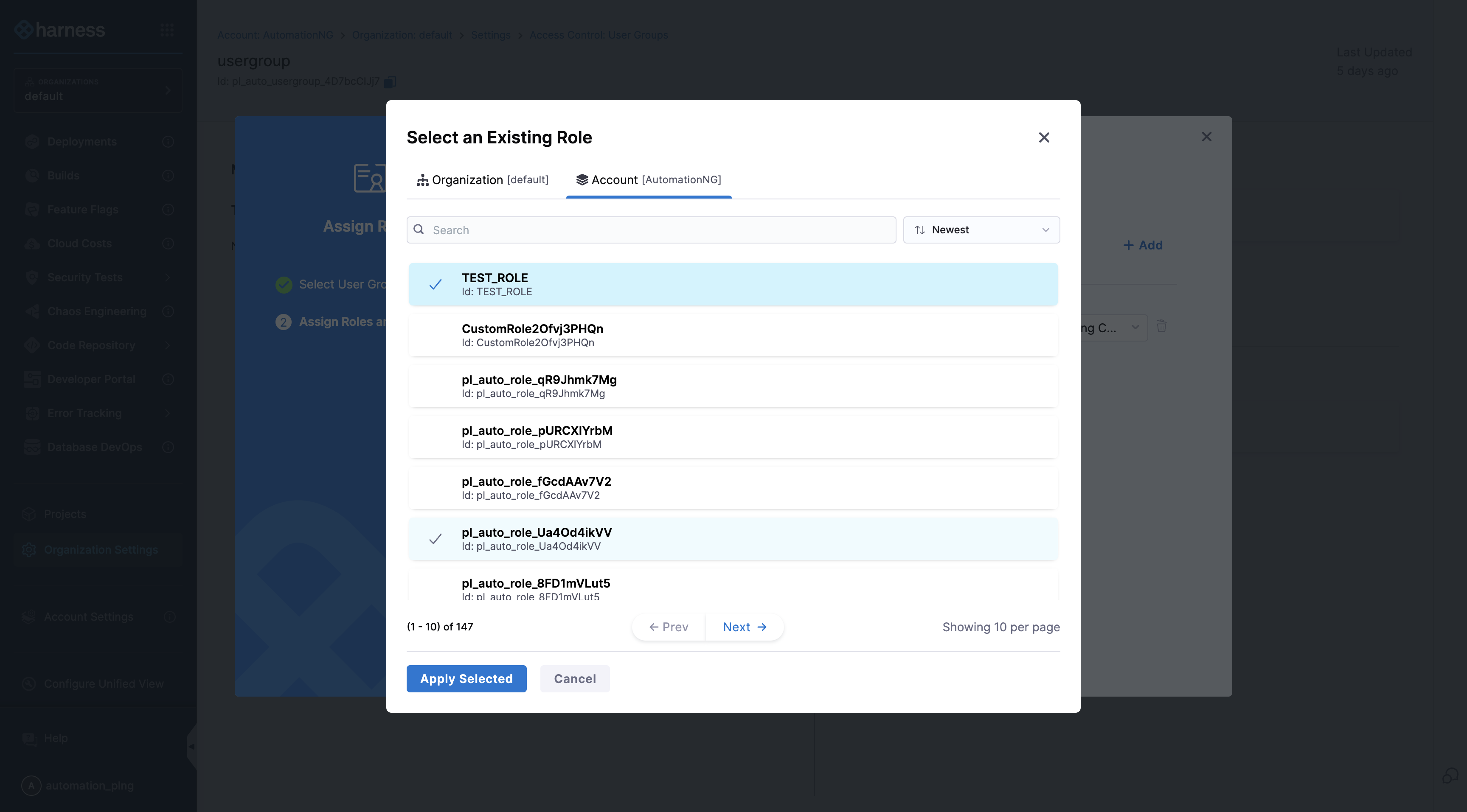
-
Click Apply Selected.
-
Click Save.
View principals assigned to a role
View the principals assigned to a role to audit which users, user groups, and service accounts hold a given set of permissions.
Currently, this feature is behind the feature flag PL_ROLE_REUSABILITY_ACROSS_CHILD_SCOPES. Contact Harness Support to enable it.
To view the principals assigned to a specified role, navigate to the appropriate scope (account, organization, or project) and follow the steps below. The steps use the Account scope and Account Admin role as an example. You can follow the same steps for the organization and project scopes.
- Interactive
- Manual
- Navigate to the scope's Settings → Access Control → Roles.
- Locate or search for the specific role.
- Select the role, and then switch to the Assigned To tab.
- By default, the Users list appears for the assigned role. You can also switch to the User Groups or Service Accounts tabs to view principals for the specified role.
Related articles
- Create resource groups: Define access to specific Harness resources.
- Add users: Add users to your Harness account, organization, or project.
- Create user groups: Create user groups and assign roles and resource groups to them.
- Manage service accounts: Configure programmatic access to Harness.
- Permissions reference: Review detailed information about available permissions.