Use JSON parser tools and JEXL
In addition to using Java string methods, Harness supports writing expressions by using any JSON parser tool or JEXL scripts.
Using a JSON parser tool provides a more user-friendly and adaptable expression engine that increases productivity and empowers you to have greater control and customization capabilities for expressions. Benefits include:
- Enhanced expression discovery: You can independently determine the expressions associated with a specific step, helping you explore and better understand your Harness pipeline ecosystem.
- Comprehensive execution JSON: You can access the execution JSON for all stages or individual steps. This JSON contains detailed information about inputs and outputs for each step within the stage. You can analyze and troubleshoot workflows effectively and extract the required information easily. As a safeguard, step inputs and parameters larger than 4 KB aren't included in the expanded JSON.
- Flexible JSON parsing: You can use any JSON parsing tool, giving you the freedom to parse the execution JSON based on your preferred methods and extract the necessary information as per your requirements.
- JEXL script support: You can leverage the full power and flexibility of JEXL expressions, overcoming the limitations of the previous framework. You can write complex expressions and customize the evaluation process to meet specific needs.
The Harness expression delimiter (<+...>) uses the greater-than symbol (>) to terminate expressions.
To avoid ambiguous results or truncated expressions, don't use greater-than symbols (>) in your scripts.
Obtain the execution JSON
You can obtain the execution JSON for all stages or individual steps in a pipeline.
-
To be able to reference JSON parsers in expressions, enable the Enable JSON Support for expressions setting.
Go to Account Settings, select Default Settings under Account Resources, expand the Pipeline section, select True for Enable JSON Support for expressions, and then select Save.
-
In your pipeline, and add a Shell Script step or Run step that runs a script to obtain the execution JSON.
For example, this script uses some built-in expressions to echo the JSON for a stage. To use this script, replace
STAGE_IDwith the ID of the stage you want to query.echo "<+pipeline>: "<+pipeline>echo "<+pipeline.stages.STAGE_ID>: "<+pipeline.stages.STAGE_ID>echo "<+pipeline.stages.STAGE_ID.spec.execution>: "<+pipeline.stages.STAGE_ID.spec.execution>Here's an example of how you would write one of these commands to return the expression's value as JSON:
echo "json.format: " <+json.format(<+pipeline.stages.STAGE_ID>)> -
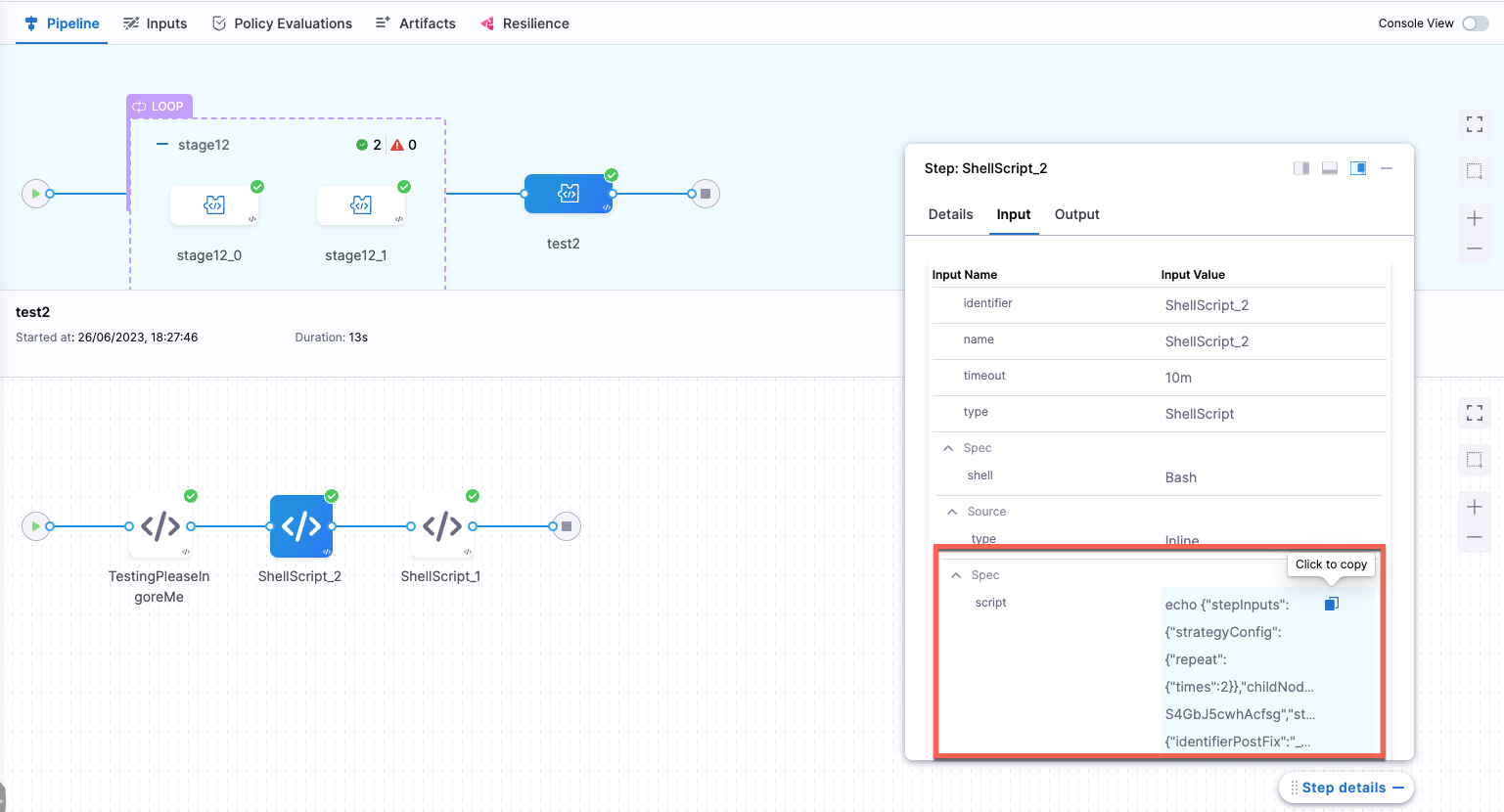
Run the pipeline to get the JSON. In the execution logs, go to the Shell Script/Run step's Input tab to find the resolved value for the expressions in the script.
The output appears on the Input tab, because the script echoes an expression. Harness resolves expressions at runtime and then feeds the resolved values as inputs to the corresponding stages or steps.
The value outputs as a nested JSON object on one line, for example:
"json.format: " {"stepInputs":{"identifier":"Custom","name":"Custom","description":"","variables":{},"tags":{},"type":"Custom","specConfig":{"childNodeID":"6OI2ed5ZQG2bZsPG90Zzwg"}},"status":"RUNNING","spec":{"stepInputs":{"childNodeId":"EIXj-rTPTa2j_un35s5kRQ","logMessage":"Spec Element"},"status":"RUNNING","execution":{"stepInputs":{"childNodeId":"EIXj-rTPTa2j_un35s5kRQsteps","logMessage":"Execution Element"},"status":"RUNNING","steps":{"stepInputs":{"childNodeId":"lN38FF6sQl-tbOw9yf_vEw","logMessage":"Steps Element"},"status":"RUNNING","ShellScript_1":{"status":"SUCCEEDED","outcome":{"output":{"outputVariables":{}}}},"json_format":{"stepInputs":{"identifier":"json_format","name":"json format","timeout":"10m","type":"ShellScript","spec":{"outputVariables":{},"environmentVariables":{},"secretOutputVariables":[],"shell":"Bash","source":{"type":"Inline","spec":{"script":"echo \"json.format: \" {\"stepInputs\":{\"identifier\":\"Custom\",\"name\":\"Custom\",\"description\":\"\",\"variables\":{},\"tags\":{},\"type\":\"Custom\",\"specConfig\":{\"childNodeID\":\"6OI2ed5ZQG2bZsPG90Zzwg\"}},\"status\":\"RUNNING\",\"spec\":{\"stepInputs\":{\"childNodeId\":\"EIXj-rTPTa2j_un35s5kRQ\",\"logMessage\":\"Spec Element\"},\"status\":\"RUNNING\",\"execution\":{\"stepInputs\":{\"childNodeId\":\"EIXj-rTPTa2j_un35s5kRQsteps\",\"logMessage\":\"Execution Element\"},\"status\":\"RUNNING\",\"steps\":{\"stepInputs\":{\"childNodeId\":\"lN38FF6sQl-tbOw9yf_vEw\",\"logMessage\":\"Steps Element\"},\"status\":\"RUNNING\",\"ShellScript_1\":{\"status\":\"SUCCEEDED\",\"outcome\":{\"output\":{\"outputVariables\":{}}}}}}}}"}},"onDelegate":true},"rollbackParameters":{"strategy":"UNKNOWN","strategyToUuid":{"STAGE_ROLLBACK":"Be2PfjljSjiK3DcfWX2lTg_combinedRollback"},"applicableFailureTypes":[]}}}}}}} -
As evidenced by the long, single-line example above, resolved expressions from steps aren't in strict JSON format. To get valid JSON, go to the execution logs, select the Input tab for the Shell Script/Run step, and copy the resolved expression from there.
Write expressions using JSON
Once you've obtained the resolved JSON, you can determine the complete expression for any desired data by traversing the JSON and determining the corresponding path.
Sample formatted execution JSON
Here is a formatted JSON sample from which you could retrieve specific chunks of data by locating the corresponding path. For example, to access the status of a stage generated by the cStage1 matrix, you could use an expression like <+pipeline.stages.cStage.cStage_INDEX_NUMBER.status>.
{
"pipeline": {
"stepInputs": {
"childNodeID": "ODlBvLAiTF-p_DNVK-27VAstages",
"name": "JsonSupportExample1",
"identifier": "JsonSupportExample1",
"description": "Pipeline to fetch the current status of all stages under matrix.",
"tags": {},
"properties": {},
"variables": {},
"executionId": "JRdcH8oBTlKwL1CBZOg0PA"
},
"status": "SUCCEEDED",
"stages": {
"stepInputs": {
"childNodeId": "yuWDK3OTTOqBr_nsTN4LKQ",
"logMessage": "Stages"
},
"status": "SUCCEEDED",
"cStage": {
"stepInputs": {
"strategyConfig": {
"matrixConfig": {
"uuid": "j79RNzfpTBaiRaPrDFN7TQ",
"axes": {
"name": {
"axisValue": [
"john",
"doe",
"nick"
]
}
},
"expressionAxes": {}
}
},
"childNodeId": "qPnRHHd8TtOwiK400WBNvw",
"strategyType": "MATRIX",
"shouldProceedIfFailed": true
},
"status": "SUCCEEDED",
"cStage_0": {
"identifierPostFix": {
"value": {},
"coder": 0,
"hash": 0
},
"iteration": "0",
"iterations": "3",
"matrix": {
"name": "john"
},
"repeat": {},
"stepInputs": {
"identifier": "cStage_0",
"name": "cStage_0",
"description": "",
"when": {
"pipelineStatus": "ALL"
},
"variables": {},
"tags": {},
"type": "Custom",
"specConfig": {
"childNodeID": "i6MmJOUeSJi8j_ZmHeZ9YQ"
}
},
"totalIterations": "3",
"status": "SUCCEEDED",
"spec": {
"stepInputs": {
"childNodeId": "E8ApHWgQQQ-z7Ua3d0Bc6A",
"logMessage": "Spec Element"
},
"status": "SUCCEEDED",
"execution": {
"stepInputs": {
"childNodeId": "E8ApHWgQQQ-z7Ua3d0Bc6Asteps",
"logMessage": "Execution Element"
},
"status": "SUCCEEDED",
"steps": {
"stepInputs": {
"childNodeId": "MrayhGS3RhiAWtPHaIG5vg",
"logMessage": "Steps Element"
},
"status": "SUCCEEDED",
"ShellScript_1": {
"stepInputs": {
"identifier": "ShellScript_1",
"name": "ShellScript_1",
"timeout": "10m",
"type": "ShellScript",
"spec": {
"outputVariables": {},
"environmentVariables": {},
"secretOutputVariables": [],
"shell": "Bash",
"source": {
"type": "Inline",
"spec": {
"script": "echo \"My number is: 0\""
}
},
"onDelegate": true
},
"rollbackParameters": {
"strategy": "UNKNOWN",
"strategyToUuid": {
"STAGE_ROLLBACK": "yuWDK3OTTOqBr_nsTN4LKQ_combinedRollback"
},
"applicableFailureTypes": []
}
},
"status": "SUCCEEDED",
"outcome": {
"output": {
"outputVariables": {}
}
}
}
}
}
}
},
"cStage_2": {
"identifierPostFix": {
"value": {},
"coder": 0,
"hash": 0
},
"iteration": "2",
"iterations": "3",
"matrix": {
"name": "nick"
},
"repeat": {},
"stepInputs": {
"identifier": "cStage_2",
"name": "cStage_2",
"description": "",
"when": {
"pipelineStatus": "ALL"
},
"variables": {},
"tags": {},
"type": "Custom",
"specConfig": {
"childNodeID": "i6MmJOUeSJi8j_ZmHeZ9YQ"
}
},
"totalIterations": "3",
"status": "SUCCEEDED",
"spec": {
"stepInputs": {
"childNodeId": "E8ApHWgQQQ-z7Ua3d0Bc6A",
"logMessage": "Spec Element"
},
"status": "SUCCEEDED",
"execution": {
"stepInputs": {
"childNodeId": "E8ApHWgQQQ-z7Ua3d0Bc6Asteps",
"logMessage": "Execution Element"
},
"status": "SUCCEEDED",
"steps": {
"stepInputs": {
"childNodeId": "MrayhGS3RhiAWtPHaIG5vg",
"logMessage": "Steps Element"
},
"status": "SUCCEEDED",
"ShellScript_1": {
"stepInputs": {
"identifier": "ShellScript_1",
"name": "ShellScript_1",
"timeout": "10m",
"type": "ShellScript",
"spec": {
"outputVariables": {},
"environmentVariables": {},
"secretOutputVariables": [],
"shell": "Bash",
"source": {
"type": "Inline",
"spec": {
"script": "echo \"My number is: 2\""
}
},
"onDelegate": true
},
"rollbackParameters": {
"strategy": "UNKNOWN",
"strategyToUuid": {
"STAGE_ROLLBACK": "yuWDK3OTTOqBr_nsTN4LKQ_combinedRollback"
},
"applicableFailureTypes": []
}
},
"status": "SUCCEEDED",
"outcome": {
"output": {
"outputVariables": {}
}
}
}
}
}
}
},
"cStage_1": {
"identifierPostFix": {
"value": {},
"coder": 0,
"hash": 0
},
"iteration": "1",
"iterations": "3",
"matrix": {
"name": "doe"
},
"repeat": {},
"stepInputs": {
"identifier": "cStage_1",
"name": "cStage_1",
"description": "",
"when": {
"pipelineStatus": "ALL"
},
"variables": {},
"tags": {},
"type": "Custom",
"specConfig": {
"childNodeID": "i6MmJOUeSJi8j_ZmHeZ9YQ"
}
},
"totalIterations": "3",
"status": "SUCCEEDED",
"spec": {
"stepInputs": {
"childNodeId": "E8ApHWgQQQ-z7Ua3d0Bc6A",
"logMessage": "Spec Element"
},
"status": "SUCCEEDED",
"execution": {
"stepInputs": {
"childNodeId": "E8ApHWgQQQ-z7Ua3d0Bc6Asteps",
"logMessage": "Execution Element"
},
"status": "SUCCEEDED",
"steps": {
"stepInputs": {
"childNodeId": "MrayhGS3RhiAWtPHaIG5vg",
"logMessage": "Steps Element"
},
"status": "SUCCEEDED",
"ShellScript_1": {
"stepInputs": {
"identifier": "ShellScript_1",
"name": "ShellScript_1",
"timeout": "10m",
"type": "ShellScript",
"spec": {
"outputVariables": {},
"environmentVariables": {},
"secretOutputVariables": [],
"shell": "Bash",
"source": {
"type": "Inline",
"spec": {
"script": "echo \"My number is: 1\""
}
},
"onDelegate": true
},
"rollbackParameters": {
"strategy": "UNKNOWN",
"strategyToUuid": {
"STAGE_ROLLBACK": "yuWDK3OTTOqBr_nsTN4LKQ_combinedRollback"
},
"applicableFailureTypes": []
}
},
"status": "SUCCEEDED",
"outcome": {
"output": {
"outputVariables": {}
}
}
}
}
}
}
}
},
"fetchStatusOfPreviousStage": {
"stepInputs": {
"identifier": "fetchStatusOfPreviousStage",
"name": "fetchStatusOfPreviousStage",
"description": "",
"variables": {},
"tags": {},
"type": "Custom",
"specConfig": {
"childNodeID": "D1eqrqccQHK6YBlqiS51Gw"
}
},
"status": "SUCCEEDED",
"spec": {
"stepInputs": {
"childNodeId": "onyg3VaMTj-X6LmB0m4zIg",
"logMessage": "Spec Element"
},
"status": "SUCCEEDED",
"execution": {
"stepInputs": {
"childNodeId": "onyg3VaMTj-X6LmB0m4zIgsteps",
"logMessage": "Execution Element"
},
"status": "SUCCEEDED",
"steps": {
"stepInputs": {
"childNodeId": "g0fF-nfVRGWD7rmVH-RJEg",
"logMessage": "Steps Element"
},
"status": "SUCCEEDED",
"ShellScript_1": {
"stepInputs": {
"identifier": "ShellScript_1",
"name": "ShellScript_1",
"timeout": "10m",
"type": "ShellScript",
"spec": {
"outputVariables": {},
"environmentVariables": {},
"secretOutputVariables": [],
"shell": "Bash",
"source": {
"type": "Inline",
"spec": {
"script": "t=\"[]\"\necho $t"
}
},
"onDelegate": true
},
"rollbackParameters": {
"strategy": "UNKNOWN",
"strategyToUuid": {
"STAGE_ROLLBACK": "A31KTBUdTja1KanfnDrtGQ_combinedRollback"
},
"applicableFailureTypes": []
}
},
"status": "SUCCEEDED",
"outcome": {
"output": {
"outputVariables": {}
}
}
}
}
}
}
}
}
}
}
To help you construct expressions that fetch your desired JSON data without using complex or lengthy paths, keep these guidelines in mind:
- The full path, starting from
pipeline, always works as a reference point. - You can ignore fields related to the runtime execution, like
stepInputsandoutcome, when constructing the full path. These are not available when Harness resolves the expression at pipeline initialization. - You can use relative paths. To do this, identify the common parent between the step/stage you're referring to and the step/stage where you're using the expression (making the reference), and then use the common parent to start the expression.
- For example, assume you have a matrix loop that creates multiple stages. Harness applies to an index value to each stage instance generated by the matrix. If the full path for the status of
MatrixStage_0is<+pipeline.stages.MatrixStage.MatrixStage_0.status>, then you could reference the status ofMatrixStage_0from within another matrix stage instance, such asMatrixStage_1, by using the expression<+MatrixStage.MatrixStage_0.status>. - By using a relative path, you don't need to construct the full path each time.
- For example, assume you have a matrix loop that creates multiple stages. Harness applies to an index value to each stage instance generated by the matrix. If the full path for the status of
Write complex expressions using JQ
JQ is a lightweight, powerful command-line tool specifically designed for JSON processing in Bash. It provides a wide range of features for querying, filtering, and transforming JSON data. JQ is easily integrated into Bash scripts, and you can use it to extract specific values or perform complex JSON operations.
To use JQ:
- Images or build infrastructure used to run container steps (such as Shell Script steps or Run steps) must support JQ.
- Your Harness Delegate must support JQ if your pipeline has a Shell Script step.
For more information, go to How to install JQ on Ubuntu and Install a delegate with third-party tool custom binaries
Install JQ on Harness Delegate
-
Open the
delegate.yamlfile in a text editor. -
Locate the environment variable
INIT_SCRIPTin theDeploymentobject.- name: INIT_SCRIPTvalue: "" -
Replace
value: ""with the following script to install JQ.- name: INIT_SCRIPTvalue: |apt install software-properties-common -yapt install python-software-properties -yadd-apt-repository ppa:rmescandon/yqapt updateapt install yq -yapt-get install jq -y
Sample JQ use cases
Some JQ use cases are demonstrated in the following sections. These examples reference the following sample pipeline YAML.
Sample pipeline YAML for JQ use cases
pipeline:
  name: JsonSupportExample1
  identifier: JsonSupportExample1
  projectIdentifier: DoNotDelete_Sahil
  orgIdentifier: default
  description: Pipeline to fetch the current status of all stages under matrix.
  tags: {}
  stages:
  - stage:
        name: stepWithMatrix
        identifier: stepWithMatrix
        description: ""
        type: Custom
        spec:
          execution:
            steps:
              - step:
                  type: ShellScript
                  name: ShellScript_1
                  identifier: ShellScript_1
                  timeout: 10m
                  spec:
                    shell: Bash
                    onDelegate: true
                    source:
                      type: Inline
                      spec:
                        script: |
                          echo "My number is: <+strategy.iteration>"
                    environmentVariables: []
                    outputVariables: []
                  strategy:
                    matrix:
                      name:
                        - john
                        - doe
                        - nick
        tags: {}
        when:
          pipelineStatus: All
    - stage:
        name: stageWithMatrix
        identifier: stageWithMatrix
        description: ""
        type: Custom
        spec:
          execution:
            steps:
              - step:
                  type: ShellScript
                  name: ShellScript_1
                  identifier: ShellScript_1
                  timeout: 10m
                  spec:
                    shell: Bash
                    onDelegate: true
                    source:
                      type: Inline
                      spec:
                        script: |
                          echo "My number is: <+strategy.iteration>"
                    environmentVariables: []
                    outputVariables: []
        tags: {}
        when:
          pipelineStatus: All
        strategy:
          matrix:
            name:
              - john
              - doe
              - nick
        tags: {}
Fetch the status of all combinations of a stage named stageWithMatrix
The following expression fetches the status of all combinations of a stage named stageWithMatrix:
t='<+json.format(<+pipeline.stages.stageWithMatrix>)>'
echo $t | jq '(. | to_entries[] | select(.key | startswith("stageWithMatrix")) |  .value.status)'
Fetch the status of all identifiers of a step in a stage named stageWithMatrix
Use the following expression to fetch the status of all identifiers of a step in a stage named stageWithMatrix:
t='<+json.format(<+pipeline.stages.stageWithMatrix>)>'
echo $t | jq '(. | to_entries[] | select(.key | startswith("stageWithMatrix")) | .value.spec.execution.steps | keys[] |  select(.| IN("status", "stepInputs")| not))'
Fetch the status of all combinations of a step named ShellScript_1
Use the following expression to fetch the status of all combinations of a step named ShellScript_1:
t='<+json.format(<+pipeline.stages.stepWithMatrix.spec.execution.steps.ShellScript_1>)>'
echo $t | jq '(. | to_entries[] | select(.key | startswith("ShellScript_1")) | .value.status)'
Write expressions using JEXL
Harness evaluates single, self-contained JEXL expressions inside the expression delimiter (<+...>). Supported operations include arithmetic, boolean logic, comparisons, and Java string methods. For example:
<+3 + 5>
<+10 * 2>
<+true && true>
<+'test'.length()>
Harness does not reliably support multi-statement JEXL scripts. Expressions that declare variables with var and reference them in later statements, define named functions, use loops, or use if and else blocks can return null, produce unexpected values, or fail silently.
To assign variables, iterate over data, or run conditional logic, use a Shell Script step or a Run step instead of a JEXL script.
Supported JEXL expressions
Use JEXL for a single expression that evaluates to one value. Harness supports these operations:
- Arithmetic:
<+3 + 5>returns8. - Boolean logic:
<+true && true>returnstrue. - String methods:
<+'test'.length()>returns4. - Comparisons:
<+'prod' == 'prod'>returnstrue. - Harness built-in expressions:
<+pipeline.name>returns the pipeline name. Go to the built-in Harness variables reference to review the available expressions.
Unsupported JEXL expressions
Harness does not support JEXL scripts that span multiple statements or depend on declared variables. Avoid the following patterns, because they can return null or incorrect values:
- Variable definitions:
<+var foo = 'abc'; foo> - User-defined functions:
<+var identityFunction = function(keyNameInput) { return keyNameInput; } identityFunction('keyName');> - Loops:
<+var sum = 0; for (number : numbers) { sum = sum + number; } sum> - Conditional blocks:
<+var age = 18; if (age < 18) { 'minor'; } else { 'adult'; }>
Shell Script step alternative
To assign variables, loop over data, or branch on conditions, run the logic in a Shell Script step. Harness resolves any built-in expressions (for example, <+pipeline.name>) before the script body executes, so you can embed them as literal values inside the script.
For example, this Bash script sums an array and prints the result:
numbers=(1 2 3 4 5)
sum=0
for number in "${numbers[@]}"; do
  sum=$((sum + number))
done
echo "Sum: $sum"
Declare the value as an output variable on the step, and then reference it in later steps with <+steps.STEP_ID.output.outputVariables.VAR_NAME>, where STEP_ID is the step's Id field in the pipeline YAML. Go to the Shell Script step documentation to add the step and configure its output variables.