Activity Store
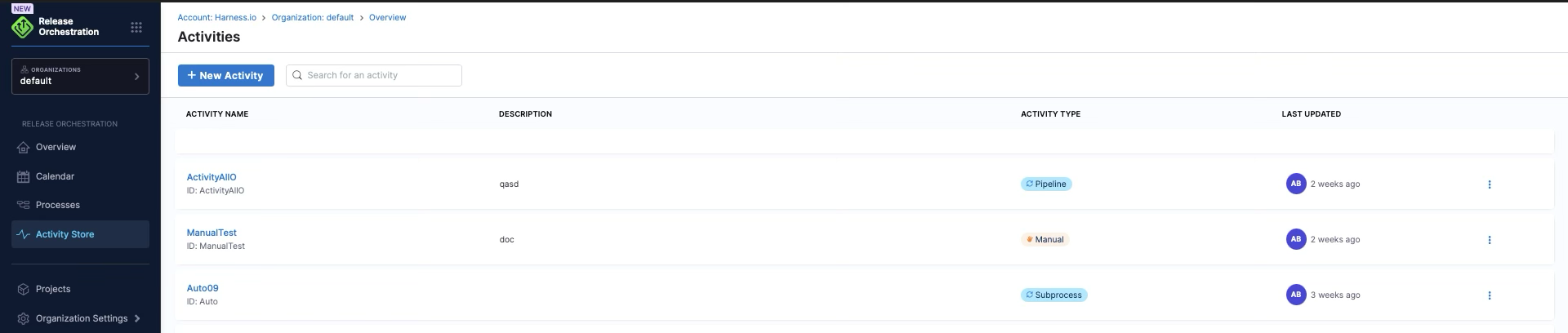
The activity store is a centralized repository where you define reusable activities that can be referenced across multiple release processes. It promotes consistency, reduces duplication, and accelerates process creation by providing a library of pre-configured activities.
What is the Activity Store?
The Activity Store is a collection of activity definitions that you create and maintain for your organization. Each activity encapsulates its complete configuration: inputs, outputs, and the underlying pipeline or manual steps it executes. Multiple processes can reference the same activity definition without copying it. This centralized approach ensures consistent execution and makes updates easier — change the definition once, and all referencing processes pick up the change on their next execution.
Think of it as a library of pre-configured activities that processes can reference, similar to how a code library provides reusable functions.
Why Use the Activity Store?
Consistency across processes
When you define an activity once in the store, every process that references it uses the same configuration. This ensures standardized implementations across release workflows with consistent execution behavior and uniform input/output contracts. Configuration drift between teams is significantly reduced because everyone references the same centralized definition rather than maintaining separate copies.
Reduce duplication
Without the activity store, you would define the same activity configuration repeatedly in each process. The store eliminates this duplication by allowing you to define an activity once and reference it many times across different processes. Updates happen in one place and apply everywhere the activity is used. This approach avoids copy-paste errors and maintains a single source of truth for each activity's configuration.
Accelerate process creation
Using pre-configured activities from the store speeds up process development significantly. Instead of configuring activities from scratch, you select proven configurations from the store. This allows you to leverage organizational best practices and focus on orchestration logic rather than activity implementation details.
Activity Types in the Store
The activity store can contain any type of activity supported by Release Orchestration. Automated activities execute Harness pipelines automatically and include build activities that compile code and create artifacts, deployment activities that deploy to environments, testing activities that run test suites, and integration activities that trigger external systems.
Manual activities require human intervention and include approval activities for review and sign-off gates, verification activities for manual validation steps, and communication activities for coordination tasks. Signal activities wait for external events and include webhook activities that wait for incoming webhook signals and queue activities that wait for messages from external systems.
How Activities Flow from Store to Process
When you use an activity from the store in a process, you're creating a reference to that activity definition, not a copy. Here's how it works:
1. Define Activity in Store
Create the activity in the store with a unique identifier (such as build_backend_service), the inputs it expects (such as SERVICE_NAME and BRANCH), the outputs it produces (such as BUILD_VERSION and ARTIFACT_URL), and its execution configuration. For automated activities, this includes the pipeline to execute. For manual activities, it includes the instructions or approval requirements.
2. Reference Activity in Process
In your process YAML, reference the activity:
phases:
  - phase:
      id: build_phase
      name: Build Phase
      activities:
        - activity: build_backend_service  # References store activity
          id: build_backend
3. Provide Inputs at Process Level
The process supplies values for the activity's inputs via process input configuration:
processInput:
  phases:
    - id: build_phase
      activities:
        - id: build_backend
          inputs:
            SERVICE_NAME: "auth-service"
            BRANCH: <+globalInput.release_branch>
4. Execute Activity
When the release runs:
- The system resolves the activity reference from the store
- Merges process-provided inputs with activity defaults
- Executes the activity with the resolved configuration
- Captures outputs for use by later activities
Create activities in the store
Use the UI
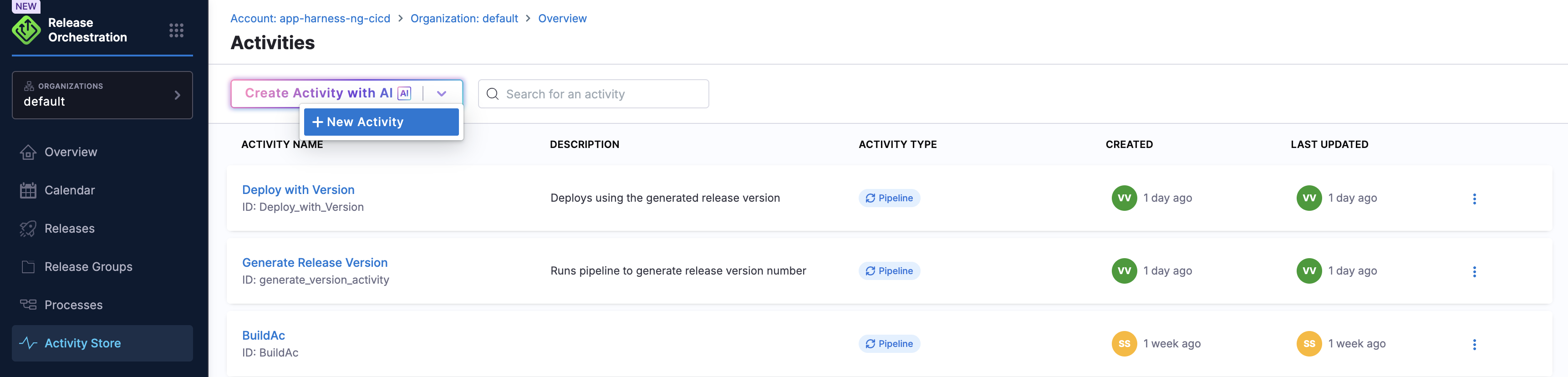
Navigate to Release Orchestration and select Activity Store, then click the "+ New Activity" button to begin creating a new activity definition.
Step 1: Configure Activity Overview
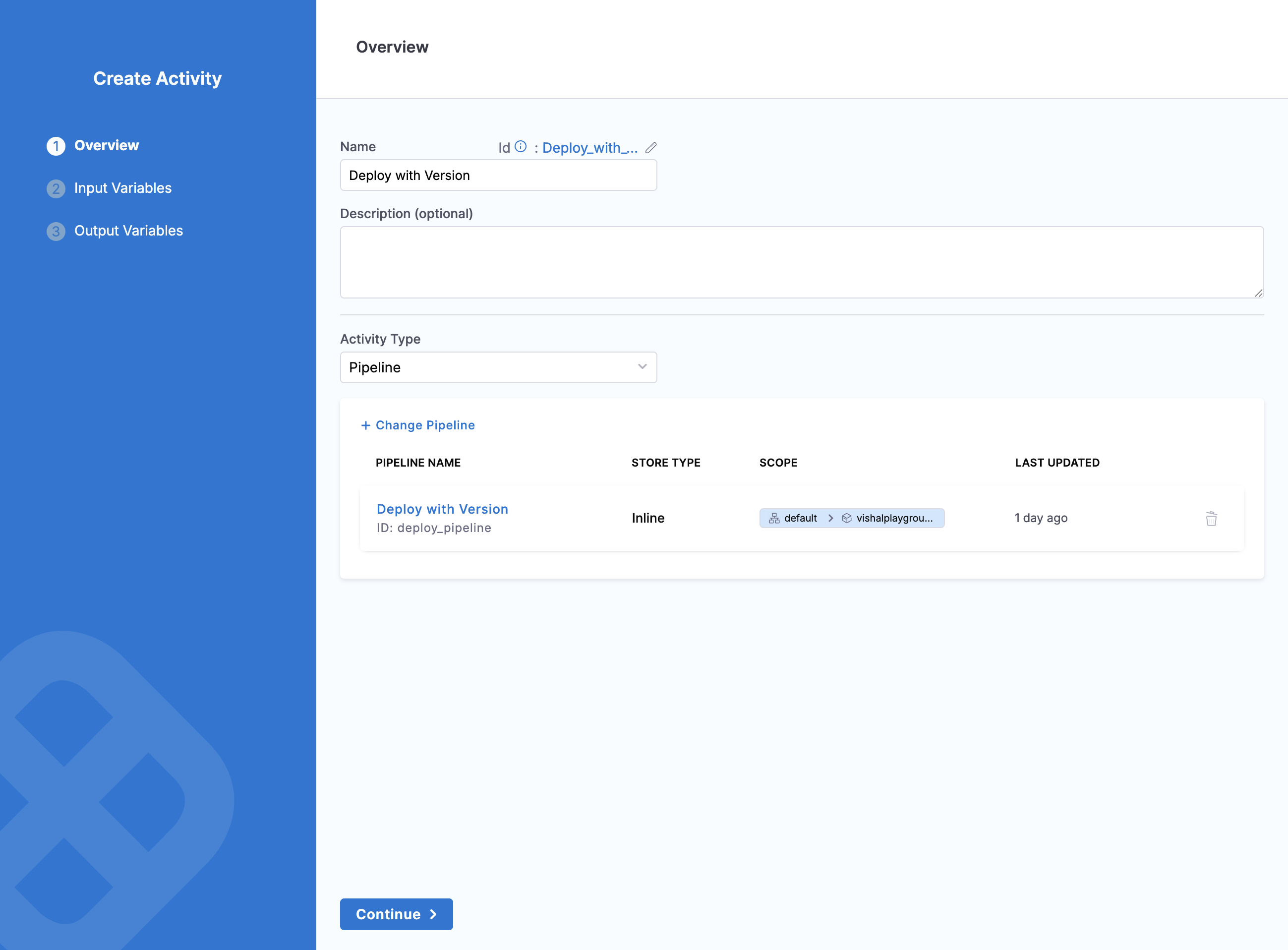
In the Overview step, configure the basic details of your activity. Provide a unique name for the activity (such as Deploy with Version), optionally add a description explaining its purpose, and select the activity type. For pipeline activities, choose the pipeline you want to execute by clicking "Change Pipeline" and selecting from the available pipelines in your project.
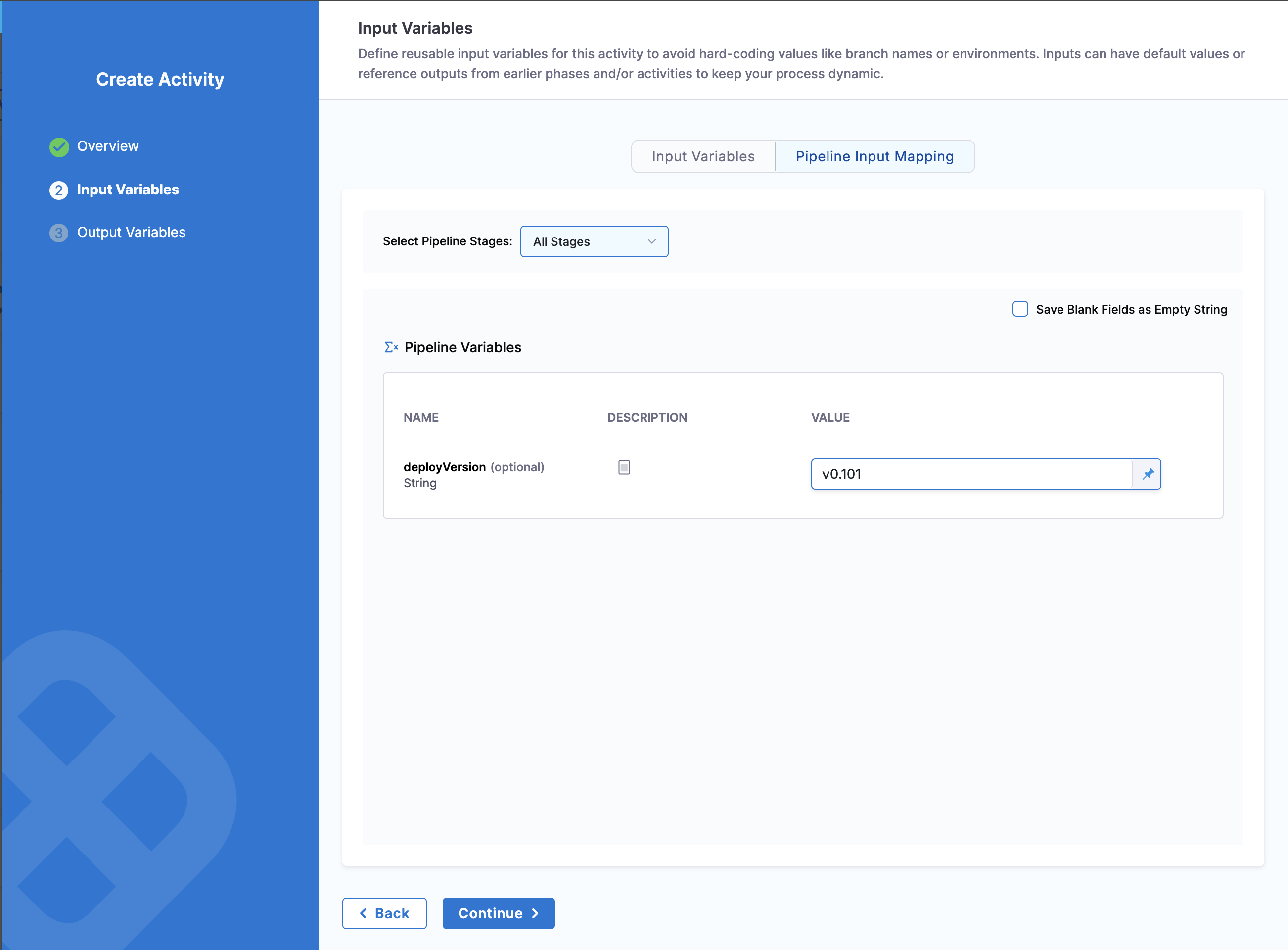
Step 2: Define Input Variables
In the Input Variables step, define the inputs that this activity expects. Click "+ New Variable" to add each input, providing a name (such as version), selecting the type (String, Number, Secret, etc.), and optionally setting a default value. These inputs will be supplied by processes when they reference this activity.
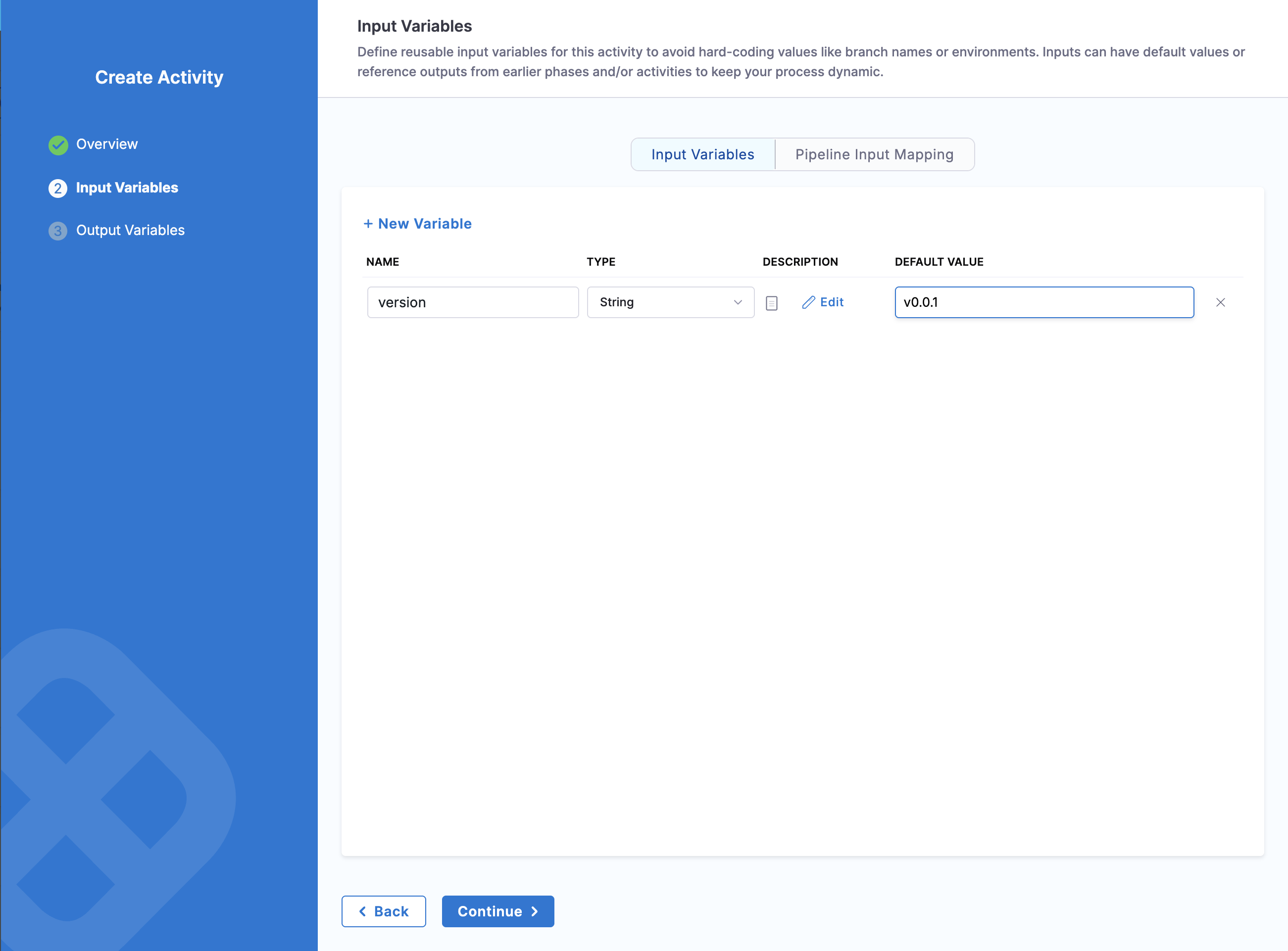
Under the Pipeline Input Mapping tab, you can map the activity inputs you just defined to your pipeline's variables. Select which pipeline stages to include, then map each activity input to the corresponding pipeline variable using expressions like <+activityInput.version>.
Step 3: Configure Output Variables (Optional)
In the Output Variables step, define any outputs you want to capture from the pipeline execution. Click "+ New Output Variable" to add outputs that reference pipeline output variables using Harness expressions. These outputs can then be used as inputs to later activities in your release process.
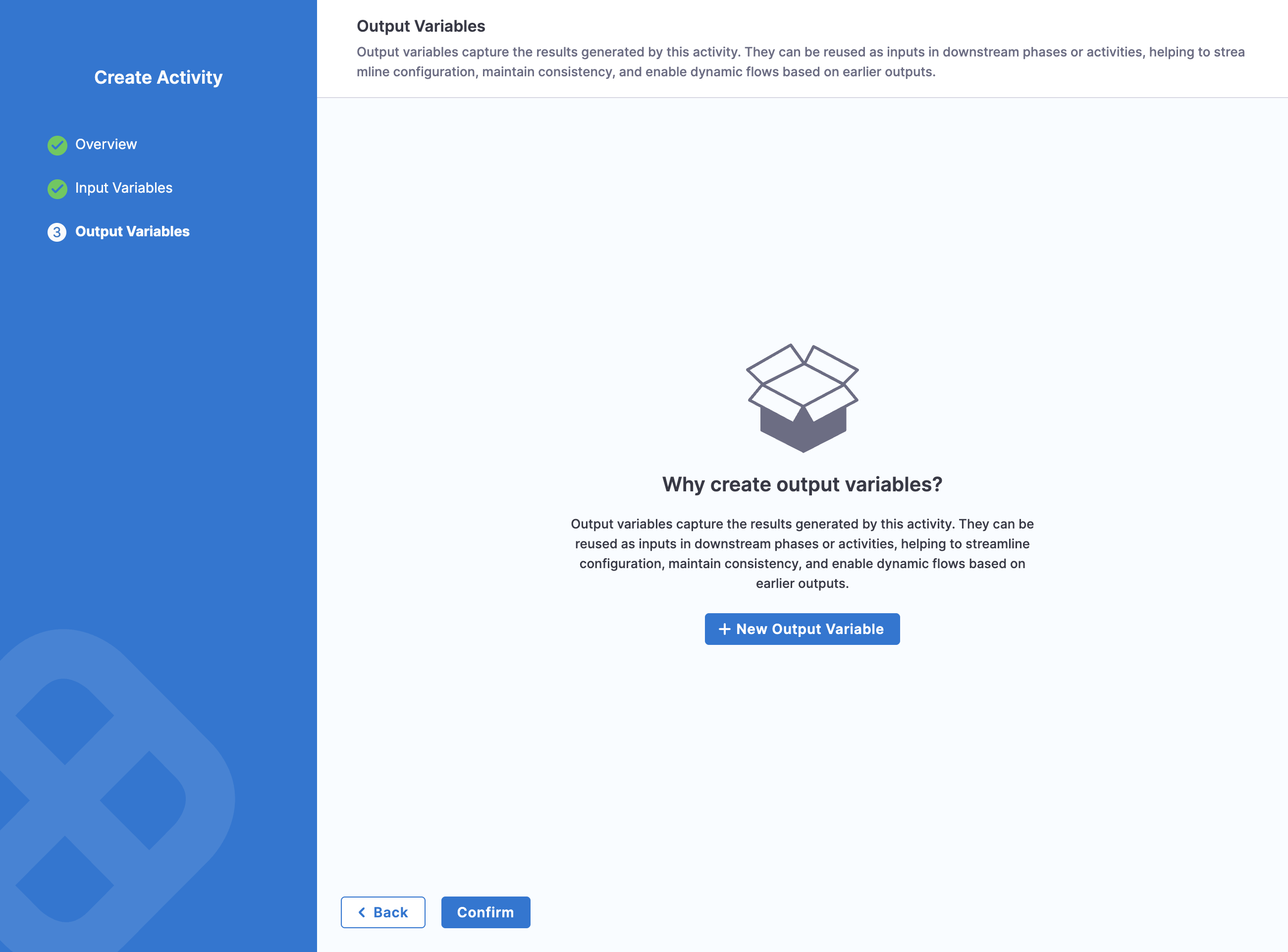
After configuring all settings, click "Confirm" to save the activity to the store. The activity will appear in the Activity Store list and becomes available for processes to reference.
Use YAML
You can also create activities by defining YAML:
activity:
  id: build_backend_service
  name: Build Backend Service
  description: Compiles backend service and creates Docker image
  inputs:
    SERVICE_NAME:
      type: string
      default: "default-service"
    BRANCH:
      type: string
      default: "main"
  outputs:
    BUILD_VERSION: <+pipeline.stages.build.spec.execution.steps.version.output.outputVariables.VERSION>
    ARTIFACT_URL: <+pipeline.stages.build.spec.execution.steps.publish.output.outputVariables.URL>
  pipeline:
    pipeline: org/project/build_pipeline
    inputSet:
      variables:
        - name: serviceName
          value: <+activityInput.SERVICE_NAME>
        - name: branch
          value: <+activityInput.BRANCH>
Use activities from the store
In Process Definition
Reference activities by their identifier:
phases:
  - phase:
      id: deployment
      activities:
        - activity: deploy_to_production  # Store reference
          id: prod_deploy_instance
Provide input values
Configure inputs via process input:
processInput:
  phases:
    - id: deployment
      activities:
        - id: prod_deploy_instance
          inputs:
            ENVIRONMENT: "production"
            VERSION: <+phase.build.activity.build_app.outputs.BUILD_VERSION>
View activity details
To inspect an activity from the store, navigate to the Activity Store and click on the activity name. This opens the activity details view where you can see its inputs, outputs, and complete configuration. You can also see which processes currently reference this activity.
Update activities in the store
When you update an activity in the store, the changes affect all processes that reference it. This is powerful but requires care.
Update Impact
Processes using the activity will use the updated definition on their next execution. Running releases continue using the definition from when they started, ensuring no mid-flight changes disrupt in-progress releases. Historical releases remain unchanged and continue to reflect the activity configuration that was active when they ran.
Best practices for updates
Before updating a widely-used activity, test changes in a non-production process to verify behavior. Coordinate with teams using the activity and notify them about upcoming changes that might affect their workflows. For breaking changes that alter the activity's interface or behavior significantly, create a new activity with a versioned name (such as deploy_v2) rather than modifying the existing one. When possible, update incrementally with small, backward-compatible changes to minimize disruption.
Delete activities
You can delete activities from the store only if no processes currently reference the activity and the activity is not in use by any running releases. If processes reference the activity, you must first update those processes to remove the reference before deleting the activity from the store.
Activity Store Organization
Naming conventions
Use clear, descriptive identifiers that explain the activity's purpose. Good examples include deploy_backend_to_staging, run_integration_tests, and security_approval_gate. Avoid generic names like activity1 or temp_deploy that don't convey meaning.
Grouping by purpose
Organize activities logically using consistent prefixes. Build activities use the build_* prefix, deployment activities use deploy_*, testing activities use test_*, and approval activities use approval_*. This naming convention makes it easier to find activities when browsing the store.
Common Use Cases
Standardized Deployment Activity
Create a deployment activity that all teams use for production deployments:
activity:
  id: standard_prod_deploy
  name: Standard Production Deployment
  inputs:
    SERVICE_NAME:
      type: string
    DEPLOYMENT_STRATEGY:
      type: string
      default: "rolling"
  pipeline:
    pipeline: org/platform/production_deployment_pipeline
Teams reference this activity in their processes, ensuring consistent deployment practices.
Reusable Approval Gate
Define a manual approval activity for production releases:
activity:
  id: prod_approval_gate
  name: Production Approval Gate
  description: Requires approval from release manager before production deployment
Every production process references this activity, ensuring no deployments bypass approval.
Dynamic Version Generator
Create an activity that generates release version numbers:
activity:
  id: generate_release_version
  name: Generate Release Version
  outputs:
    RELEASE_VERSION: <+pipeline.stages.version.spec.execution.steps.gen.output.outputVariables.VERSION>
  pipeline:
    pipeline: org/platform/version_generator
Later activities reference <+phase.version.activity.generate_release_version.outputs.RELEASE_VERSION> for consistent versioning.