Custom Script Action
What is a Custom Script Action?
A Custom Script Action allows you to execute custom scripts or commands during chaos experiment execution. This provides powerful flexibility to:
- Run custom validation logic beyond standard probes
- Perform setup or cleanup operations specific to your environment
- Execute application-specific commands or API calls
- Integrate with external systems, tools, or monitoring platforms
- Implement complex business logic validation
- Perform data collection or analysis during experiments
When to Use Custom Script Actions
Custom Script Actions are particularly valuable in the following scenarios:
Custom Validation
- Business Logic Validation: Verify application-specific business rules
- Data Integrity Checks: Validate data consistency across systems
- Performance Metrics: Collect custom performance measurements
- Complex Assertions: Implement validation logic that goes beyond simple HTTP checks
System Integration
- External API Calls: Interact with external services or APIs
- Database Operations: Perform database queries or validations
- File System Operations: Check file system state or perform file operations
- Network Diagnostics: Run custom network connectivity tests
Environment Setup/Cleanup
- Pre-experiment Setup: Prepare the environment before chaos injection
- Post-experiment Cleanup: Clean up resources after experiment completion
- State Preparation: Set up specific system states required for the experiment
- Resource Management: Manage test data or temporary resources
Monitoring and Alerting
- Custom Metrics Collection: Gather application-specific metrics
- Alert Validation: Verify that alerts are triggered correctly
- Log Analysis: Parse and analyze application logs
- Dashboard Updates: Update custom dashboards or reporting systems
How to configure a Custom Script Action
Step 1: Create a New Action
-
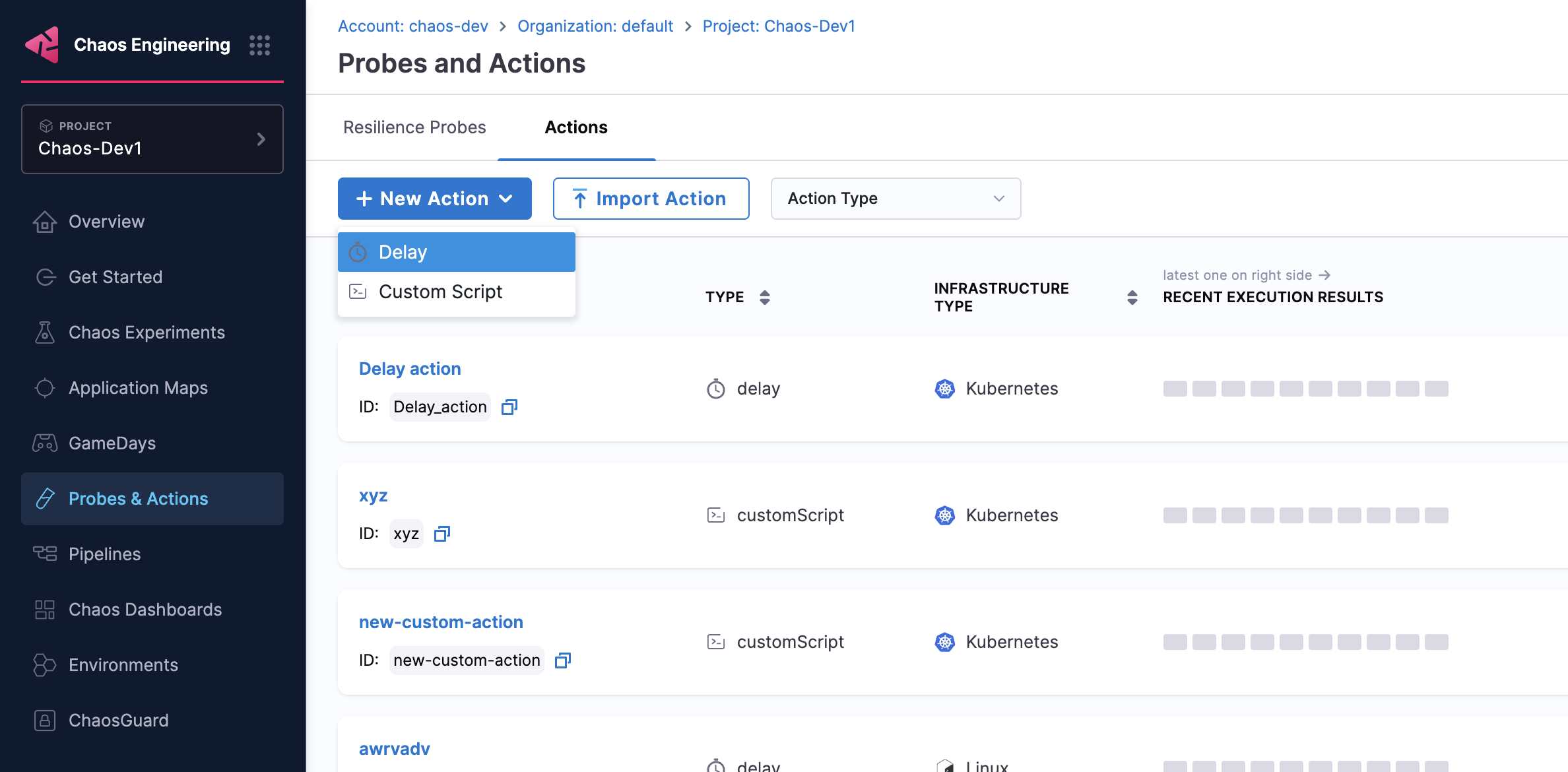
Navigate to your Probes & Actions and go to the Actions tab
-
Click New Action and select Custom Script from the dropdown.
Step 2: Configure Script Parameters
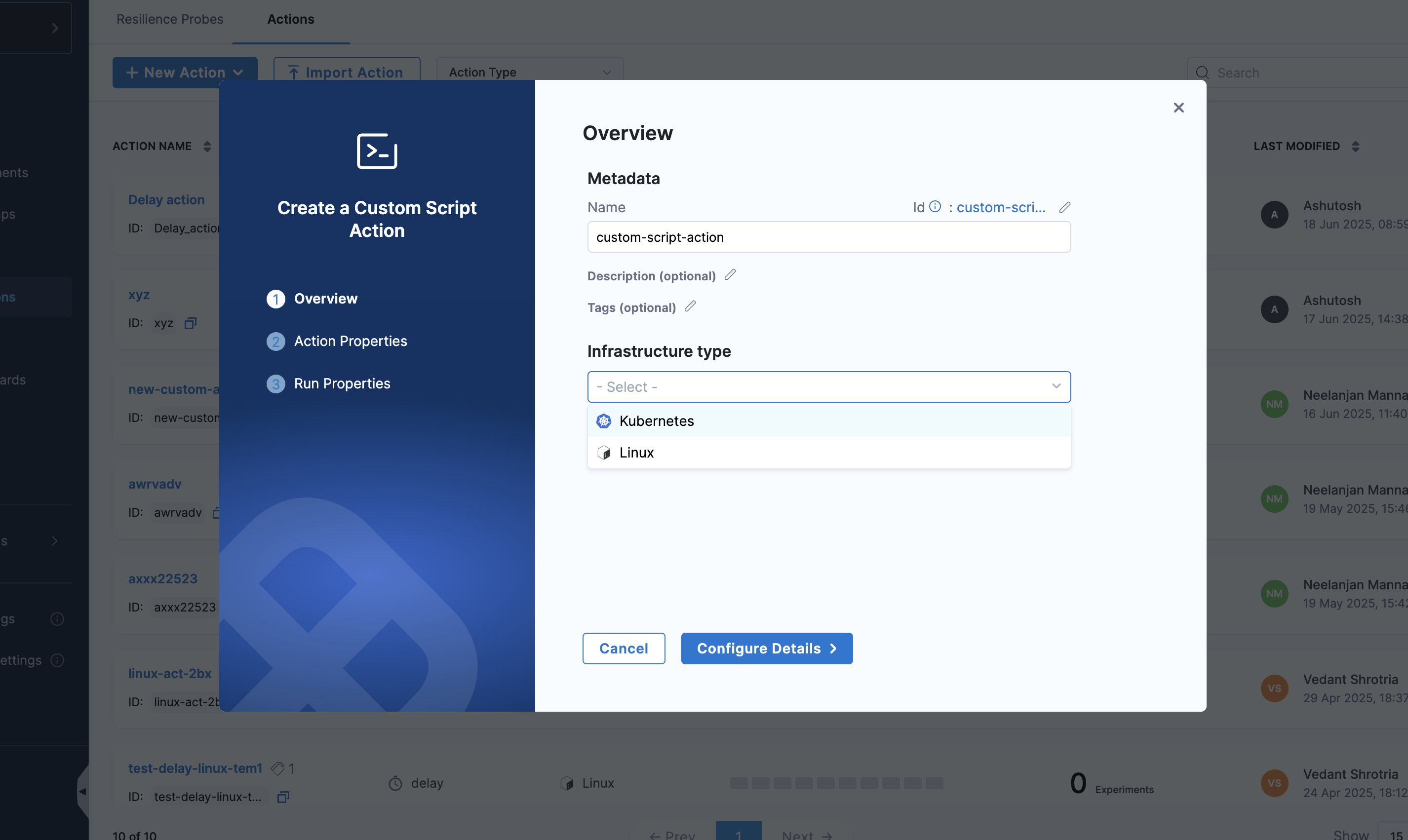
Configure the following parameters for your custom script action:
-
Action Name: Provide a descriptive name for the custom script action
-
Infrastructure Type: Select the target infrastructure (e.g., Kubernetes)
Step 3: Configure Action Properties
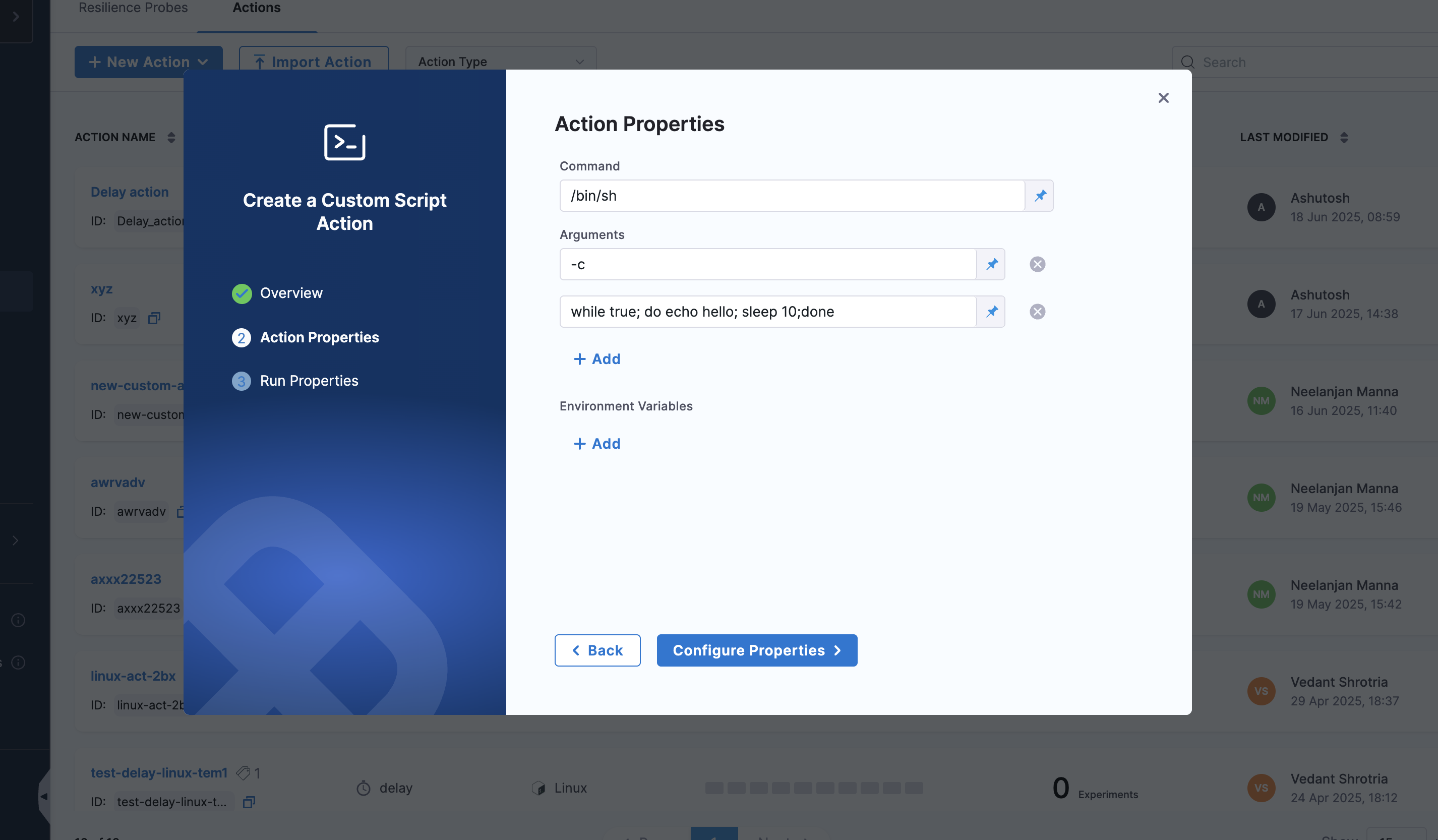
In the Action Properties section, configure the script details:
- Command: Enter the command or script to execute (e.g.,
/bin/sh) - Arguments: Add command arguments or script parameters
- You can add multiple arguments by clicking the Add button
- Each argument can be edited or removed using the edit/delete icons
- Environment Variables: Define environment variables needed by the script
-
Click Add to add new environment variables
-
Set key-value pairs for variables your script requires
-
Step 4: Position the Action
Place the custom script action at the appropriate point in your experiment workflow:
- Pre-experiment: Setup or validation before chaos injection
- Mid-experiment: Validation or data collection during chaos
- Post-experiment: Cleanup or final validation after chaos
- Between Phases: Transition logic between different experiment phases
Next Steps
- Learn about Delay Actions
- Explore experiment timeline view (see Experiments documentation)
- Create experiments with actions
- Learn about Probes